
Losing a phone is one of those moments that hits you in the stomach. In the span of a few seconds, everything changes — your contacts, your photos, your banking apps, your messages, your entire digital life is suddenly in someone else’s hands, or sitting forgotten somewhere you cannot quite remember. Whether it slipped out of your pocket on the subway, got left behind at a restaurant, or was taken outright, the clock starts ticking the moment you realize it is gone.
The good news is that modern smartphones — both Android and iPhone — come equipped with powerful built-in tools that can help you locate a missing device, lock it remotely, and even erase your data before anyone can access it. And if you take a few simple steps before a phone goes missing, your chances of recovering it improve dramatically.
This guide walks through everything you need to know: what to do in the first few minutes, how to track a lost Android phone, how to track a lost iPhone, and how to protect your privacy once you accept the device may not be coming back. We will also cover what to do if you are trying to help locate a family member’s phone, and answer the most common questions people have when they are in the middle of this stressful situation.
Quick tip before we go further: The best time to set up phone tracking is right now, before your phone goes missing. Most tracking features need to be enabled in advance to work. If your phone is already lost, skip to the relevant section — there are still options available.
What to Do First: The Immediate Steps Before You Start Tracking
When you first notice your phone is gone, it is easy to panic. But the actions you take in the first few minutes can make a significant difference in whether you recover the device or at least protect what is on it.
Try Calling or Ringing It First
The simplest thing to do before anything else is to have someone call your number. If the phone is close by — in a couch cushion, a jacket pocket, left at a desk at work — you might hear it ring. If it is set to silent or Do Not Disturb, you can send a ring command through Google’s Find My Device or through a Google Home smart speaker by saying “Hey Google, find my phone.” This will trigger a loud ringtone even if the phone is muted.
For iPhone, you can do the equivalent through the Find My app or iCloud, triggering a sound alert remotely.
Secure Your Accounts Immediately
If the phone is gone and you suspect it has been stolen rather than misplaced, your first instinct should not only be to find the device — it should be to cut off access to everything on it. Change the password for your primary email account right away, since email is often the gateway to resetting passwords for every other account you own. Then change the passwords for your banking, social media, and any other sensitive apps.
Enable two-factor authentication (2FA) on any account that does not already have it. This ensures that even if someone knows your login credentials, they cannot access your accounts without a secondary verification code.
Add Information to Your Lock Screen (for Next Time)
If you are reading this before your phone ever goes missing, this is one of the most effective low-tech safety nets available: add a secondary contact number or email address to your lock screen. Something like “If found, please contact [email or phone number]” can turn an honest finder into a hero. You do not need to give your name — just a way to reach you.
The caveat is obvious: this only works if the phone is still powered on and you add the information before it goes missing. Most Android and iPhone devices allow you to set a custom lock screen message in the security or display settings.
How to Track a Lost or Stolen Android Phone
Android offers several robust options for tracking a missing device. Which one you use depends on what you set up beforehand and whose device you are looking for.
Method 1: Google Find My Device (The Fastest Free Option)
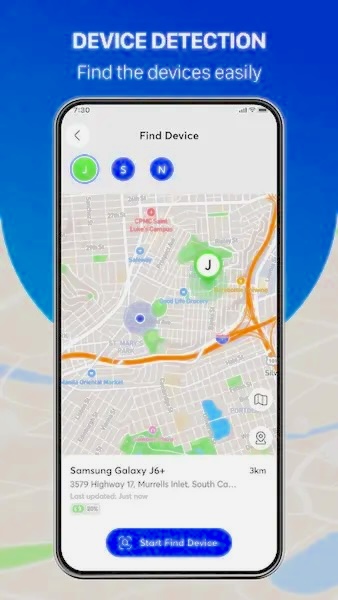
Google Find My Device is the official built-in tracking solution for Android. If your phone is connected to a Google account, has location services enabled, and is connected to the internet, you can use this tool to pinpoint its location on a map in real time.
Even if the phone has been switched off, Find My Device will show you the last known location — the place where the device was when it last had power and connectivity. This alone is often enough to narrow down where a phone was lost or taken.
What you need:
- A Google account linked to the device
- Location access enabled on the device prior to loss
- An internet connection on the device (Wi-Fi or mobile data)
What you can do from the Find My Device dashboard:
- See the device’s current or last known location on a map
- Make the phone play a loud sound for five minutes, even if it is on silent
- Lock the device with a new PIN and display a custom message on the lock screen — useful for leaving a contact number for a finder
- Erase all data on the device remotely if you believe it has been stolen and recovery is unlikely
Step-by-step:
Step 1. Go to google.com/android/find from any browser, or download the Find My Device app from the Google Play Store on another Android device and sign in as a guest.
Step 2. Sign in with the Google account linked to the lost phone.
Step 3. Select the device you want to locate from the list of devices associated with that account.
Step 4. The map will display the device’s approximate current location, or its last known location if it is offline.
Step 5. Choose one of the three actions — Play Sound, Secure Device (lock with PIN and message), or Erase Device — depending on your situation.
One important limitation: if the device has been factory reset or signed out of the Google account, Find My Device will no longer be able to locate it. This is why acting quickly matters.
Method 2: Samsung Find My Mobile (For Samsung Galaxy Users)
Samsung Galaxy users have an additional advantage beyond Google’s system. Samsung offers its own independent tracking platform called Find My Mobile, which works through your Samsung account rather than your Google account. This means it can function in some scenarios where Google’s service cannot.
Find My Mobile has several features that go beyond what Google offers, including the ability to back up data from the locked device, retrieve call logs and message history, and even extend battery life remotely — potentially buying you more time to locate the phone before it dies.
What you need:
- A Samsung account linked to the device
- Remote controls enabled in the Samsung account settings on the device before it was lost
What you can do:
- Locate the device on a map in real time
- Lock the device remotely
- Ring the device
- Retrieve call and message history
- Back up data on the device
- Extend battery life
- Erase the device
Step-by-step:
Step 1. Go to findmymobile.samsung.com from any browser.
Step 2. Sign in with your Samsung account credentials.
Step 3. Select the device you want to locate from your registered devices.
Step 4. Use the control panel on the left side of the screen to perform the desired action — locate, ring, lock, or erase.
If you own a Samsung phone, it is worth taking five minutes right now to verify that Find My Mobile is enabled in your phone’s settings. Go to Settings → Biometrics and security → Find My Mobile and ensure the toggle is switched on.
Method 3: Using a Family Locator or Parental Control App
Standard tracking tools like Find My Device work well for your own phone. But what if the phone that is lost or stolen belongs to a child, and you want real-time visibility, ongoing location history, and remote monitoring rather than just a one-time map ping?
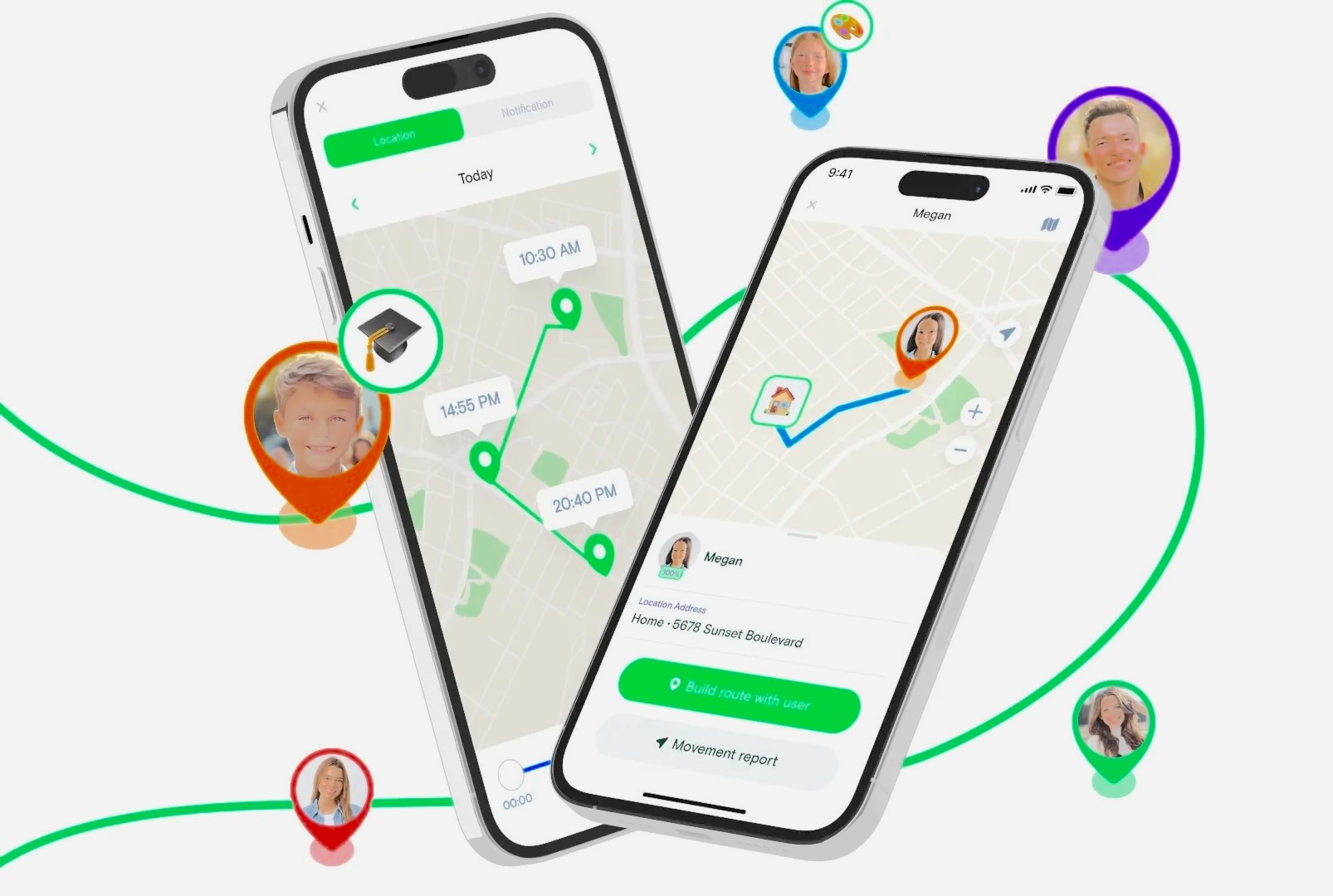
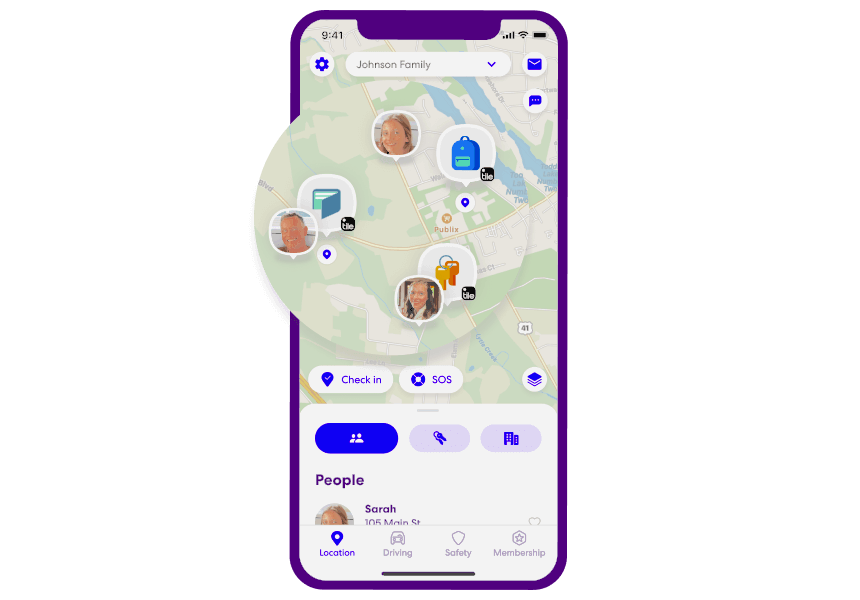
This is where a dedicated family locator app serves a different and more comprehensive purpose. One option in this category is MyParental Parental Control, which combines real-time location tracking with a broader set of remote monitoring tools.
When both devices are paired and connected through the app, you can track the lost phone’s location continuously, not just at the moment you query it. You can also use the app’s remote camera feature to see the phone’s surroundings and the one-way audio function to listen to what is happening around the device — both of which can be useful if you believe a child’s phone has been taken or if you need to verify the phone’s environment before deciding on next steps.
MyParental also includes low battery alerts, which notify you the moment the paired device drops to a critical power level. This gives you a chance to lock or locate the device before it goes offline entirely.
Key features:
- Real-time GPS location tracking
- Remote camera access to view the phone’s surroundings
- One-way audio to listen to ambient sounds near the device
- Low battery alert notifications
- Screen mirroring to monitor device activity remotely
How to set it up:
Step 1. Download and install the MyParental Parental Control app on your device from the Google Play Store. Create an account and log in.
Step 2. Follow the in-app instructions to install the companion app (MyParental Kids) on the second device — the one you want to be able to track.
Step 3. Bind the two devices together using your account. Once paired, the connection is persistent.
Step 4. To locate the second device at any time, open the MyParental dashboard on your device and tap the Location icon.
Step 5. If you need to check the surroundings of the lost phone, tap Remote Camera. To listen to nearby audio, use the One-Way Audio feature.
This tool is particularly well-suited for parents whose child’s phone has gone missing and who want more information than a static map pin can provide. You can also access monitoring features through the MyParental web panel at webparent.MyParental.com without needing the app open on your device.
Method 4: Contact Your Wireless Carrier
Your mobile carrier may be able to assist with locating or disabling a stolen device. Many major carriers offer family location services or can place a block on a reported stolen device so it cannot be activated on any network within the country.
If you are a T-Mobile customer in the United States, for example, T-Mobile FamilyWhere provides location-sharing features for devices on your plan. AT&T, Verizon, and other carriers have similar tools under different names.
Beyond location services, contacting your carrier allows you to:
- Suspend service on the stolen device to prevent unauthorized calls, texts, or data usage
- Deactivate your SIM card if needed
- Report the device IMEI as stolen, which adds it to a national blocklist that prevents it from being reactivated with any domestic carrier
Call the customer service number on your carrier’s website or visit a store in person. Have your account number and the device’s IMEI number ready if possible. The IMEI can often be found on your account portal or on the original phone packaging.
Method 5: Use a Smart Speaker to Ring Your Phone at Home
If you know your phone is somewhere inside your house and you just cannot find it, a smart speaker can save you several minutes of frantic searching.
If you have a Google Home device or any smart speaker with Google Assistant, and your phone is signed into the same Google account, simply say: “Hey Google, find my phone.” The assistant will confirm and trigger a ring alert on your phone at full volume — even if it is on silent or vibrate mode. This works as long as the phone is powered on, connected to the internet, and within earshot.
Similarly, if you have an Amazon Alexa-compatible device and use it with a supported phone, you can use voice commands to trigger alerts through certain connected services.
How to Track a Lost or Stolen iPhone
Apple’s ecosystem is tightly integrated when it comes to device tracking. If you have an Apple ID and had Find My enabled before the device went missing, you have access to one of the most capable tracking systems available on any consumer device.
Method 1: Find My App on Another Apple Device
The Find My app is built into every iPhone, iPad, and Mac running modern versions of Apple’s operating systems. If you have another Apple device signed into the same Apple ID — or if a family member has added your device to a Family Sharing group — you can use the Find My app on that device to locate your lost iPhone.
One of the most impressive features of Find My on iPhone is the Find My Network, which uses Bluetooth signals from hundreds of millions of Apple devices worldwide to relay the location of your missing phone even when it is not connected to Wi-Fi or cellular data. This means your iPhone can be located even when it is offline, as long as another Apple device passed near it recently.
Step-by-step:
Step 1. Open the Find My app on your iPad, Mac, or another iPhone signed into your Apple ID.
Step 2. Tap the Devices tab at the bottom of the screen.
Step 3. Select your lost iPhone from the list. Its location will appear on the map. If it is offline, you will see its last known location with a timestamp.
Step 4. Tap the device name for options: Play Sound, Directions (opens Apple Maps to navigate to the device’s location), Mark As Lost (activates a lock and displays a custom message with a contact number), or Erase This Device.
Step 5. If you tap “Mark As Lost,” you can enter a phone number to display on the lock screen and an optional message. The device will lock immediately if online, or as soon as it connects to the internet if currently offline.
The Find My Network feature stores last known location data for up to seven days, giving you a reasonable window to act even if the phone was lost or switched off a day or two before you noticed.
Method 2: iCloud Find My (From Any Web Browser)
If you do not have another Apple device handy, you can access Find My through iCloud.com from any web browser — on a Windows PC, a friend’s laptop, a library computer, or any device with internet access.
Step-by-step:
Step 1. Go to icloud.com/find in any browser.
Step 2. Sign in with your Apple ID and password. You may be prompted for a two-factor authentication code.
Step 3. All devices associated with your Apple ID will appear on the map. Click “All Devices” in the toolbar and select your lost iPhone.
Step 4. The map will display the device’s current location or last known location. If the device is showing as offline, a timestamp indicates when it was last seen.
Step 5. Use the options panel to Play Sound, activate Lost Mode, or Erase iPhone.
Note that Lost Mode automatically disables Apple Pay on the device, displays your chosen contact message on the lock screen, and begins tracking the device’s movements, sending you email notifications when its location updates.
If the device has been completely powered off for more than 24 hours and the Find My Network has not detected a Bluetooth signal from it, it may appear as “No location found.” However, the location data will update automatically the next time the device powers on or connects to any network.
Method 3: Use the Apple Watch to Locate a Nearby iPhone
If your iPhone is somewhere nearby — another room, under furniture, somewhere close — and you are wearing an Apple Watch, you can use the Watch’s built-in ping feature to find it quickly and quietly.
This method is particularly useful when you know the phone is in your home or office but cannot locate it precisely.
Step-by-step:
Step 1. Swipe up on your Apple Watch face to open the Control Center.
Step 2. Tap the iPhone ping icon (it looks like a phone with signal waves).
Step 3. Your iPhone will play a sound at full volume for approximately two minutes, even if it is on silent. The screen will also flash, making it easier to spot in a dark room.
Step 4. If you press and hold the ping button on the Apple Watch, the iPhone’s flashlight will also activate, making it much easier to spot under furniture or in a dark corner.
This does not use the internet or GPS — it works via Bluetooth proximity, so the phone must be within Bluetooth range (roughly 30 feet or so in typical home conditions).
Method 4: Find My App on a Friend’s iPhone
If you do not have your own secondary Apple device and need to use someone else’s iPhone to locate your device, you can sign into the Find My app temporarily using your own Apple ID.
Step-by-step:
Step 1. Open the Find My app on your friend’s iPhone or iPad.
Step 2. Tap the Me tab at the bottom. If they are signed in, tap their name and sign them out from this device temporarily.
Step 3. Sign in with your own Apple ID.
Step 4. Tap the Devices tab and locate your missing iPhone on the map.
Step 5. Take the necessary action, then remember to sign out of the Find My app and allow your friend to sign back in when done.
This is a clean, contained way to use Apple’s system without sharing your full iCloud credentials broadly, since Find My’s sign-in is isolated from other iCloud data on the device.
Method 5: Use Google Maps Timeline (Android or iPhone)
This method is available to anyone who has Google Maps installed on their phone and has location history and reporting enabled — which applies to many Android users and quite a few iPhone users who use Google Maps regularly.
Google Maps Timeline keeps a record of everywhere your device has been, updated throughout the day as you move around. If your phone goes missing, you can review this timeline to see where it was last before you lost contact with it.
Step-by-step:
Step 1. Go to Google Maps on any browser or device and sign in with the Google account linked to the lost phone.
Step 2. Click the menu (three horizontal lines) and select “Your Timeline.”
Step 3. Click “Today” at the top of the screen to see the most recent location data.
Step 4. Scroll through the timeline to find the last recorded location before the phone went offline.
Step 5. Note whether the phone appears to be staying in one location (suggesting it is lost or left behind somewhere) or moving (suggesting it may have been taken).
The main limitation of this method is that it depends on location history being enabled before the phone went missing. If it was turned off, the timeline will not have recent data. But for users who keep location history active, this can be an incredibly useful tool — especially for tracing the path of a stolen device.
Protecting Your Privacy and Data After Losing a Phone
Finding the phone is the ideal outcome. But in reality, not every lost phone is recovered, and some stolen phones are never seen again. In those cases, your focus needs to shift from recovery to protection.
Step 1: Remotely Lock the Device
Both Android and iPhone allow you to lock the device remotely and display a custom message on the screen. This is often called “Lost Mode” on iPhone or “Secure Device” on Android.
For iPhone, activate this through the Find My app or iCloud. For Android, go to android.com/find and choose “Secure Device.” You can set a PIN and write a lock screen message with a contact number, giving an honest finder a way to reach you while keeping everything else inaccessible.
Activating Lost Mode on iPhone also automatically disables Apple Pay, preventing any unauthorized purchases.
Step 2: Change Your Account Passwords
Work through your most important accounts systematically. Start with your primary email, since this is the master key to everything else. Then move to banking and financial apps, social media accounts, cloud storage, shopping accounts with saved payment methods, and work-related apps.
As you change passwords, enable two-factor authentication on every account that supports it. This adds a verification layer that makes accounts significantly harder to access even with the correct password, because the attacker would also need access to a separate verification code sent to a different device or email address.
Step 3: Remotely Erase the Device
If you are confident the phone has been stolen and recovery is unlikely, erasing the device protects everything on it — your photos, documents, saved passwords, financial data, and personal communications.
For Android, go to android.com/find, select your device, and choose “Erase Device.” For iPhone, use the Find My app or iCloud.com/find and select “Erase This iPhone.”
Important caveat: once you erase the device, you can no longer track its location. Do not erase until you are ready to give up on recovery, or until you have exhausted other options.
Step 4: Notify Your Carrier and Report the IMEI
Contact your mobile carrier as soon as possible to suspend service on the stolen device. This prevents the thief from making calls, using your data plan, or running up charges on your account. Provide them with the device’s IMEI number (which you can find on your account portal, original box, or through your carrier’s records) so they can add it to a stolen device registry.
In many countries, reported stolen IMEIs are added to a national blocklist shared between carriers, rendering the phone unable to connect to any domestic network even if the SIM is swapped.
Step 5: File a Police Report
If you believe the phone was stolen rather than lost, file a report with your local police. Provide the device’s make, model, color, IMEI number, and any other identifying details. While police may not actively investigate individual phone thefts, having a formal report creates a paper trail that can be useful if the device is recovered and also for insurance claims.
The IMEI number in a police report also gives law enforcement the ability to flag the device if it surfaces in a pawn shop database or is brought in for service at a carrier store.
How to Be Better Prepared: Prevention Tips
The best outcomes in lost phone situations almost always belong to people who set things up before the phone went missing. Here is a quick checklist of things to do right now.
For Android users:
- Sign in to a Google account on the device and make sure it is linked in Settings → Google
- Go to Settings → Security → Find My Device and confirm it is enabled
- Enable Location services at all times (or at least “while using apps”)
- If you have a Samsung phone, go to Settings → Biometrics and security → Find My Mobile and turn it on, linked to your Samsung account
- Consider installing a family locator app if you have children or want continuous location tracking rather than on-demand pings
For iPhone users:
- Go to Settings → [Your Name] → Find My → Find My iPhone and ensure it is toggled on
- Enable “Send Last Location” in the same menu — this sends the device’s location to Apple automatically when the battery is critically low
- Enable “Find My Network” to allow offline location detection via other Apple devices
- Consider enabling Family Sharing so family members can locate each other’s devices easily
For both platforms:
- Add a lock screen message with an alternate contact number
- Note your device’s IMEI number and store it somewhere separate from the phone (email it to yourself or write it in a notebook)
- Keep the phone charged — a dead battery means no tracking
Frequently Asked Questions
Is there a completely free way to find a lost phone?
Yes. Both Google Find My Device for Android and Apple Find My for iPhone are completely free. You only need a Google account or Apple ID linked to the device before it was lost. No subscription or payment is required for either service.
Can I track someone else’s lost phone?
You can track someone else’s device if you have their Google account credentials (for Android) or Apple ID (for iPhone), or if their device has been added to a Family Sharing group that you manage. Without one of these access methods, you cannot track a device through official channels.
How do I find a lost iPhone without the Find My feature?
If Find My was not enabled before the phone went missing, your options are more limited but not zero. Google Maps Timeline can show you the last known location of the device if Google location history was active. You can also contact your carrier for assistance and file a police report with the IMEI number.
Can I find a lost iPhone that is turned off?
Yes, in many cases. If the “Send Last Location” feature was enabled, your iPhone sends its GPS coordinates to Apple automatically when the battery drops to a critically low level. This last known location stays visible in Find My for up to 24 hours after the phone powers off. Additionally, the Find My Network can detect the Bluetooth signal from certain iPhones even when they are powered off, depending on the device model and iOS version.
Can I track a lost Android phone without any app?
Yes. You can track a lost Android phone directly from android.com/find in any web browser, without downloading any app, as long as the device was linked to a Google account and had location services enabled. The website lets you locate, ring, lock, or erase the device.
What if the thief turns off the phone immediately after stealing it?
This is a common concern. In this scenario, Find My Device or Find My will show the last known location before the phone was powered off. That location data can still be valuable — it tells you where the phone was when it last had power, which may be near where it was taken. It will not track movement after that point, but it gives you a starting location to work from and can be included in a police report.
How do I track a lost phone without internet access on the device?
If the device is offline (no Wi-Fi and no mobile data), real-time tracking is not possible. However, both Google’s and Apple’s systems store the last known location and display it when you check. For iPhone, the Find My Network can relay location information via Bluetooth from nearby Apple devices, even without the lost phone having its own internet connection.
Should I confront someone I believe has my stolen phone?
This is strongly discouraged. If you believe someone has your stolen device based on tracking data, do not approach them yourself. Share the location information with local police and let them handle it. The risk of a confrontation going wrong is not worth the value of the device.
Final Thoughts
Losing a phone is a genuinely distressing experience, and the first few minutes after you realize it is gone are critical. The most important thing you can do right now — before you ever need to use this guide in an emergency — is to spend five minutes setting up the tracking features on your phone. Enable Find My Device or Find My, link your device to your account, turn on location services, and jot down your IMEI number somewhere safe.
If your phone is already missing, start with the most immediate options: ring it, check your tracking dashboard, and secure your most sensitive accounts. Work methodically through the steps in this guide, and remember that even if the device is not recovered, your data and accounts can still be protected with the right actions taken quickly.
The technology available today makes it more possible than ever to find a missing phone — but it only works if you set it up first.
App availability, features, and carrier services mentioned in this guide may vary by region. Links to official apps and services reflect those available at the time of writing. Always check the relevant platform’s official page for the most current information.