Block inappropriate content categories, enforce safe search, and maintain custom allow and block lists — across the apps and browsers your child actually uses. MyParental’s Web Filtering helps families create a safer browsing environment without locking down the internet entirely.
The Open Internet Was Not Designed for Children
It’s worth saying this clearly at the start, because most parental control marketing pretends otherwise: the open internet was not designed with children in mind. It was built by adults, for adults, with the assumption that users could navigate freely and make their own choices about what to engage with. The remarkable richness of the web is real, but so is the fact that within a few taps of any starting point, a child can encounter content that no responsible parent would knowingly hand them.
This isn’t a moral panic. It’s just the structure of the medium. A children’s gaming website has an ad network. The ad network serves an ad for an unrelated adult product. A child clicks the ad out of curiosity. They’re now on a page no parent would have chosen for them, with no warning that they crossed a line. This happens dozens of times a day, in small ways, across the entire web. The categories of risk are different at different ages, but the basic shape — that the internet’s default state is not curated for any particular child’s age, values, or family — is consistent.
Web Filtering exists to add a curation layer. Not to wall off the internet entirely. Not to pretend a child can be perfectly protected from every difficult thing online. But to remove the worst categories of risk from the default browsing experience, and to give parents the tools to shape the rest based on their own family’s standards.
This page is a thorough walk through how MyParental’s Web Filtering works, what it can and can’t do, and how to set it up in a way that produces a safer environment without becoming a daily source of friction.
What Web Filtering Actually Does
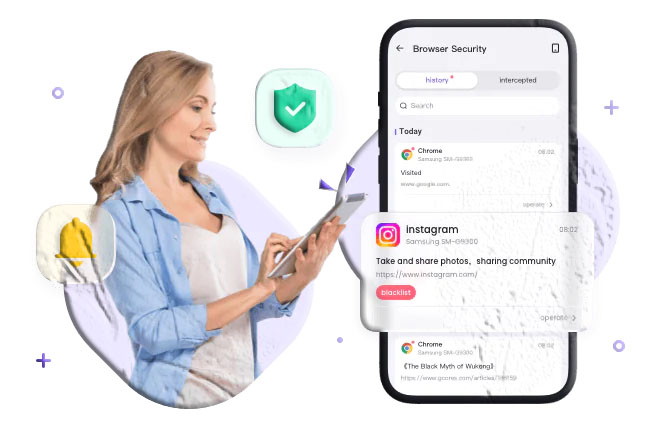
MyParental’s Web Filtering is organized around a few coordinated tools:
| Tool | What it does | Best for |
|---|---|---|
| Category-based filtering | Block broad categories of content (adult, gambling, violence, etc.) | Default safety baseline |
| Custom allow lists | Override blocks for specific sites your family is fine with | Personalizing to your standards |
| Custom block lists | Block specific sites that aren’t covered by category filters | Targeted restrictions |
| Safe search enforcement | Force safe search settings on major search engines | Reducing accidental exposure via search |
| Unsafe-site warnings | Show clear messages when a blocked site is accessed | Transparent enforcement |
| Per-child filtering tiers | Different strictness levels for different ages | Multi-child households |
Each tool has its own role. Most families end up using a combination — category filters as the default baseline, with custom lists for personalization, plus safe search.
Category-Based Filtering
The core of any web filtering system is the category-based filter. Rather than trying to maintain a list of every site to block (impossible — there are billions of pages), category filters use a regularly updated database that classifies sites by type.
Categories MyParental Filters
The standard category set includes:
- Adult content — explicit material, pornography, and sexually graphic content.
- Gambling — casino sites, online betting, sports gambling platforms.
- Violence and gore — graphic violent content, gore sites, related material.
- Drugs and alcohol — sites promoting drug use or alcohol consumption inappropriately for minors.
- Weapons — sites focused on weapons sales or use in ways that are inappropriate for minors.
- Hate and discrimination — sites promoting hatred against groups of people.
- Self-harm and eating disorders — sites that may encourage or normalize these behaviors.
- Phishing and malware — known malicious sites and fraud sites.
- Anonymizers and proxies — services designed to bypass filtering, often used to evade restrictions.
Several additional categories can be turned on or off based on family preference — for example, dating sites, social media platforms, video streaming, or shopping. These aren’t universally inappropriate, but families may want them filtered for specific ages.
Filtering Tiers
For each child, you can choose an overall strictness tier:
- Strict — blocks the broad category set plus social media, streaming, and other categories not appropriate for younger users.
- Moderate — blocks the obvious categories (adult, gambling, violence, malware, etc.) while allowing most general-purpose sites.
- Light — blocks only the most serious categories (adult, gambling, hate, malware, self-harm) and otherwise leaves the web open.
The right tier depends on age and the specific child. A six-year-old is well served by Strict. A fifteen-year-old probably needs Light or a customized version of Moderate. The tiers are starting points; the custom lists are how families personalize from there.
How Category Lists Are Maintained
The category database is updated regularly to reflect new sites and shifting content. The web changes constantly — a site that was appropriate yesterday can host different content today, and new sites are created continuously. A static block list wouldn’t work; a regularly updated category system does.
That said, no category database is perfect. Some sites are classified differently than a family might prefer. Some borderline sites slip through. Some genuinely appropriate sites get incorrectly classified. The custom allow and block lists are how families handle these edge cases.
Custom Allow Lists
Sometimes a site falls in a blocked category but is genuinely fine for your family. A school portal that the filter has misclassified. A reference site with mature content presented in an educational context. A specific blog the family knows and trusts.
Custom allow lists let you whitelist these sites. Once added, they’re accessible regardless of what the category filter would otherwise do.
Common Uses for Allow Lists
- School and educational sites that occasionally cover sensitive topics in age-appropriate ways.
- Health and medical resources that some category filters block reflexively.
- Reference sites that include mature material in an academic context — encyclopedias, news organizations, research repositories.
- Family-trusted blogs and sites that the household has approved.
- Communication tools required for school, work, or family coordination.
The allow list operates per child, so a teenager’s allow list can be different from a younger sibling’s. This matters because the educational and reference sites that make sense for an older child often aren’t appropriate for a younger one.
Custom Block Lists
The mirror image of allow lists. Sometimes a specific site needs to be blocked even though the category filter doesn’t catch it.
Common Uses for Block Lists
- A specific site that’s been a source of trouble in the family’s experience.
- Sites that fit a blocked category but aren’t yet classified. When the family knows about it before the database catches up.
- Time-wasting sites that are technically fine but the family has decided against.
- Specific platforms or services the family is steering the child away from for now.
The block list is most useful for targeted, intentional restrictions on top of the broader category filter. It’s not a substitute for the category filter — maintaining a comprehensive block list by hand is impossible — but it’s a useful complement.
Safe Search Enforcement
The other major piece of web filtering happens at the search layer. Most kids reach inappropriate content through search engines rather than by typing in a URL directly. Search a topic, click a result, end up somewhere inappropriate.
MyParental enforces safe search settings on the major search engines:
- Google Safe Search — turned on, locked, and prevented from being disabled. See Google’s documentation on Safe Search for families.
- Bing Safe Search — same.
- YouTube Restricted Mode — applied when the child uses YouTube on a browser. For YouTube’s own family controls, see YouTube Kids and family settings.
- DuckDuckGo Safe Search — applied for families whose kids use DuckDuckGo.
- Other major search engines — similar enforcement where the platform supports it.
Safe search isn’t perfect — no automated content classification catches everything — but it removes the most egregious results from search return pages, which is where most accidental exposure happens.
Unsafe-Site Warnings
When a child tries to access a blocked site, what they see matters.
A confusing error message tells them nothing useful. A scary warning produces anxiety without context. A clear, age-appropriate message about why a site is restricted produces understanding.
MyParental’s blocked-site messaging is designed for the third option. The message tells the child:
- This site isn’t available right now.
- The general category it’s in (so they understand why).
- That they can ask their parent if they think the block is wrong.
For older kids especially, this transparency matters. Mysterious restrictions invite workarounds. Clear, understandable restrictions tend to be accepted.
How Filtering Works Across Apps and Browsers
A subtle but important point: most children’s web browsing doesn’t happen in a “browser” the way it did for adults a decade ago. It happens inside apps. A child clicks a link in a social app, and the link opens in an in-app browser. They tap a result in a search app, and the result opens inside a wrapper.
For web filtering to actually work, it has to cover this in-app browsing too — not just the standalone browser app.
MyParental’s filtering operates at a level that catches both:
- Traditional browser apps (Safari, Chrome, Firefox, Edge, etc.).
- In-app browsers that open inside social media apps, news apps, messaging apps, and similar.
- Search-result clicks from any app that uses the device’s standard web view.
The coverage isn’t perfect — some apps use custom web views that bypass standard system filtering, and the platform makers continue to evolve how this works — but the great majority of a child’s web browsing is covered regardless of which app launched the link.
How to Set It Up
Setting up Web Filtering takes about ten minutes for a typical family.
Step 1: Have the Conversation First
Don’t activate filtering on a child’s phone without telling them. A child running into mysterious blocks with no explanation tends to assume the worst — that the parent is now spying on every link they click, that they’ve done something wrong, that the rules are arbitrary. The conversation up front prevents this.
For younger children: “We’re going to turn on some safety features so the parts of the internet that aren’t appropriate for kids your age get blocked. If you ever bump into something blocked that you think shouldn’t be, tell me and we’ll talk about it.”
For older children and teenagers: “We’re going to set up web filtering on your phone. It blocks specific categories — adult content, gambling, sites known to be malware risks, things like that. It’s not reading what you browse; it’s just preventing the obvious bad stuff. If you hit something blocked you think shouldn’t be, tell me and we can adjust. The filtering tier is going to be the lighter version for someone your age — not the strict-younger-kid version. As you get older, we can loosen it further.”
The teenage conversation in particular is important. Older kids respond much better to filtering when they understand: (a) what’s actually being blocked (categories, not everything they look at), (b) that they can flag misclassifications, and (c) that the strictness will loosen as they get older.
Step 2: Install MyParental on Both Devices
Download MyParental on your device. Create your account and enable two-factor authentication. Install the companion app on the child’s device from the same official store, and pair the two with the code generated in the parent app.
Step 3: Grant Web Filtering Permissions
The companion app needs the appropriate web filtering permissions on the child’s device. The exact mechanism differs by platform — iOS uses Apple’s Web Content framework, while Android uses a combination of system-level integration and VPN-based filtering, depending on configuration.
The app walks through the permission grant with clear explanations. On iOS, the path typically involves enabling content restrictions through Screen Time integration. On Android, it may involve granting accessibility permissions and trusting a local profile.
Step 4: Choose a Starting Filtering Tier
For each child’s profile, pick a starting filtering tier based on age:
- Younger than 10: Strict.
- 10 to 12: Moderate to Strict.
- 13 to 15: Moderate.
- 16 and older: Light to Moderate.
These are starting points, not commandments. Adjust based on your family’s specific situation.
Step 5: Add Initial Custom Lists
Most families add a few sites to their custom lists on the first day:
- Allow list: the child’s school portal, any specific educational sites you know they need, family-trusted blogs or resources.
- Block list: specific sites you’ve decided against that aren’t in the default category filter.
Don’t try to build out exhaustive lists on day one. Add to them as situations arise.
Step 6: Enable Safe Search
In the filtering settings, turn on safe search enforcement for the search engines your child uses. Google Safe Search is the most important; the others can be added if relevant.
Step 7: Live with It for a Week
The first week is when you’ll discover the inevitable misclassifications. A site that should be blocked but isn’t. A site that’s blocked but shouldn’t be. Your child encountering specific resources they need that the filter is interfering with.
Make adjustments as they come up. The first week is when the configuration gets tuned to your actual family’s needs.
Step 8: Establish a Request Workflow
If your child encounters a site they believe is incorrectly blocked, they should have an easy way to flag it. MyParental’s App Blocker feature includes a request-and-approve system that works for web filtering too — the child can request access, you can review and decide.
A culture where flagging misclassifications is normal works far better than a culture where blocks are absolute. The filter is a tool, not a law. Adjusting it based on legitimate cases is part of using it well.
📱 Get Started — Download MyParental
What Families Notice After a Few Weeks
A few patterns that come up consistently after a few weeks of using Web Filtering.
Most days, nothing is blocked. This is the most common observation. The default browsing experience for an age-appropriate child usually doesn’t bump into the filter at all. The filtering becomes a quiet background presence rather than a constant interference.
The blocks that do happen are usually correct. When the filter does block something, it’s usually genuinely something the parent wouldn’t have chosen for the child. Many parents report being mildly disturbed by what the filter catches — content they hadn’t realized their child was a single click away from.
A handful of misclassifications need fixing. Every family ends up adding a few sites to the allow list in the first weeks — a school resource, a legitimate news source covering a sensitive topic, a research site needed for homework. These adjustments are quick and a normal part of the customization process.
Search behavior shifts noticeably. With safe search enforced, search results look different. The most explicit material disappears from results. Children searching for ambiguous terms encounter cleaner result pages.
Conversations about online content get easier. When difficult content does come up — through conversations with friends, news headlines, things mentioned at school — the family already has a context for talking about it. The filter has surfaced the topic of what’s appropriate online, and the conversations follow naturally from there.
Older kids report appreciating the system once they understand it. Particularly when the filter is set to a sensible tier and the kid knows how to flag misclassifications, the experience feels more like a sensible default than an imposition. Many teenagers, told honestly how the filter works, accept it more readily than parents expect.
What Web Filtering Cannot Do
Honest expectations make any tool more useful. A few things to be clear about.
No filter catches everything. The web is enormous and changes constantly. Some inappropriate content slips through. Some new sites haven’t been classified yet. Some content is contextual in ways automated systems struggle with. The filter reduces accidental exposure; it doesn’t eliminate it.
Determined users can find workarounds. A motivated teenager who really wants to access a blocked site can often find a way — through a VPN, a proxy, a different network. MyParental blocks the anonymizer and proxy category to reduce this, but no software is foolproof against persistent effort.
Filtering isn’t a substitute for conversation. A child who encounters difficult content despite the filter — and they will, at some point — needs to know they can talk about it without getting in trouble. The filter handles the bulk of routine exposure; the conversation handles the rest.
Filtering can’t catch contextual harm. A site about anorexia recovery and a pro-anorexia site might appear similar to an automated classifier. The same applies to many sensitive topics. Some content needs human judgment that no filter provides.
Some categories are subjective. What counts as “violence” or “drugs and alcohol” is a judgment call. Two families might draw the lines in different places. The filter applies the category database’s defaults; your family’s standards may need custom adjustments.
These limits aren’t reasons to skip a web filter. They’re reasons to use one with appropriate expectations and to pair it with the broader conversations and family practices that actually keep kids safer over time.
Using Web Filtering Well
The technical setup is the easy part. Using the feature in ways that produce a healthier browsing environment — rather than just imposing arbitrary restrictions — takes some intentionality.
Match the strictness to the age. A filtering tier that fits a seven-year-old is wildly inappropriate for a fifteen-year-old. Adjust as the child grows.
Encourage flagging. If your child hits a block they believe is wrong, they should feel free to tell you. A relationship where the filter can be discussed honestly works better than one where blocks are received in silent resentment.
Don’t use blocks as a substitute for conversation. A filter blocks at the edges. The middle — the difficult, contextual, real conversations about online life — has to come from you. The filter handles the obvious stuff so you can focus on the hard stuff.
Update custom lists as patterns emerge. Sites that show up as legitimate needs should go on the allow list. Sites that turn out to be problems should go on the block list. The customization is what makes the filter actually fit your family.
Loosen as kids mature. Visibly reducing the filtering strictness in response to a child’s demonstrated maturity is a powerful signal. The path goes from strict to moderate to light to no parental filtering at all, ideally over many years.
Be honest about what the filter does and doesn’t do. Older kids especially deserve to know the filter is blocking categories, not reading their browsing. Misrepresenting the technology breaks trust unnecessarily.
Model good browsing habits yourself. Children watch what adults do. The household’s broader relationship with the internet — what gets discussed, what gets clicked, what gets dismissed — matters more than any specific filter configuration.
How MyParental’s Web Filtering Compares
Families have several options for web filtering. A brief comparison.
Built-in OS Tools
Apple’s Screen Time includes web content restrictions on iOS — adult content can be blocked, specific sites can be added to allow or block lists. It’s free and well-integrated. Google Family Link offers similar capabilities on Android.
Where they fall short: limited cross-platform consistency, category lists that are less comprehensive than dedicated parental control products, and fewer options for per-child customization in mixed-platform households.
Router-Based Filtering
Some families use router-level filtering — services like OpenDNS Family Shield or Cloudflare’s family filter — applied at the network level. This blocks content at the network gateway, before it reaches any device.
The advantage: every device on the network is filtered automatically. The disadvantage: the filter only applies when the child is on the home network. A child on cellular data, on someone else’s Wi-Fi, or at school is unfiltered.
The strongest setup often combines both — router-level filtering for home network protection plus a device-level tool like MyParental for everywhere else.
Standalone Parental Filtering Apps
Several apps focus narrowly on web filtering. They can be a fine choice for families whose only concern is content filtering.
MyParental’s web filtering is integrated with the broader parental control suite — screen time, app management, location, communication safety, reports. Families whose needs extend beyond filtering alone usually benefit from the integration.
Full Parental Control Suites
Several established products offer web filtering as part of broader feature sets, typically priced at $50–$150 per year. They tend to be capable but expensive.
MyParental sits in the middle of this market — less elaborate than the most feature-heavy paid suites, more capable than free OS-level tools, with a free starting tier that covers basic filtering.
Privacy and Security
Web filtering involves processing browsing-related data to determine what’s allowed. We handle that responsibility carefully.
- Encryption in transit and at rest. Filtering decisions and any related logs are encrypted between devices and our servers.
- No long-term browsing archive. The filtering system makes decisions about which sites to allow; it does not maintain a parent-readable archive of every URL a child has ever visited. The point is preventing exposure, not building a surveillance record.
- Limited retention. Filtering-related data is retained only for the period needed to provide the service. Retention windows are described in our Privacy Policy.
- No third-party sale of data. Family activity is processed to deliver the service, not packaged for sale.
- Two-factor authentication available and recommended on the parent account.
- Per-child profiles. Each child has independent filtering settings and custom lists.
Frequently Asked Questions
What categories does Web Filtering block?
The default categories include adult content, gambling, violence and gore, drugs and alcohol, weapons, hate and discrimination, self-harm content, phishing and malware sites, and anonymizers/proxies. Additional categories like social media, streaming, and shopping can be turned on for families wanting tighter control.
Will Web Filtering show me every site my child visits?
No. The filtering system makes allow/block decisions; it doesn’t maintain a parent-readable browsing history. Some category-level reporting is included in the Activity Reports feature (e.g., how many blocked-site attempts occurred), but the system isn’t designed to log every URL a child visits.
Does Web Filtering work on iPhone?
Yes. MyParental’s web filtering on iOS uses Apple’s Web Content framework, integrated through the Screen Time system. See Apple’s Web Content documentation for the underlying platform mechanics.
Does Web Filtering work on Android?
Yes. The implementation on Android uses a combination of system-level integration and (depending on configuration) a local on-device filtering service. See Google’s Family Link parental controls documentation for context on the broader Android parental control landscape that MyParental complements.
Can my child bypass Web Filtering with a VPN?
The filter blocks known anonymizer and VPN-based bypass services, but no system is perfectly resistant to determined effort. If a child is consistently trying to bypass the filter, that’s usually a signal for a conversation rather than an escalating technical fight.
How do I add a site to the allow list?
In the parent dashboard, navigate to Web Filtering → Allow List → Add Site. Enter the domain. The site will be accessible regardless of category filter decisions. Most families add school, learning, and trusted family resources to the allow list.
How do I add a site to the block list?
Same dashboard, in the Block List section. Add the domain. The site will be blocked even if the category filter wouldn’t otherwise block it.
What happens when my child accesses a blocked site?
A clear, age-appropriate message appears explaining that the site isn’t available, the category it falls into, and how to request access if they think the block is wrong. The message is designed to be informative rather than confusing or alarming.
Does Web Filtering slow down browsing?
Modern filtering systems add a negligible amount of latency — typically a few milliseconds per page load. Most children don’t notice any difference.
How accurate is the category filtering?
The filtering database is reasonably accurate for the major categories, particularly the obvious ones (adult content, gambling, malware). It’s less reliable at the edges, where context matters. Custom allow and block lists are how families handle the inevitable edge cases.
Will Web Filtering catch every inappropriate site?
No. The web is enormous and changes constantly. Some inappropriate content will slip through. The filter reduces accidental exposure significantly but doesn’t eliminate it. Pair the filter with conversation, not with a false sense of total safety.
Can I have different filtering tiers for different children?
Yes. Each child has their own profile with independent filtering settings. The same household can have Strict for a younger sibling and Light for a teenager.
Does Web Filtering work with all browsers?
Yes, for the major browsers — Safari, Chrome, Firefox, Edge, Opera, and others. The filter also covers in-app browsers that open inside social media and other apps, which is where much of children’s actual browsing happens today.
Does Web Filtering work when my child is away from home?
Yes. The filter operates at the device level, not at the home network level. It works wherever the child’s device is — at school, at a friend’s house, anywhere with internet access.
Can my child see why a site was blocked?
Yes. The block message includes the general category of the blocked site, which gives the child enough information to understand the reason without exposing the underlying classification database. They can ask you for access if they think the block is wrong.
How often is the category database updated?
The category database is updated continuously, with new sites classified as they’re identified. The web is constantly changing, and the database changes with it.
Does Web Filtering work on tablets, not just phones?
Yes. Web Filtering applies to any device paired with the child’s MyParental profile — phones, tablets, or both.
What You Get with Web Filtering
A quick recap of what’s included:
✅ Category-based filtering across ten+ major content categories
✅ Three preset filtering tiers (Strict, Moderate, Light) plus custom configuration
✅ Custom allow lists for site-by-site overrides
✅ Custom block lists for targeted restrictions
✅ Safe search enforcement on major search engines
✅ Coverage of in-app browsers, not just standalone browser apps
✅ Friendly, transparent unsafe-site warnings
✅ Per-child filtering settings and lists
✅ Cross-platform support (Android and iOS)
✅ Continuously updated category database
✅ Integration with the request/approval system for flagged misclassifications
✅ Encrypted data in transit and at rest
Final Thoughts
Web Filtering is one of the foundational features of any parental control system. It’s not glamorous. It doesn’t promise dramatic transformations of family life. What it does is quietly remove a meaningful chunk of accidental exposure to content that no parent wants their child stumbling into — and gives parents the tools to shape the rest based on their own family’s standards.
Used well, with realistic expectations about what it can and can’t do, and with a willingness to adjust as a child matures, it provides a safer baseline browsing environment without locking down the internet entirely. The filter handles the obvious stuff; you and your child handle everything else.
Set it up. Pick an age-appropriate tier. Add a few custom allow and block entries based on what you know about your child’s actual life. Be open to adjusting when the filter gets something wrong. Loosen the strictness as the child grows and demonstrates they’re ready. And remember that the filter is just one piece of a much larger picture — the conversations, the modeling, the relationship — that actually shapes how a child grows into a thoughtful, capable user of the internet.
Helpful links: Download MyParental • Pricing • FAQ • About Us