Live location, smart geofences, and 15 days of location history — all in one parent-friendly dashboard. MyParental’s Location Tracker helps you know your child is where they should be, without the constant texts and the quiet worry.
A Quieter Way to Know Your Kids Are Safe
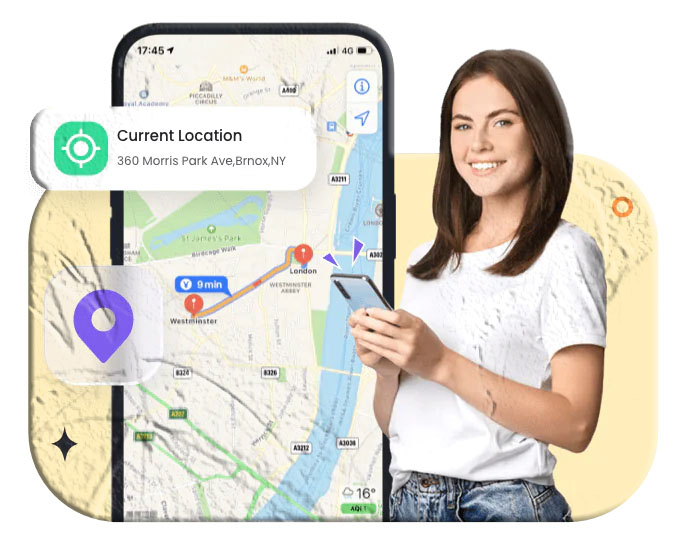
There’s a particular moment every parent knows. Your child should be home by now. The clock has crept past the expected time. You don’t want to send another check-in text. You don’t want to be that parent. But you also can’t quite settle into whatever you were doing, because part of your mind is still on them.
The Location Tracker is built for that moment.
Instead of texting, you open the app. Instead of worrying, you see them — a small pin on a map, walking the same route they walk every day, three blocks from home. You close the app. You go back to dinner.
That’s the whole pitch. Not surveillance. Not a leash. Just answers to the small, quiet questions that modern parenting raises a hundred times a week.
What’s Inside the Location Tracker
MyParental’s Location Tracker is built around three coordinated features that work together:
| Feature | What it does | Best for |
|---|---|---|
| Live Location | Real-time map view of your child’s device | Quick “where are they right now?” checks |
| Geofencing | Automatic alerts when they arrive or leave saved places | Hands-off awareness without staring at a map |
| Location History | A 15-day timeline of past locations | Reviewing patterns or confirming what happened |
Each one is useful on its own. Together, they cover essentially every legitimate location-awareness need a family has.
Live Location: A Real-Time Window
Open MyParental. Tap Live Location. Within seconds, you see your child’s device on a map — street names, nearby landmarks, the works.
What You See
- Current position with accuracy indicator.
- Battery level and online status of the child’s device.
- Last update time, so you know whether the position is fresh or a few minutes old.
- A refresh button for those moments when you want the very latest reading right now.
Why It Matters
The honest value of live location isn’t dramatic. Most of the time, it’s not used. The phone says they’re at school; the phone says they’re at home; the phone says they’re at the soccer field they’re supposed to be at. You glance, you put the app away, you move on with your day.
What it replaces is far more impactful: the dozen unnecessary check-in messages a parent might otherwise send each week. Texts that interrupt the child, prompt eye-rolls, and don’t actually answer the question any better than a glance at a map would.
How Accurate Is It?
Accurate enough for the questions parents actually ask. Outdoors with a clear sky, GPS positioning is generally accurate to within a few meters. Indoors and in dense urban areas, accuracy degrades but still gets you to the right building or block. You can read more about how device location services work in Google’s location services documentation and Apple’s overview of location services.
A Few Ways Live Location Quietly Pays Off
Parents who’ve used the feature for a while tend to describe its value in small, specific moments rather than dramatic ones:
- The afternoon you can confirm in two seconds that your child made it to their friend’s house — without sending a “did you get there?” text the friend’s parent then has to respond to.
- The evening you’re running late and want to know whether your child is already home before you call to apologize.
- The brief moment after school when you can see they’re on the bus rather than waiting at the wrong stop.
- The 8 PM check where the pin says “at the library where they said they’d be,” and you can finally settle in for the night.
None of these is the kind of thing that fits a marketing tagline. All of them add up to a meaningful reduction in the small worries that occupy modern parents’ mental space.
Tip: On the child’s device, set the MyParental companion app’s location permission to “Allow all the time” (Android) or “Always” (iOS). Lower permission levels produce gaps in tracking because the operating system restricts background location access for apps that haven’t been granted full access.
Geofencing: Let the App Watch the Map for You
Live location is great when you want to look. Geofencing is what you want when you don’t want to have to.
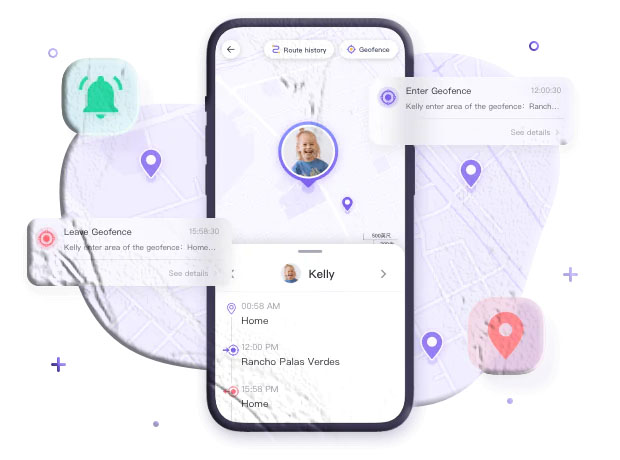
A geofence is a virtual boundary you draw around a real place. When your child’s device crosses that boundary — arriving or leaving — the app sends a notification to your phone.
What You Can Set Up
- A home geofence. Get notified when your child gets home from school. No more staring at the clock or texting “where are you?”
- A school geofence. Confirm they arrived in the morning and left in the afternoon. The two notifications often replace an entire week’s worth of unnecessary check-in messages.
- Activity zones. Soccer practice, music lessons, the orthodontist. Each becomes an arrival/departure alert pair, no calls needed.
- A grandparent’s house, a friend’s house, a relative’s address. Any place that matters often enough to know about.
- An outer boundary. For older kids allowed to roam the neighborhood, mark the outer edge. Movement within is normal; crossing it triggers an alert.
Setting One Up Takes About 30 Seconds
- Open MyParental and go to Live Location → Add Geofence.
- Name it (Home, School, Soccer, etc.).
- Use your current location or search for an address.
- Drag the radius slider to set the size of the zone — usually around 100 meters works well.
- Choose your alerts: arrival, departure, or both.
- Save.
That’s it. The geofence works in the background from that moment on.
Why Geofencing Is the Most-Used Feature
Once parents set up two or three meaningful geofences, they tend to stop using live location as their main tool. Why open the app every twenty minutes when the app will tell you the moment something noteworthy happens?
That mental shift — from active checking to ambient awareness — is the actual benefit. Geofencing gives parents permission to put the phone down.
A Few Geofencing Scenarios That Show Up Often
The morning school routine. Your child leaves for school. Twenty minutes later, your phone buzzes: Arrived at school. You exhale and start your own day knowing they got there.
The after-school window. School ends at 3:15. By 3:45, you have a notification that they arrived home. If you’re at work, you can text “saw you got home — snack’s in the fridge” instead of texting “are you home yet?” three times.
Activity drop-offs. You drop your child at soccer practice and head to the grocery store. Twenty minutes later you check the app and see they’re still safely at the field, where the coach has them running drills. You finish your errands without a single text exchange.
The teenage Saturday afternoon. Your teenager goes out with friends. They said they were going to one friend’s house and then maybe the mall. You don’t want to text constantly. The two relevant geofences are configured. You see the arrival alert when they get to the friend’s house. You don’t need to do anything else.
The unexpected detour. Occasionally a geofence alert tells you something didn’t happen on schedule — they didn’t arrive at school by 8:30, or they left a friend’s house earlier than expected. Those moments aren’t usually emergencies. They’re cues to send a quick “everything okay?” text rather than wonder.
Don’t draw zones too small. A tiny geofence around a single building can produce false in/out alerts as the phone’s GPS position bounces between estimates. Around 100 meters is a good starting point and can be adjusted from there.
Location History: Up to 15 Days of Timeline
The third feature you’ll use far less often, but you’ll be grateful for it when you need it.
MyParental keeps approximately 15 days of location history for each paired device, viewable in timeline form. Open the history view, choose a date, and you’ll see where the device was throughout that day.
When Location History Actually Helps
A child got home later than expected. You can see what route they took and where they actually were, without having to interrogate them when they walk in the door.
A lost or misplaced phone. The last few hours of history often make it obvious where the phone is — a friend’s house, the gym, the back of the car.
A pattern you weren’t sure about. A teenager who used to come straight home from school has been getting back later for the past week. The history makes the pattern visible — maybe it’s a study group, maybe it’s a friend’s house, but at least now you know what to ask about.
Verifying a worrying story. This is the use case to handle thoughtfully. Used occasionally for genuine concerns, history is a legitimate parenting tool. Used as a default response to every conversation, it teaches a child that they’re being audited rather than trusted. The right relationship with history is mostly available when needed, ignored otherwise.
A 15-Day Window by Design
We don’t store location history indefinitely. Fifteen days is enough to answer almost every practical question while not turning into a permanent archive of your child’s movements. The data ages off automatically.
How MyParental’s Location Tracker Compares to Alternatives
Families considering a location tool often look at several options. A brief, honest comparison.
Built-in Family Sharing Tools
Apple’s Find My and Google’s Family Link both offer free family location sharing. They’re well-integrated with their respective ecosystems and cost nothing — an excellent starting point for many households.
Where they fall short tends to be cross-platform consistency (a mixed household with both iPhones and Android phones often ends up managing two completely separate systems) and the depth of geofencing, history, and parental control features that surround the location data. MyParental is designed to span both ecosystems and to bundle location features with screen time, app filtering, and reporting in a single coherent dashboard.
Single-Purpose GPS Tracker Apps
Some apps focus entirely on location and do little else. They can be a fine choice for families whose only concern is whereabouts.
MyParental’s location tracker is integrated with the broader parental control suite, which matters if you also want screen time, app filtering, and communication safety features. For families who only want a location app, a single-purpose tool may be enough; for families whose needs extend further, the integration usually pays off.
Standalone GPS Devices
For very young children who don’t yet have phones, GPS smartwatches and dedicated tracking devices exist as a separate category. They have their own merits — particularly the ability to track without giving a child a full smartphone.
MyParental is built for the phones and tablets children actually use. If your child is at the stage of having a device of their own, a software-based location tracker is generally the more flexible and capable approach.
What Real Families Notice After a Week
A few patterns that come up repeatedly in feedback from families after their first week or two using the Location Tracker:
Fewer “where are you?” texts. This is the most commonly mentioned shift. The reduction is usually larger than parents expect — sometimes a dozen messages a week become two or three.
Less mental load around scheduling. Parents coordinating multiple children’s activities report that knowing where everyone is without asking takes a real weight off.
A different kind of conversation. Instead of conversations starting with logistics (“did you get there? when are you leaving? when will you be home?”), they start with actual content (“how was practice?”). The administrative questions are already answered.
Children adjust faster than parents expect. Many parents brace for resistance, especially from teenagers, and find that with a transparent conversation up front, kids adapt within days. Some teenagers actually appreciate not being texted every twenty minutes.
Geofences get refined. Almost everyone adjusts their geofence configuration in the first two weeks — turning off alerts that turned out to be unnecessary, adding ones they hadn’t thought of, resizing zones that were producing false alerts.
The pattern in honest feedback is rarely “this app changed everything.” It’s more often “this app made a handful of small frustrations smaller” — which, given how many small frustrations modern parenting includes, adds up.
How to Set Up the Location Tracker {#how-it-works}
The full setup takes about ten minutes. Here’s the complete walkthrough.
Step 1: Have the Conversation First
This is the step most worth not skipping. Before you install anything, talk with your child about what you’re doing and why.
- For younger children: “I’m going to put an app on your phone so I can see where you are when you’re not with me. It’ll help me make sure you’re safe when you go places by yourself.”
- For older kids and teenagers: “We’re going to use a location app so I don’t have to keep asking where you are. I’m not trying to track every step. I want to know you got to school and home, and to be able to find you if something goes wrong.”
Transparency at this stage prevents far bigger conflicts later. It also reflects our product philosophy: family-aware monitoring rather than covert surveillance.
Step 2: Install MyParental on Your Phone
Download MyParental from the website. Open the app, create an account with your email, and choose a strong password. Enable two-factor authentication if it’s offered.
Step 3: Install the Companion App on Your Child’s Device
On the child’s phone or tablet, download the MyParental companion app from the same official app store. Open it and choose the option to link to an existing parent account.
Step 4: Pair the Two Devices
In your parent app, tap Add a Child. A pairing code appears on the screen. Enter that code in the companion app on the child’s device. The two apps connect within a few seconds.
Step 5: Grant Location Permission
The companion app will request location access. For the tracker to work reliably, set this to:
- Android: “Allow all the time”
- iOS: “Always”
Lower permission levels cause the operating system to throttle background location access, which produces gaps in tracking. The app walks you through each permission with a clear explanation of why it’s needed.
Step 6: Check That Location Is Working
Back in your parent app, open the Live Location view. You should see your child’s device on the map within a few seconds. If you don’t, the most common causes are:
- Location services disabled at the device level (check Settings → Location on the child’s phone).
- Location permission set to less than “Always” or “Allow all the time.”
- Battery optimization on Android closing the app in the background (see the next step).
- A weak or missing internet connection.
Step 7: Adjust Battery Settings (Android Only)
Some Android devices, particularly certain manufacturer customizations, aggressively close background apps to save battery. If MyParental gets closed by the system, location stops updating.
On the child’s device, go to Settings → Battery → App battery usage (the exact path varies by manufacturer) and mark MyParental’s companion app as “Unrestricted” or “Allowed to run in background.” This single setting prevents the great majority of “the location stopped updating” issues.
Step 8: Add Your First Geofences
Once live location is working, add the two or three most important places:
- Home
- School
- One activity location (soccer, music, after-school program)
Don’t add more than that on the first day. Live with two or three for a week and add others only when you have a specific reason.
Get Started Free Compare Plans
Why Families Use the Location Tracker
Most parents who install a location tracker arrive at the decision through one or two specific motivations. The most common:
A child has just gained new independence. First solo walk to school. First bike to the park. First sleepover at a friend’s. Each of these milestones expands the child’s world — and the parent’s worry surface area along with it. A location tracker quietly shrinks that worry without shrinking the independence.
Family schedules are genuinely complicated. Multiple children with different activities. Carpools that depend on knowing who’s where. Sports schedules that change weekly. The mental load is enormous, and location awareness offloads a meaningful chunk of it.
A specific incident raised the temperature. A child who didn’t come home on time. A wrong bus. A new friend whose house wasn’t quite where they said. Sometimes the move toward a tracker comes from a single sharp I wish I’d known sooner moment.
A new environment. A move to a new neighborhood, a new school across town, a change in commute. Location awareness becomes part of getting comfortable in unfamiliar terrain.
Peace of mind is, by itself, the value. Underrated but real. Parenting in the connected era includes a constant low-grade background hum of is everything okay? A tool that lets you answer that question in two seconds and then put the phone down can be a genuine quality-of-life improvement.
How Location Tracking Actually Works
A short, plain-English explanation, because realistic expectations matter.
Modern smartphones determine their location using a blend of three signals:
- GPS satellites provide the most accurate positioning outdoors with a clear view of the sky — usually within a few meters.
- Wi-Fi positioning cross-references nearby Wi-Fi networks against large databases that map them to physical locations. This is what gives you reasonably accurate positioning indoors.
- Cell tower triangulation estimates location based on connected cell towers. The least precise of the three, used as a fallback.
The phone’s operating system blends these signals and presents a best-guess location to apps that have permission to read it. The MyParental companion app reads that location periodically, securely sends it to our servers, and your parent app reads it down. The whole round trip typically takes seconds.
A few practical realities follow:
- Indoor positions are less precise than outdoor ones. Inside a large building, the pin may show the building’s address rather than the exact room.
- Tall urban areas can produce small jumps. Dense city blocks with high buildings occasionally confuse GPS for a moment.
- A dead battery means no tracking. When the phone is off, the last known position is the most recent data point.
- “Real time” still has small intervals. Updates happen every few seconds to a minute depending on settings, motion, and battery considerations. This is normal across every modern location app.
None of this makes the technology less useful. It just means it’s a very good “where roughly is my child” tool, not a magic wand.
Privacy and Security
Location data is sensitive by definition. We handle it accordingly.
- Encryption in transit and at rest. Location data is encrypted when it moves between devices and our servers, and when stored on our systems.
- Two-factor authentication is available and strongly recommended on the parent account.
- No sale of user data. Family location data is processed to make the product work, not packaged for sale to third parties.
- 15-day retention by default. Historical location data ages off automatically after roughly 15 days. We don’t keep a permanent archive.
- You can disable location features at any time from the parent dashboard, and you can turn off location services entirely on the device through its system settings.
Our full handling of family data is documented in detail in our Privacy Policy.
Using a Location Tracker Well
The technology is the easy part. Using it in a way that actually strengthens a family is the part worth thinking about.
Be Transparent
Children should know the location tracker exists. This is true at every age. For older children and teenagers, this transparency should go beyond a one-sentence disclosure — they should understand what you can see, what you can’t, and what triggers a notification.
Covertly tracking a child’s location, in our view, isn’t what this product is for.
Match the Tool to the Age
A six-year-old and a sixteen-year-old need very different relationships with location tracking.
- Younger children: fairly constant location awareness is appropriate; they benefit from the safety net.
- Tweens: shift toward arrival/departure alerts for important places rather than detailed continuous tracking. Give them room to move within their neighborhood without it appearing in your timeline.
- Teenagers: location tools work best as a safety net rather than a leash. Arrival alerts at school and home. The ability to find them if something goes wrong. Not minute-by-minute oversight unless there’s a specific, agreed-upon reason.
Don’t Comment on Everything You See
If you notice your child stopped at a coffee shop on the way home, you usually don’t need to bring it up. The information is for your awareness, not for litigation. Children who feel that every movement will be analyzed will resent the tool — and may eventually find ways around it.
Use Alerts as Conversation Starters, Not Evidence
A geofence alert tells you something happened. The right response is usually a casual “how was your afternoon?” rather than “I see you went to Maya’s house at 4 — explain.”
Loosen as Trust Grows
The goal isn’t perpetual surveillance. It’s helping a child stay safe through the years they’re still developing their own judgment. As they consistently demonstrate that they can handle independence, visibly relax the monitoring. That gradual loosening is one of the most powerful signals a parent can send.
For broader perspective on age-appropriate digital oversight, Common Sense Media and the National Center for Missing & Exploited Children publish ongoing guidance worth reading.
Legal Considerations
In most jurisdictions, parents have legal authority to track the location of their minor children, particularly on devices the parent owns and has provided. Specific requirements vary by country and sometimes by state or province. If you have any uncertainty, check the law in your area.
What’s far more legally fraught — and clearly illegal in many places — is using location tracking software on the device of an adult without their explicit, informed consent. MyParental is designed for parents monitoring their minor children, and using it for any other purpose is not what we built it for and is not supported.
Frequently Asked Questions
How do I install the Location Tracker?
Install MyParental on your own device first, then install the companion app on your child’s device. Pair them using the code generated in the parent app, and grant the location permission at the highest level the operating system allows (“Allow all the time” on Android, “Always” on iOS). The full step-by-step walkthrough is in the How to Set Up the Location Tracker section above.
Is it legal to track my child’s location?
In most places, parents are legally permitted to monitor the location of their minor children, especially on parent-owned devices. Laws vary by jurisdiction. Transparency with the child is strongly recommended regardless of what’s strictly legal — it’s both more ethical and, in practice, more effective. Tracking adults without their consent is illegal in many regions.
How often does the Location Tracker update?
The Location Tracker updates in close to real time. The exact frequency varies with the device, its connection, its battery state, and how recently the phone has moved. You can also manually refresh the location at any time by tapping the refresh icon in the parent app.
Where do I find the Location Tracker in MyParental?
Open the MyParental parent app and tap Live Location. You’ll see a map with the current position of each paired child’s device. The refresh icon in the corner forces an immediate update.
How do I make sure location services are enabled on Android?
On the child’s device, go to Settings → Location and make sure location services are turned on. Then check that the MyParental companion app has been granted location permission at the “Allow all the time” level. Both settings need to be in place for the tracker to work properly.
How do I set up a geofence?
In the MyParental parent app, go to Live Location → Add Geofence. Give it a name, choose either your current location or search for an address, adjust the radius using the on-screen slider, choose whether you want arrival, departure, or both notifications, and save. The whole process takes about 30 seconds per geofence.
How do I check Location History?
Open the parent app and go to Live Location → Location History. You’ll see a timeline of the child’s location across the selected day. Tap the date picker to jump to a different day. You can navigate between previous and next days with the arrow controls. MyParental stores approximately 15 days of location history.
How many days of location history can I see?
About 15 days. The retention window is long enough to answer practical questions (where were they yesterday? earlier this week?) without becoming a permanent archive of the child’s movements. Older data ages off automatically.
How do I turn off the Location Tracker?
You can disable location features within MyParental from the parent dashboard. You can also turn off location services entirely on the child’s device through the device’s system settings (Settings → Location), which prevents any app from accessing location data.
Why does the location sometimes look inaccurate?
Location accuracy depends on the device’s hardware, whether the child is indoors or outdoors, the surrounding environment (dense urban areas can confuse GPS briefly), and the permission level granted to the app. If the location is consistently inaccurate, check that the permission is set to the highest level, that location services are turned on, and on Android, that battery optimization isn’t closing the app in the background.
Will the Location Tracker drain my child’s battery?
Modern location tracking is far more efficient than it was even a few years ago, thanks to platform-level optimizations in both Android and iOS. Most families don’t notice a meaningful battery impact. If a particular device shows higher drain, the simplest mitigation is a charger; the practical effect is usually small.
What happens if my child uninstalls the app?
The companion app is designed to resist casual removal, and you’ll receive a notification if it’s uninstalled. The most effective long-term response is usually a conversation about why the tool is there rather than an escalating cat-and-mouse game. Persistent attempts to disable the tracker are often a signal that the rules need to be discussed and possibly adjusted.
Does the Location Tracker work if my child travels abroad?
Yes, as long as the device has an internet connection (cellular or Wi-Fi). Location data flows whenever the device can reach the internet, regardless of which country it’s in.
Can I track multiple children with one MyParental account?
Yes. Each child has their own profile, their own pairing, and their own location view in the parent dashboard. The number of children supported depends on your plan — full details are on the Pricing page.
What You Get with the Location Tracker
A quick recap of what’s included:
✅ Real-time live location on a clean map view
✅ Battery level and online status for the child’s device
✅ Manual refresh for the latest possible position
✅ Unlimited custom geofences (on paid plans)
✅ Arrival and/or departure notifications
✅ Approximately 15 days of location history
✅ Accuracy indicator so you know how precise the current reading is
✅ Cross-platform support (Android and iOS)
✅ Encrypted data in transit and at rest
✅ Two-factor authentication on the parent account
Final Thoughts
The Location Tracker is one of the quietest, most-used features in MyParental. It doesn’t ask much of you. Most days you barely notice it’s there. But when you do need it — when your child should be home and isn’t, when you’re trying to coordinate a busy afternoon, when a new piece of independence brings the small worries that come with it — it answers the question you wanted to ask without you having to ask anyone.
Used with transparency, with realistic expectations about what the technology can and can’t do, and with a willingness to loosen the controls as your child grows, it can become a tool that genuinely makes family life smoother — and gives both parents and kids a little more freedom in their own ways.
If that’s the kind of tool that fits your household, MyParental’s free starting tier is the easiest way to try it without commitment.
Helpful links: Download MyParental • Pricing • FAQ • About Us