A one-tap way for your child to send a quick photo and let you know they’ve arrived somewhere safely. MyParental’s Photo Check-In is built around the simplest pattern in family safety — the child reaching out — without requiring back-and-forth texts or constant location checks.
The Smallest Tool That Solves the Biggest Worry
Every parent of a child old enough to go places on their own knows the specific texture of the question. Did they get there? It’s not anxiety, exactly. It’s not catastrophizing. It’s just the small, persistent loop that runs in the back of a parent’s mind while a child is somewhere they’ve not yet confirmed they actually are.
For decades, the answer to that question was either a payphone call or — in more recent years — a text exchange that often went like this:
Parent: Did you get there?
Twenty minutes pass.
Parent: Hello?
Ten more minutes pass.
Child: yeah
Parent: Are you sure?
Child: yes
This isn’t a great system. The child finds it irritating. The parent finds it unsatisfying. Nobody comes away with what they actually want, which is a quick, low-friction signal that everything is fine.
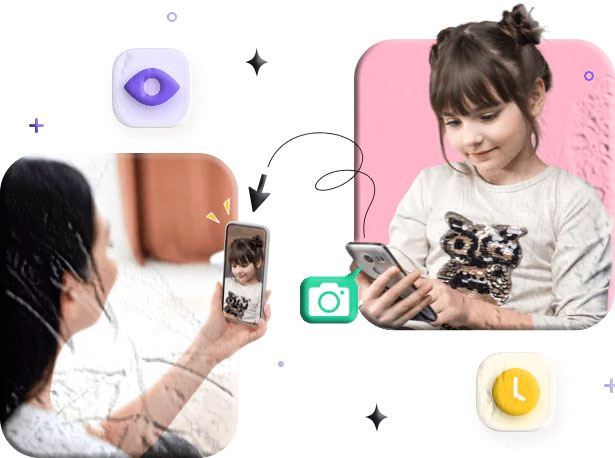
Photo Check-In is built for that exact problem. With one tap from the companion app on the child’s device, the child sends a quick photo of where they are, along with their location, to the parent. The parent gets a clear visual confirmation. No texting back and forth. No waiting. No interpretation.
It’s a small feature. It might be the smallest feature in MyParental. It’s also the one most parents end up using more than they expected to.
What the Feature Actually Does

Photo Check-In is structurally different from most of the other features in MyParental. The others run in the background, observing or enforcing things automatically. Photo Check-In is child-initiated. Nothing happens unless the child taps the button.
That distinction matters and we’ll come back to it.
| Aspect | How it works |
|---|---|
| Trigger | The child taps a check-in button in the companion app |
| What’s captured | A single photo (front or rear camera, child’s choice) plus current location |
| What’s sent | The photo and location, to the parent’s dashboard, with a timestamp |
| What’s not captured | No video, no audio, no continuous recording — just the single photo the child chose to take |
| Notification | The parent receives a push notification with the photo preview |
| Storage | Check-ins are saved in a chronological feed in the parent app |
| Removal | Either parent or child can delete a check-in at any time |
The simplicity is the design. A complex feature with options and configurations would just slow down the moment it’s supposed to make easier.
Why Child-Initiated Matters
A parental control app has lots of ways to be informed about where a child is and what’s happening with them. Location tracking. Geofence alerts. Activity reports. Many of these run automatically, surfacing information whether the child is actively engaged or not.
Photo Check-In works differently on purpose. It only happens when the child does it. That changes how the feature feels in the family relationship.
It’s a relationship gesture, not surveillance. The child sending the photo isn’t being monitored — they’re reaching out. The action is theirs. The connection it creates is mutual.
It teaches a habit. A child who develops the practice of sending a quick check-in when they arrive somewhere builds a small, healthy habit of caring about whether their parent is worried. That habit tends to last well past the years they’d otherwise be using a parental control app.
It scales with trust. Other features in MyParental can feel age-inappropriate for older teenagers (continuous location tracking starts to feel like surveillance for sixteen-year-olds in a way it doesn’t for nine-year-olds). Photo Check-In doesn’t have that problem. A college-age young adult sending an occasional check-in to a parent is the same gesture as a ten-year-old doing it — just less frequent and around different situations. The feature doesn’t need to be retired with age.
It works across family relationships. The same feature that helps kids check in with parents can be used for adult children checking in with elderly parents, for siblings checking in with each other during travel, for partners on long drives. The “let me know you got there safely” gesture isn’t only a parent-child thing.
Common Ways Families Use It
Once families set the feature up, the use cases tend to organize themselves into a few patterns.
The First-Solo-Trip Check-In
The earliest use is usually the first time a child does something on their own. The first walk to school. The first solo bus ride. The first sleepover at a friend’s. The first afternoon at the mall with friends.
In each case, the agreement is simple: when you get there, send a quick photo. The child gets a low-effort way to confirm. The parent gets a calm, visual confirmation. The whole exchange takes thirty seconds and replaces a much longer text chain.
The Daily Arrival Confirmation
For families with a regular routine, the check-in becomes part of the day. Arrived at school. Arrived home from school. Arrived at practice. Each one is a quick photo, sent without thinking about it much.
This works particularly well in households where parents are at work during the day. A photo from the front porch at 3:15 PM is a much clearer signal of “everything is fine” than a “yeah” text that arrives twelve minutes later.
Unfamiliar Locations
For situations that are out of the normal routine, the check-in is especially valuable. A new friend’s house. A new event venue. A first job interview. A college visit. Anywhere the child is in a place neither of you has been before.
A photo from the location settles the question of whether they’re actually in the right place — which a text alone can’t quite do.
Travel
Independent travel is one of the biggest sources of parental worry. A check-in feature smooths it considerably. Arrived at the airport. Boarded the plane. Landed at the destination. Got to the hotel. Each one is a brief moment that replaces an entire worried evening.
Letting Worried Family Members Stay Informed
The feature is especially useful for extended family. A grandparent who lives far away can be included as a recipient. The grandparent gets the same arrival photos the parent gets, without anyone having to relay the information manually. Multi-generational households often find this particularly valuable.
The Reverse: Parents Letting Kids Know They’re Safe
Worth mentioning explicitly: the same feature works the other direction. When a parent travels for work, they can send their own check-ins to the child. This matters more than parents sometimes realize. Kids worry about their parents too, and a quick “landed safely” photo can settle a worried child as effectively as it settles a worried parent.
Custody and Co-Parenting Situations
Families navigating shared custody arrangements often have unique coordination needs. A child moving between two households needs to be confirmed safely arrived at each one. With separate-parent setups, this used to require either trust between the adults or the child playing messenger. Photo Check-In quietly handles it. The child arrives at one parent’s house, sends a check-in, and both parents see it. No relayed messages. No anxious waiting on the other side.
For separated parents who don’t speak directly, this is one of the few coordination tools that doesn’t require them to. The system handles the logistics. The adults can focus on the relationship with the child.
Camp, Visits, and Longer Stays
When a child is away for a longer period — summer camp, a stay with relatives, an extended visit — daily check-ins become a small ritual. A photo each evening from wherever they are. Not a phone call (which kids that age often resist), not a forced text exchange, just a small visual update.
Parents who’ve used the feature this way often describe it as one of the most valuable parts of letting a child be away. The child gets to be away, fully, without the parent’s worry pulling them back. The parent gets enough connection to stay calm.
What Researchers Say About Healthy Family Communication
A brief note on the research perspective, because it’s relevant to how this feature works in practice.
Studies on adolescent autonomy and parent communication have consistently found that the highest-trust parent-child relationships in adolescence aren’t the ones with the most monitoring — they’re the ones with the most mutual disclosure. Kids who feel they can share with their parents tend to share. Kids who feel monitored tend to hide. The difference is rarely the technology used; it’s the texture of the relationship.
What this means in practical terms: a feature like Photo Check-In works best when it’s framed as a mutual gesture, not as a parental requirement. The child sends a photo because it’s a small kindness, not because they’re being audited. The parent receives it as a piece of connection, not as evidence. Over years, this kind of low-friction mutual sharing tends to produce the trust that lets families navigate the harder conversations of adolescence — about friends, choices, struggles, mistakes — much better than monitoring ever could.
What Photo Check-In Is Not
It’s worth being explicit about what this feature isn’t, because some adjacent capabilities exist in other products and we want to be clear about the distinction.
It’s not covert surveillance. No photo is ever taken without the child knowing — they’re the one tapping the button. The camera doesn’t activate remotely or automatically.
It’s not continuous monitoring. The feature captures a single photo at a moment the child chose. There’s no video, no audio, no series of photos.
It’s not designed to catch a child doing something wrong. It’s designed for the opposite — making it easy for them to reach out when things are fine. Trying to twist the feature into surveillance would defeat the design.
It’s not a substitute for actual conversation. A check-in is a small signal, not a relationship. The conversations that build trust, judgment, and connection happen elsewhere.
We mention this clearly because the parental control category is full of features that blur into surveillance. Photo Check-In is in the category on purpose. It works because the child is in control of when and what to send.
How to Set It Up
Setting up Photo Check-In takes about five minutes for a typical family. It’s one of the simplest features to configure.
Step 1: Have the Conversation First
This is where Photo Check-In differs from most parental control features. The conversation isn’t about restriction — it’s about an agreement to use a shared tool.
For younger children: “We’re going to set up an easy way for you to send me a quick picture when you get somewhere. Like when you get to school, or to a friend’s house. Just one tap, one picture. So I know you got there.”
For older children and teenagers: “I’d like to set up a simple check-in tool. The idea is that when you arrive somewhere new — or in some specific situations we agree on — you send me a quick photo. It saves us both from texting back and forth, and it’ll cut down on me bugging you about whether you got there. The agreement is on you — you do the check-in. I’m not pulling photos remotely. Sound fair?”
The collaborative framing matters. This is the feature most likely to be enthusiastically accepted by kids — including older teenagers — because the trade is honest: a small, voluntary gesture in exchange for fewer worried texts.
Step 2: Install MyParental on Both Devices
Download MyParental on your device. Create your account and enable two-factor authentication.
On your child’s phone or tablet, install the MyParental companion app from the same official store. Open it and choose the option to link to a parent account.
Step 3: Pair the Two Devices
In your parent app, tap Add a Child. Enter the pairing code shown there into the companion app on the child’s device. The two apps connect within seconds.
Step 4: Grant the Necessary Permissions
The companion app will request camera access and location access for the check-in feature. The permissions are used only when the child taps the check-in button — they’re not used to capture data in the background.
The exact permission flow varies by platform. On iOS, this involves granting camera and location access through the standard system prompts. On Android, the equivalent permissions are requested. The app walks through each with a clear explanation.
Step 5: Set Up Check-In Suggestions (Optional)
In the dashboard, you can configure the system to gently suggest a check-in in certain situations. Suggestions are reminders, not enforced actions — the child still has to tap to send.
Common suggestion patterns:
- After leaving school. A nudge to send a check-in upon getting home.
- After arriving at a saved place. Useful for activities at locations that change.
- At a configured time. “Send a check-in if you’re still out by 9 PM.”
Suggestions are entirely optional. Many families never enable them; the simple manual check-in is enough.
Step 6: Add Additional Recipients (Optional)
By default, check-ins go to the linked parent account. If you want grandparents, a co-parent in another household, or other trusted family members to also receive check-ins, you can add them as recipients from the dashboard.
Each additional recipient gets the same notification and photo. The child sends one check-in; multiple people receive it.
Step 7: Try It Out
Have your child send a test check-in from another room. Make sure it arrives correctly, the photo looks fine, and the location appears accurate. Confirm everyone who should receive check-ins is receiving them.
The whole test takes about 30 seconds and prevents a frustrating “wait, did that work?” moment the first time it’s used for real.
📱 Get Started — Download MyParental
Using Photo Check-In Well
The feature is simple enough that most families don’t need much guidance to use it. A few small practices make it noticeably more pleasant for everyone involved.
Agree on what counts as a check-in moment. A clear shared understanding — “send one when you arrive at school, at home, or at any new place” — beats a vague “send one when you can.” Most kids respond well to explicit, predictable expectations.
Don’t make it a punishment. A check-in that wasn’t sent shouldn’t become a major incident. Sometimes kids forget. Sometimes phones die. The system works as long as the check-ins happen most of the time, not every time.
Acknowledge the check-ins. A quick reply — even just an emoji — closes the loop. The child knows you saw it. They learn the gesture lands. Habits that get acknowledged stick.
Don’t read deeply into one missed check-in. A single missed check-in is usually nothing. Phones run out of battery. Kids get distracted. Wi-Fi at a destination is bad. If a check-in doesn’t arrive when expected, a calm text is the right response, not an escalation.
Don’t critique the photo. This sounds obvious but matters more than it should. Don’t comment on the lighting, the angle, what’s visible in the background. The point is the gesture, not the artistry. Critique kills the habit fast.
Loosen the agreement as kids mature. A ten-year-old might check in for every location. A fifteen-year-old might check in only for unusual places. A nineteen-year-old might check in only for travel. The frequency naturally declines with age, and that’s appropriate.
Use the reverse direction too. When parents check in with kids — about a work trip, a long day out, a flight landing — it teaches the gesture as mutual rather than one-directional. Kids who see the practice modeled in both directions accept it more naturally.
What Families Notice After a Few Weeks of Using It
A few patterns that come up consistently in feedback after a few weeks with the feature.
Texting volume drops noticeably. The most commonly mentioned shift. The dozen anxious “did you get there?” messages a week shrink to one or two photos. The reduction is real and immediate.
The first photo of the day becomes a small moment of connection. Many parents describe receiving the morning arrival check-in as a quietly nice part of the workday. A glance at the phone, a photo of the kid at school, everything is fine. It’s not dramatic, but it’s a real moment of micro-connection that didn’t used to exist.
Kids start sending check-ins without being asked. This is the change parents notice most. After a couple of weeks, kids develop the habit. They arrive somewhere new, take a quick photo, send it. The parent never had to remind. The behavior internalized.
Older teenagers accept it better than expected. Parents often brace for resistance from teens and find that, because the feature is voluntary and clearly not surveillance, it tends to be accepted readily. Some teenagers genuinely enjoy the small ritual.
The feature gets used in unexpected ways. Some families find their kids using the check-in for non-arrival moments — a quick photo of an interesting thing at the park, a small celebration of an event, a “look what I’m doing right now” moment. The feature becomes a low-stakes way for kids to share small parts of their day. Parents who lean into this often describe it as one of the unexpected joys of the system.
The retention setting becomes meaningful. Many parents end up saving particular check-ins — the first solo trip to a friend’s, the first day of a new school, the photo from a memorable destination. The default 30-day retention with optional permanent save turns out to fit family life well.
It outlasts other features. Of all the features in a parental control app, Photo Check-In is the one most likely to stay in use as the child gets older. Continuous location tracking gets retired as the child enters late teenage years. App blockers become less relevant as kids develop their own habits. Activity reports become less interesting as the patterns stabilize. But the small habit of sending a “got here safely” photo tends to persist — sometimes for years past when the rest of the system has been turned off, and sometimes into the child’s adult years.
Building a Check-In Habit That Lasts
A small note on the practice itself, because this is one of the features where the human side matters more than the technical side.
Don’t make it transactional. A check-in that feels like an obligation to a parent eventually feels like a chore. A check-in that feels like a small kindness — a way of saying I’m thinking of you in a single photo — tends to last. The framing in the early weeks shapes the habit for years.
Acknowledge with care, not analysis. A quick heart emoji or a “thanks” lands well. A detailed comment on what’s in the photo doesn’t. The point is to confirm the message was received, not to commentate on its contents.
Don’t punish missed check-ins. This is probably the single most important practice. The day a parent makes a missed check-in into a major incident is the day the habit starts to die. Sometimes phones run out of battery. Sometimes kids forget. Sometimes the timing didn’t fit. The system works in aggregate, not in any single instance.
Send your own. Modeling matters. A parent who sends their own check-ins — from work trips, long days out, anywhere they’re not where the kid expected them to be — teaches that the practice is for everyone, not just for kids.
Let it evolve. What counts as a check-in moment for a ten-year-old is different from what counts for a fifteen-year-old. Let the agreement shift with the child. The habit lasts when it doesn’t feel frozen in time.
How Photo Check-In Compares to Other Approaches
Families coordinating around safe arrivals have several options. A brief comparison.
Text Messages
The default for most families is just texting “I’m here.” This works fine, but has the issues described in the opening — slow, often incomplete, and easy to ignore mid-conversation.
Photo Check-In takes about the same effort as a text but produces a more useful confirmation. The photo settles the question of whether they’re actually in the right place in a way that a one-word text can’t.
Find My / Family Locator Apps
Apple’s Find My and similar tools on Android let parents check a child’s location at any time. This is genuinely useful and complements the Photo Check-In feature rather than replacing it.
The difference: location tracking is passive (the parent looks); Photo Check-In is active (the child sends). Both have value. Most families end up using both — passive location for ambient awareness, active check-in for specific arrival moments.
Smart Watch and Wearable Check-Ins
Some smart watches and wearable devices for kids include their own check-in or SOS features. These are great for very young children who don’t yet have phones.
Photo Check-In is built for phones and tablets, which is where most older children’s communication happens. The two approaches can coexist — a watch for a young child, a phone-based check-in for an older sibling.
Family Locator Apps Like Life360
Several family location apps offer check-in features alongside location tracking. They tend to focus more on adult-family coordination (couples, roommates) than on parent-child specifically.
MyParental’s Photo Check-In is integrated with the broader parental control suite — Location Tracker, Screen Time, App Blocker — so families that want safety features beyond pure location coordination benefit from the integration.
Privacy and Security
Photo Check-In handles personal images of children. We treat that responsibility with appropriate care.
- Encryption in transit and at rest. Check-in photos are encrypted between the child’s device and our servers, and stored encrypted on our systems.
- Limited retention by default. Check-ins are retained for a default period (typically 30 days) and then automatically deleted. Parents can save specific check-ins to a personal archive on their own device if they want to keep them longer.
- Child can delete check-ins. Either parent or child can delete a check-in from the system at any time. Deletion is permanent.
- No third-party sale of photos. Check-in photos are never shared with third parties, used in advertising, or used to train algorithms.
- No facial recognition or AI analysis. We don’t run face recognition, content classification, or other automated analysis on check-in photos. The system stores and delivers the photo; that’s it.
- Two-factor authentication is available and strongly recommended on the parent account.
Full details are in our Privacy Policy.
Frequently Asked Questions
Does Photo Check-In take photos without my child knowing?
No. The feature only sends a photo when the child taps the check-in button on their device. The camera doesn’t activate remotely or automatically. This is a deliberate design choice — covert photo capture is not what MyParental is for. For the underlying camera permissions on each platform, see Android camera permission documentation and Apple’s camera privacy documentation.
Can my child choose which camera to use?
Yes. The child can pick between front-facing and rear-facing cameras when they send a check-in. Most kids use the rear camera (showing the location) or the front camera (showing they’re okay), depending on the situation.
How long does a check-in take to send?
A few seconds. The child taps the check-in button, the camera opens, they take the photo, and it sends. The parent typically receives the notification within seconds.
Can I require a check-in?
You can configure suggestions and reminders that prompt the child to send a check-in at certain times or in certain situations, but the actual check-in still requires the child to tap. The feature works because it’s child-initiated; forcing it would change what it is.
Can multiple people receive check-ins?
Yes. You can configure additional recipients — co-parents, grandparents, other trusted family members — to receive check-in notifications. The child sends one check-in; multiple people receive it.
What if my child sends a check-in by accident?
Either you or the child can delete the check-in immediately. Accidental check-ins happen occasionally and aren’t a big deal.
Does the photo include location data?
Yes — the check-in includes the device’s location at the time the photo was sent. This is the whole point: a photo of where they are, with confirmation of where they are. If location services are disabled or location permission isn’t granted, the check-in still sends but without the location data.
Can I save check-ins for longer than the default retention period?
Yes. Specific check-ins you want to keep can be saved to your personal archive on your own device. The default retention in the MyParental system is about 30 days; saving locally extends that indefinitely.
Does Photo Check-In require an internet connection?
Yes, both devices need to be online for the check-in to send and arrive in close to real time. If the child’s device is briefly offline, the check-in is queued and sent when the connection returns.
What if my child’s phone is dead?
A check-in requires the device to be on and online. If the phone is dead, the child can’t check in. This is one of the reasons keeping the phone charged matters and why a missed check-in usually has a simple technical explanation.
Will the feature work when my child is in another country?
Yes. As long as both devices have an internet connection, check-ins work globally. This is one of the situations where the feature is most valuable — international travel often involves the highest parental anxiety, and a quick check-in settles it efficiently.
Can I use this with my elderly parent instead of a child?
The feature is designed for parent-child use within MyParental, but the underlying mechanic — easy check-ins with photo and location — works for any pair of people who’ve agreed to use it together. Some families do use it with elderly parents, with full consent. If both adults agree, this is a legitimate use.
Does the feature drain battery?
No. The check-in flow only activates the camera and location when the child taps the button. There’s no background battery drain associated with this feature specifically.
What happens if the child uninstalls the app?
You’ll be notified, as with any uninstall. The check-in feature won’t work without the companion app, but the situation is much easier to handle with this feature than with others — Photo Check-In is the feature kids are usually least motivated to remove, since it’s the one that actually serves them too.
Can I see a history of all check-ins?
Yes. The parent dashboard maintains a chronological feed of all check-ins received from your child, within the retention window. You can scroll back through past arrivals.
What if my child wants to send a check-in but isn’t somewhere significant?
That’s fine. Some kids send occasional “just thinking of you” check-ins, which are great. The feature isn’t restricted to specific moments. The child decides when and what to send.
What You Get with Photo Check-In
A quick recap of what’s included:
✅ One-tap child-initiated check-in with photo and location
✅ Choice of front or rear camera
✅ Real-time notification to parent on receipt
✅ Optional check-in suggestions for specific times or places
✅ Multiple recipient support (co-parents, grandparents, etc.)
✅ Chronological check-in history in the parent dashboard
✅ Option to save individual check-ins to a personal archive
✅ Encrypted photos in transit and at rest
✅ Limited default retention with automatic deletion
✅ No covert capture, no remote activation, no AI analysis
✅ Cross-platform support (Android and iOS)
✅ Works internationally with an internet connection
Final Thoughts
Photo Check-In is the feature in MyParental that does the least and matters more than its modesty would suggest. It doesn’t track anything passively. It doesn’t enforce anything. It doesn’t surface alerts. It just lets a child send a quick photo to confirm they’re somewhere safely.
That single gesture, repeated as a habit, ends up being one of the most quietly valuable parts of family communication. It replaces the worried wait. It saves the back-and-forth texting. It builds, in a small way, a habit of caring about whether the people who love you are worried.
For very young children, it’s a way of staying connected when they start to go places on their own. For older kids and teenagers, it’s a low-friction way to maintain trust as they take on more independence. For travel and unusual situations, it’s a moment of calm in an otherwise anxious day. And for the long-term arc of a child growing into adulthood, it’s a habit that often persists well past the years they’d be using a parental control app at all.
Set it up. Agree on when it makes sense. Use it for a few weeks. The pattern emerges naturally — and for most families, it ends up being one of the parts of MyParental they’d most miss if it disappeared.
Helpful links: Download MyParental • Pricing • FAQ • About Us