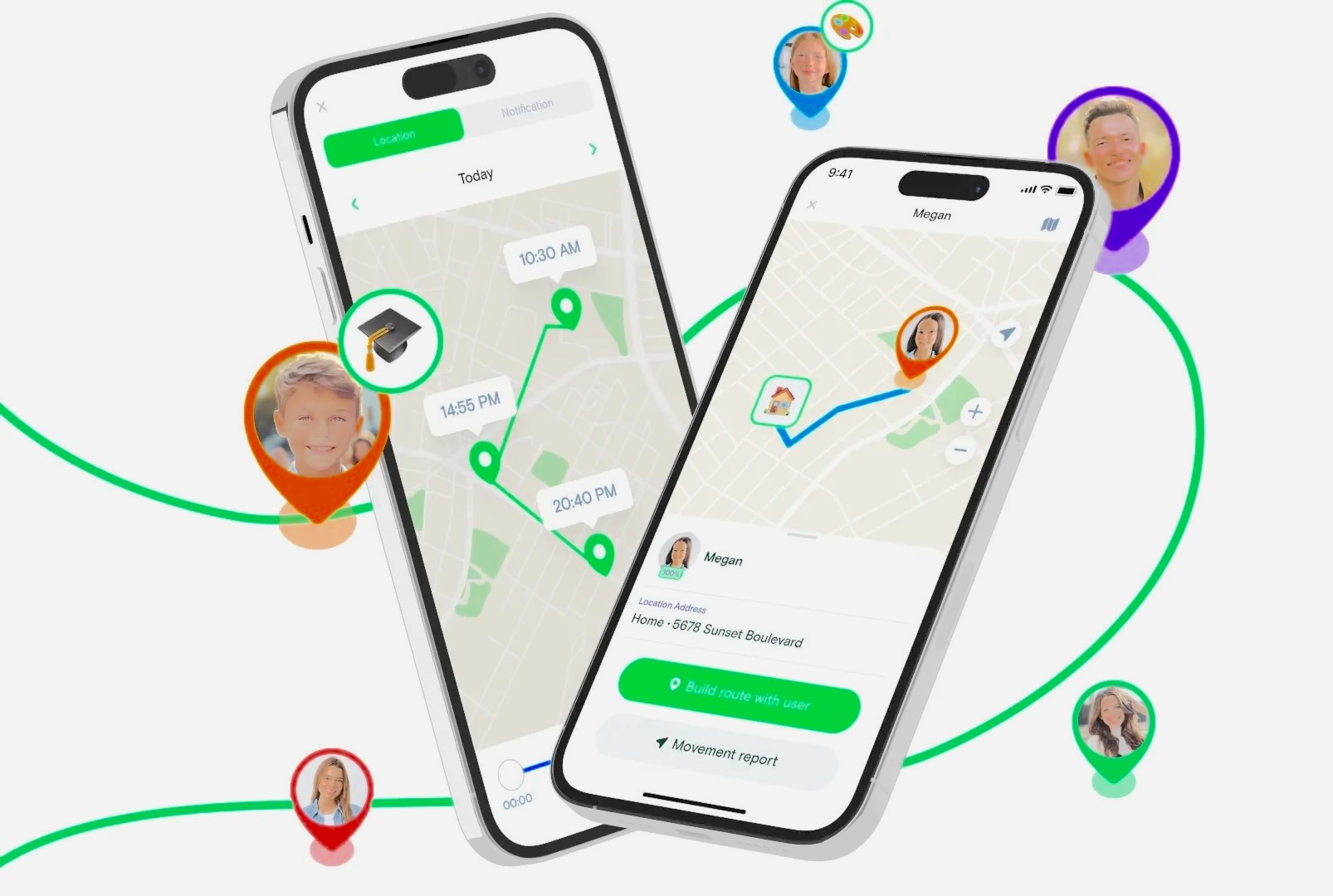

There are more reasons than you might expect for wanting to see calls and texts from a phone that is not in your hand. A parent trying to keep a teenager safe online. A couple who shares a family plan and wants to stay connected. Someone who left their phone in another room and wants to see notifications on their laptop. An employer managing company devices within a consented monitoring program. Or simply someone who wants to check their own call log from another device without walking across the house.
Whatever the situation, one thing is consistent: tracking calls and texts from another phone is something a lot of people need to do, and many of them have no idea where to start or which tools are actually worth using.
The good news is that there are several practical, tested methods available — ranging from completely free built-in solutions to dedicated apps designed specifically for the task. The bad news is that not every tool on the market is honest about what it can and cannot do, and some come with privacy or legal complications that are easy to overlook.
This guide cuts through the noise. We have tested and evaluated the most reliable approaches, noted where they fall short, and laid out exactly how each one works — step by step. We have also included a section on how to detect if your own phone is being tracked without your knowledge, and what to do about it.
Before we go further, a critical note on legality and consent.
⚠️ Important: Tracking another person’s calls and texts without their knowledge or consent is illegal in most countries and can carry serious legal penalties. Every method described in this guide is intended for lawful, ethical use — such as parents monitoring minor children, individuals checking their own accounts across devices, or monitoring programs where all parties have been informed. Do not use these tools to surveil adults without their explicit agreement.
Understanding What “Tracking Calls and Texts” Actually Means
Before diving into specific tools and methods, it helps to be clear about what tracking actually covers, because different tools offer very different levels of visibility.
At the most basic level, tracking call logs means seeing a record of which numbers called or were called by the target device, when those calls occurred, and in some cases how long they lasted. Tracking texts at the most basic level means knowing that a message was sent or received — and potentially who it was exchanged with — without necessarily seeing the content.
More advanced tools go further: some show the actual text content, some show social media messages (like WhatsApp or Facebook Messenger), some work in the background without showing an icon on the target device, and some provide real-time notifications rather than just a history log.
The method you choose should match your actual need. A parent who simply wants to know if their child is texting late at night has different requirements from someone who needs to see the specific content of messages exchanged with a stranger.
Here is what the main categories of tracking cover:
Call logs — Phone numbers, timestamps, call direction (incoming or outgoing), and sometimes duration.
SMS/text content — The actual words in a text message, not just the metadata.
Notification-level data — A preview of messages as they arrive, often limited to what appears in the notification itself.
Social messaging — Calls and texts made through apps like WhatsApp, Telegram, iMessage, or Facebook Messenger, which do not appear in standard call or SMS logs.
Cross-device sync — Viewing your own calls and texts on a secondary device like a computer or tablet using the same account.
With that context in place, let us walk through the options.
Option 1: Use a Dedicated Call and SMS Tracking App
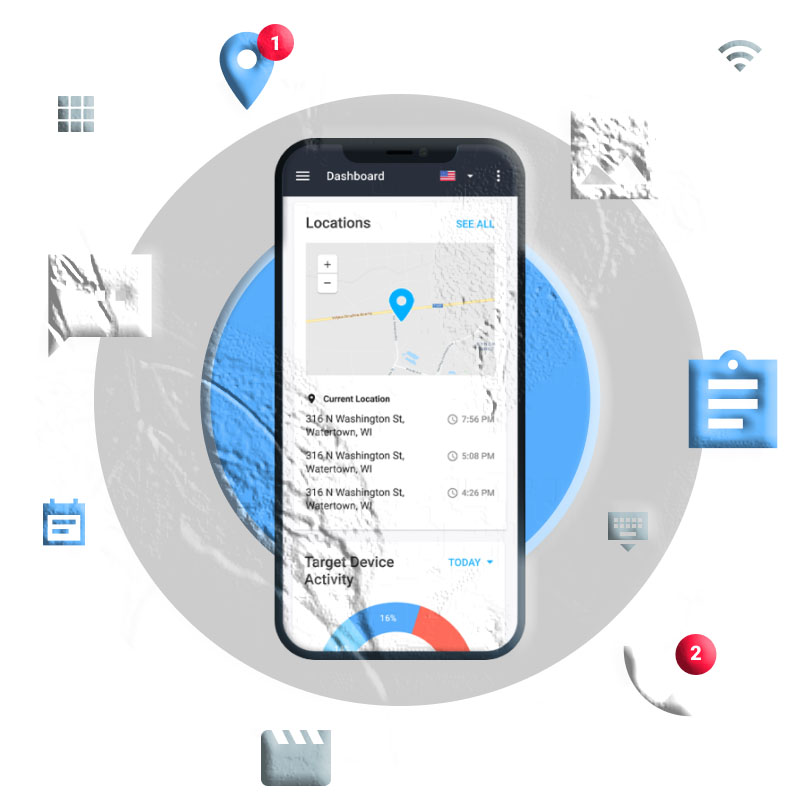
Dedicated apps are the most feature-rich option when standard built-in tools are not sufficient. They tend to offer more detailed logs, real-time notifications, and cross-app coverage that built-in sync services simply cannot match.
That said, quality varies enormously. We tested several apps and highlight the two that delivered the most consistent and honest results.
App 1: MyParental Parental Control
MyParental Parental Control is built specifically for parents who want to stay informed about what is happening on their child’s Android device. It is one of the more transparent apps in this category — it is clear about what it does, does not make inflated claims, and the features it advertises generally work as described.
The standout feature for call and text tracking is Notifications Syncing. When enabled, MyParental automatically captures and forwards incoming notifications — including calls and messages — from the target device to your own phone. This means you see a real-time feed of activity on the child’s phone without needing to physically handle the device.
In addition to call and text visibility, MyParental offers the ability to view the target phone’s screen remotely, which gives you a broader picture of how the phone is being used at any given moment. This is particularly useful when you want to understand the context around a call or text, not just the fact that it occurred.
What it does well:
- Automatically syncs incoming notifications, including calls and messages, from the target device to your phone
- Works in stealth mode, meaning the app runs in the background on the child’s phone without displaying a visible icon in the app drawer
- Remote screen viewing for a real-time look at phone activity
- Accessible via a web dashboard at webparent.MyParental.com, so you can monitor from a computer without needing the app open on your phone
- Supports monitoring of social messaging notifications, not just standard SMS
What it does not do:
- Does not show detailed call duration or a log of outgoing calls in the same detail as incoming
- Does not support iOS (iPhone) on the target device — it requires the monitored phone to be running Android
- Does not show full SMS text content in all cases; notification previews may be truncated depending on the phone’s notification settings
Who it is best for: Parents monitoring a child’s Android device who want ongoing, automatic visibility without checking the phone manually.
How to set it up:
Step 1. Download the MyParental Parental Control app on your own Android phone from the Google Play Store. Create an account and log in.
Step 2. Follow the in-app setup wizard to install the companion app (MyParental Kids) on your child’s Android device. The wizard guides you through granting the necessary permissions on the target phone.
Step 3. Once both devices are linked and the setup is complete, open the MyParental dashboard on your phone and tap “Notifications.”
Step 4. You will see an automatically updated feed of incoming calls and messages from your child’s device. New entries appear in real time as notifications arrive on the target phone.
Step 5. For a broader view of activity, use the remote screen viewing feature to see exactly what is displayed on the child’s phone at any moment. You can also access all logs and features from the MyParental web dashboard if you prefer to monitor from a computer.
One final note: as with any parental monitoring tool, the most effective approach combines technology with communication. Letting your child know that you can see their call and message activity — framed as a safety measure rather than a punishment — tends to produce better long-term outcomes than covert monitoring.
App 2: Message and Call Tracker
Message and Call Tracker is a simpler, more lightweight option available on the Google Play Store. It is primarily designed to track WhatsApp calls and messages rather than standard phone calls and SMS, which makes it useful for a specific set of situations — particularly when WhatsApp is the primary communication channel being used.
The setup involves installing the app on the target Android device, creating an account, and then logging into the same account from a web dashboard on your own phone or computer. Once connected, the dashboard shows call and message activity from the target device.
What it does well:
- Tracks WhatsApp calls and messages in addition to standard phone calls
- Web dashboard access means you can monitor from a computer or any device with a browser
- Free to use for basic features
- Does not require you to have the same carrier or account as the target phone
What it does not do:
- Does not record or track standard SMS content
- Call duration data is not consistently captured
- In testing, the app occasionally logged call attempts that were not completed (for example, when no SIM card was present), which can create inaccurate records
- The free version of the app contains frequent advertisements that interrupt the user experience
Who it is best for: Someone who specifically wants to track WhatsApp activity on an Android device and does not need SMS tracking.
How to set it up:
Step 1. Download Message and Call Tracker from the Google Play Store on the target Android phone.
Step 2. Open the app, create an account, and log in on the target device.
Step 3. On your own phone or computer, go to the app’s web dashboard and log in using the same account credentials used on the target device.
Step 4. Navigate to “Call Details” or “Message Details” in the dashboard to view the tracked calls and WhatsApp messages from the target phone.
Option 2: Use Built-In Sync and Platform Services (Free)
For many common situations — particularly when the goal is to monitor your own phone remotely, or to maintain visibility across a shared family account — the built-in tools already available on your devices are often the best and simplest solution. They are free, do not require any additional installation on the target device (in most cases), and are built on infrastructure you likely already use.
Method 1: Google Account Sync (Android)
If two Android devices are signed into the same Google account, they share call log data and, in some configurations, text message history. This is commonly the case in households where parents and children share a family Google account, or where someone accesses their own phone’s data from a secondary device like a tablet.
The Google Messages app specifically supports syncing across devices when enabled. This means you can read and send text messages from a browser using messages.google.com, even when the primary phone is in another room.
What it covers:
- Standard SMS and MMS messages through the Google Messages app
- Call log visibility across shared accounts (depending on device configuration)
- Works from any browser via Google Messages for Web
What it does not cover:
- Third-party messaging apps (WhatsApp, Telegram, etc.)
- Real-time call monitoring
How to set it up for Google Messages:
Step 1. On the target Android phone, open the Google Messages app. Tap the three-dot menu and select “Device Pairing.”
Step 2. Select “QR code scanner” and scan the QR code displayed at messages.google.com on your computer or secondary device.
Step 3. Once paired, your computer browser will show incoming and outgoing text messages from the target phone in real time, and you can send messages from the web interface as well.
This approach is excellent for monitoring your own messages across devices or for family setups where the same account is shared. It is transparent by design — there is no hidden installation or stealth mode.
Method 2: iCloud Sync (iPhone)
Apple’s ecosystem offers powerful cross-device sync through iCloud and Family Sharing. If you and a family member are using the same Apple ID, or if you have set up Family Sharing properly, call logs and messages can be accessible across linked devices.
iCloud sync for messages works through the Messages app (iMessage). When enabled, the full message history — including iMessages and standard SMS — is synchronized across all devices signed into the same Apple ID. This means that messages received on one iPhone can be read on another iPhone, iPad, or Mac signed into the same account.
What it covers:
- iMessage conversations (across Apple devices)
- SMS forwarding from iPhone to iPad or Mac
- Call history visible on other devices with the same Apple ID
- Works natively through Settings — no additional app needed
What it does not cover:
- Third-party messaging apps
- Android devices
How to set it up:
Step 1. On the target iPhone, go to Settings → [Your Name] → iCloud and make sure “Messages” is toggled on.
Step 2. On the secondary device (another iPhone, iPad, or Mac), sign in with the same Apple ID and ensure iCloud sync for Messages is also enabled.
Step 3. Open the Messages app on the secondary device. You will see the synchronized message history from the target iPhone.
Step 4. For call log visibility, ensure that both devices are signed into the same Apple ID and have “iPhone Cellular Calls” enabled under Settings → Phone → Calls on Other Devices.
For family setups where each family member has their own Apple ID but you want some level of shared visibility, Apple Family Sharing is worth exploring — though it focuses more on purchases and screen time than on call or message content.
Method 3: Microsoft Phone Link (Android and iPhone to Windows PC)
Microsoft Phone Link is a free application pre-installed on Windows 10 and Windows 11 computers. It lets you connect an Android or iPhone to your PC and view calls, texts, and notifications directly on your computer screen. This is particularly popular for people who work at a desk and do not want to constantly pick up their phone to check messages.
The connection works over Bluetooth and Wi-Fi, meaning both the phone and the PC need to be on the same network and within reasonable proximity to maintain a connection.
What it covers:
- Incoming and outgoing call notifications on your PC
- Full SMS message history and the ability to send texts from your computer
- App notifications from any app on the phone
- Works with both Android and iPhone (though Android integration is more complete)
What it does not cover:
- Functions when the phone is out of Bluetooth or Wi-Fi range
- Some features are limited on iPhone due to Apple’s restrictions
How to set it up:
Step 1. Open the Phone Link app on your Windows PC. If it is not already installed, download it from the Microsoft Store.
Step 2. On the target Android phone, download the Link to Windows app from the Google Play Store. For iPhone, follow the QR code scan flow shown in the Phone Link app on your PC.
Step 3. Use the phone to scan the QR code displayed on the PC screen. This links the two devices.
Step 4. Once connected, notifications, calls, and messages from the phone will appear on your PC. You can respond to texts, answer calls through your PC’s microphone and speakers, and see a full notification feed — all without touching the phone.
Phone Link is one of the most seamless experiences for checking your own phone’s calls and texts from a computer. The main limitation is proximity — if you take your phone to another room or leave the house, the connection may drop until the devices are back in range.
Method 4: Carrier Family Plan Call Monitoring
Many mobile carriers offer family plan features that include a shared call log or usage dashboard accessible to the account holder. This allows the primary account holder to view call records — including numbers dialed and received, timestamps, and sometimes call duration — for every line on the plan.
Carriers that offer this type of family monitoring in the United States include Verizon Smart Family, AT&T Secure Family, and T-Mobile FamilyWhere, among others. Each offers different features at different price points, with some available as add-ons to existing plans.
What it typically covers:
- Call logs for all lines on the account (numbers, timestamps, duration)
- Data usage summaries
- Some plans include text message logs (who was texted, when) but not content
- Location tracking features in many cases
What it does not cover:
- Content of text messages — carriers do not store or expose message content for privacy and legal reasons
- Calls or texts made through internet-based apps (WhatsApp, FaceTime, etc.)
How to access it:
Step 1. Log into your carrier account through their website or app using your account holder credentials.
Step 2. Navigate to the family plan or usage dashboard section. The exact location varies by carrier.
Step 3. Select the line you want to review and look for call history or usage records.
Step 4. Alternatively, contact your carrier’s customer service line directly and ask about family plan monitoring features available on your current plan.
This is a legitimate and often overlooked approach for parents who are already paying for a family plan and simply want visibility into call activity. The limitation is that it only covers cellular calls and texts — it does nothing for app-based communications.
How to Detect If Your Own Phone Is Being Tracked
Understanding how to track calls and texts naturally raises the flip-side question: how do you know if someone is monitoring your phone without your knowledge or consent? Here are the signs to watch for and what you can do about them.
Signs That Your Phone May Be Monitored
Unusual battery drain. Monitoring apps running in the background consume power. If your phone’s battery is draining significantly faster than usual — and you have not changed your usage habits or installed anything new — it is worth investigating.
Increased data usage. Apps that sync call logs, messages, and screen content to a remote dashboard consume mobile data to do so. Check your data usage breakdown in Settings to see if any unfamiliar app is consuming more data than expected.
Unfamiliar apps in your app list. Scroll through your installed apps regularly. If you see something you do not recognize — especially anything with a generic name like “System Service” or “Phone Manager” — research it before dismissing it.
Strange behavior during calls. Occasional echoes, unusual background noise, or brief interruptions during phone calls can sometimes indicate call interception, though these issues can also be caused by network problems or call recording apps the other party is using.
Check which apps have microphone access. Go to Settings → Privacy (or App Permissions) → Microphone and review which apps have permission to use the microphone. An unfamiliar app with microphone access is a red flag.
Review logged-in devices on your accounts. Both Google and Apple allow you to see every device currently signed into your account. On Google, go to myaccount.google.com/device-activity. On Apple, go to Settings → [Your Name] and scroll down to see all signed-in devices. If you see a device you do not recognize, someone else may have access to your account.
Dial a USSD code to check call forwarding. Dialing *#21# on most mobile phones will show you whether your calls or texts are being forwarded to another number. If call forwarding is active and you did not set it up, someone else may have done so without your knowledge.
How to Stop Your Calls and Texts from Being Tracked
If you suspect unauthorized monitoring, here are the steps to take:
Cancel active call forwarding. Dial ##002# on your phone to cancel all call forwarding rules currently active on your line. This is a standard USSD code that works on most carriers worldwide.
Remove unfamiliar apps. Uninstall any app you do not recognize or did not intentionally install. If you are unsure whether an app is legitimate, search for it online or check the Play Store or App Store listing for more information.
Sign out unknown devices from your accounts. Go to your Google or Apple account settings and remove any device you do not recognize from the signed-in device list. After doing this, change your account password to prevent re-access.
Revoke suspicious app permissions. Go to Settings → Privacy (or App Permissions) and review which apps have access to your microphone, camera, location, and contacts. Revoke access for any app that does not need it.
Enable two-factor authentication. This is one of the most effective ways to prevent unauthorized access to your accounts. With 2FA enabled, even someone who knows your password cannot sign into your account without the second verification code.
Keep your software updated. Operating system updates frequently patch security vulnerabilities that could otherwise be exploited by tracking software. Enable automatic updates so your phone stays protected without requiring manual action.
Do a factory reset as a last resort. If you have strong reason to believe your phone has been compromised and the above steps have not resolved the issue, a factory reset will remove all apps and data from the device, including any unauthorized monitoring software. Back up your important data first, and be selective about which apps you reinstall afterward.
Only download apps from official stores. The Google Play Store and Apple App Store both have review processes that catch many malicious apps. Sideloading apps from unofficial sources significantly increases the risk of installing something harmful.
Comparing All Methods at a Glance
| Method | Platform | Cost | What It Tracks | Requires Target Phone Setup? |
|---|---|---|---|---|
| MyParental Parental Control | Android | Paid | Calls, SMS, social notifications, screen | Yes |
| Message and Call Tracker | Android | Free (ads) | WhatsApp calls and messages | Yes |
| Google Messages Web Sync | Android | Free | SMS/MMS | Minimal |
| iCloud Sync | iPhone | Free | iMessage, SMS, call history | Account sharing only |
| Microsoft Phone Link | Android + iPhone | Free | Calls, SMS, notifications | Yes (app install) |
| Carrier Family Plan | Android + iPhone | Varies | Call logs (no content) | No |
What to Look for When Choosing a Tracking Method
With so many options available, the right choice depends on a few key factors. Here is how to think through it.
Who owns the target device? If you are monitoring your own device remotely, built-in sync tools like Google Messages Web, iCloud, or Phone Link are almost always the best answer — they are free, legitimate, and designed for exactly this purpose. If you are monitoring a child’s device with parental authority, a dedicated parental control app gives you more features and automation.
What platform is the target device? Android offers significantly more flexibility for third-party monitoring apps. iPhone’s closed ecosystem means most dedicated tracking apps do not work on iOS as the target device. If the child’s phone is an iPhone, iCloud and Apple Family Sharing are typically your most effective options.
How much detail do you need? If knowing who called is enough, a carrier family plan dashboard or basic call log sync covers that. If you need to see message content or get real-time notifications of incoming texts, a dedicated app is necessary.
Do you need ongoing automatic monitoring or just occasional access? Manual log checking (via iCloud or carrier dashboard) is fine for occasional reviews. Real-time notification sync through an app like MyParental is better for ongoing, automated visibility.
Are you comfortable with app installation on the target device? Most dedicated tracking apps require installation on the target phone. If you do not have physical access to the target device or the owner’s cooperation for setup, your options are limited to carrier-level monitoring or account-sharing tools.
Legal and Ethical Considerations
This section deserves more than a passing mention, because the line between lawful monitoring and illegal surveillance is easy to cross without realizing it.
In the United States, the Electronic Communications Privacy Act (ECPA) makes it illegal to intercept electronic communications — including calls and texts — without authorization. Similar laws exist in the UK, European Union, Australia, Canada, and most other jurisdictions. Monitoring an adult’s calls and texts without their knowledge or consent can expose you to serious civil and criminal liability, regardless of your relationship with that person.
For parents: In most countries, parents have legal authority to monitor their minor children’s devices, particularly when the device is owned by the parent. However, best practice — both ethically and practically — is to have an open conversation about what you are monitoring and why. Children who understand that their parents can see their call and message activity are often more thoughtful about how they communicate, which is ultimately the goal.
For spouses or partners: Monitoring a spouse or partner’s phone without their consent is generally illegal, even if you share a phone plan or live together. If you have concerns about a partner’s behavior, direct communication or professional counseling is the appropriate avenue — not covert surveillance.
For employers: Monitoring company-owned devices is generally permissible when employees have been informed in writing that monitoring may occur. Monitoring personal devices, even during work hours, is much more legally restricted.
In all cases: If you are unsure whether a monitoring approach is legal in your jurisdiction, consult a legal professional before proceeding.
Frequently Asked Questions
Can I track calls and texts from another phone for free?
Yes. Several free methods exist, including Google Messages Web sync for Android, iCloud sync for iPhone, and Microsoft Phone Link for connecting a phone to a Windows PC. Carrier family plans may also offer call log visibility at no extra cost depending on your plan. Free third-party apps with basic features are available too, though they tend to be ad-supported and more limited in capability.
Can I track calls and texts without the other person knowing?
Built-in sync tools like Google Messages or iCloud require account access, which the other person would typically know about. Some dedicated parental control apps like MyParental can run in the background on the target device without a visible icon. However, as noted throughout this guide, tracking without consent is illegal for adults. For minor children, parents generally have the legal authority to monitor, though transparency is recommended.
Does tracking work if the target phone is off?
No. If the target phone is powered off, real-time tracking of calls and texts is not possible. Sync-based methods will update the next time the phone comes online and syncs data. Carrier-level call logs are typically stored server-side and remain accessible regardless of whether the device is on, but this covers historical records only.
Can I track WhatsApp calls and messages the same way as regular calls?
WhatsApp calls and messages travel through the internet rather than the cellular network, so they do not appear in standard call logs or carrier records. To track WhatsApp activity, you need either a dedicated app that supports WhatsApp monitoring (like MyParental through notification sync, or Message and Call Tracker) or access to the WhatsApp app itself on the target device.
What is the best app for parents to monitor a child’s calls and texts?
For Android devices, MyParental Parental Control is one of the more reliable and transparent options tested — it syncs incoming notifications including calls and messages, supports remote screen viewing, and works without requiring constant manual checks. For iPhone, Apple’s built-in Screen Time and Family Sharing features, combined with iCloud message sync, provide the most reliable parental oversight within the iOS ecosystem.
Can a carrier tell me the content of text messages?
No. Mobile carriers do not provide the content of text messages to account holders, even on family plans. Call logs — showing who was called, when, and for how long — are generally accessible through the account dashboard, but the actual text of messages is not. This applies to SMS and MMS. For app-based messages (WhatsApp, iMessage, etc.), carriers have no visibility at all.
Will the other person get a notification when I start tracking their calls and texts?
It depends on the method. Google Messages Web shows a “linked device” notification when first set up. iCloud sync does not typically send an alert. Phone Link shows a connection notification on the phone when the PC connects. MyParental runs in the background without a persistent visible indicator on the target device. In all cases, anyone who checks their account settings carefully would be able to see that monitoring is occurring.
Is it possible to track calls and texts remotely without installing anything on the target phone?
In a limited sense, yes — through carrier family plan dashboards, you can view call logs for lines on your account without touching the target device. iCloud call history is also accessible if you already have the person’s Apple ID credentials. Beyond these account-based approaches, most meaningful tracking requires some form of app installation on the target device during the initial setup.
Final Thoughts
Tracking calls and texts from another phone is not a single thing — it is a spectrum of tools and approaches, each suited to different needs and situations. At one end, you have simple, free sync solutions that let you see your own phone’s activity on another screen. At the other end, you have dedicated parental control apps that provide ongoing, automated visibility into a child’s communications across multiple channels.
For most parents, the combination of a trusted parental control app for day-to-day monitoring and a direct conversation with your child about expectations and safety covers the vast majority of situations. For everyone else — people checking their own messages remotely, families on shared plans, workers managing company devices — the free built-in tools described in this guide are usually more than sufficient.
Whatever approach you choose, keep legality and consent at the center of the decision. Used responsibly, call and text tracking is a genuinely useful tool. Used without appropriate authorization, it becomes a privacy violation with real consequences.
App availability and features may change over time. Always check the relevant platform’s official listing for the most current information. Links to Google Play Store and other services reflect those available at the time of writing.