Block specific apps, schedule when they’re available, or pause them entirely — with a built-in request system so kids can ask for access when they have a legitimate reason. MyParental’s App Blocker gives families practical control over which apps are usable, when, and where, without resorting to taking the phone away.
When “Just Put It Down” Stops Working
There’s a stage in every family’s relationship with phones where verbal requests stop being enough. The polite “could you put that down?” stops landing. The firmer “I asked you to put that down” gets a delayed nod that turns into another twenty minutes of the same app. The frustrated “I’m taking the phone” creates a conflict no one wanted.
The honest reason this happens isn’t usually defiance. It’s that specific apps are genuinely engineered to be hard to leave. They’re designed by teams of behavioral specialists whose explicit goal is to maximize time spent. A child’s attempt to follow a “stop using that app” instruction is, in practical terms, a child trying to out-willpower a multibillion-dollar product team. They’re not going to win that fight every time, and neither would most adults.
The App Blocker is a way to take the fight off the table. Instead of asking the child to use willpower against an app designed to defeat willpower, the device simply doesn’t make the app available during the windows you’ve defined. The conversation about “you’ve been on that game too long” stops being a conversation, because there’s nothing to argue about. The game isn’t there.
This page is a thorough walk through how MyParental’s App Blocker works, how to use it in ways that produce calmer families rather than just stricter ones, and how to combine it with conversation so kids actually develop the self-regulation that limits are meant to support.
What the App Blocker Can Do
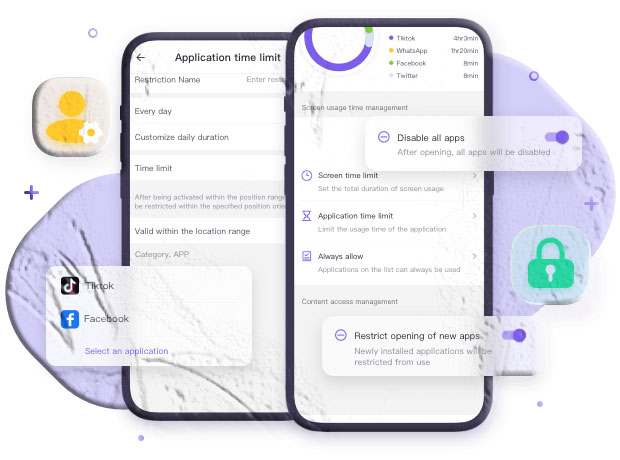
MyParental’s App Blocker is organized around a few distinct ways of restricting apps:
| Restriction type | What it does | Best for |
|---|---|---|
| Full block | The app is fully unavailable on the device | Age-inappropriate apps, apps the family has decided against |
| Daily time limit | The app works until the cap is reached, then locks | Apps that aren’t bad in themselves but absorb too much time |
| Scheduled windows | The app is available only during certain times | School-day vs after-school, bedtime, homework hours |
| Location-based block | The app is restricted based on where the device is | School, library, study spaces |
| Category restrictions | Block by app type (games, social, etc.) | Households with broad rules |
| Request and approve | Child can ask for access; parent can grant briefly | Older kids who occasionally need flexibility |
The point of having multiple options isn’t to use them all. It’s to match the right restriction to the actual situation. Most apps don’t need to be fully blocked — a time limit is enough. Some apps don’t need a limit — a schedule restriction is enough. A few apps might genuinely need to be fully unavailable. Picking the lightest-touch restriction that solves the actual problem tends to produce the best long-term results.
Full App Blocks: When to Use Them
A full block makes an app unavailable on the device. The icon may still appear, but tapping it opens a clear message rather than the app itself.
When a Full Block Is the Right Tool
Age-inappropriate content. A social platform with a stated minimum age your child hasn’t reached. A game with content the family has decided is unsuitable. An app that consistently surfaces material you’d rather your child not see.
Apps that have repeatedly caused problems. A specific app where every reasonable attempt at moderate use has failed. A platform that’s been the source of bullying. An app that’s been associated with sleep disruption or significant mood changes.
Apps the child themselves wants blocked. This one surprises parents. Many kids — particularly older ones — recognize when an app is bad for them but find it hard to delete or limit on their own. A parent-imposed block can be a relief rather than a restriction, when it’s framed honestly.
When a Full Block Is the Wrong Tool
For “I want them to use less of it.” A full block is a binary tool. If the real situation is “this app is okay, but they’re using it too much,” a time limit is almost always more effective. Bans tend to invite workarounds; reasonable limits tend to teach moderation.
For broad categories applied indiscriminately. “Block all games” or “block all social apps” sounds tidy but rarely fits how a real child’s day works. A single specific block tends to land better than sweeping category bans.
As a punishment. Using app blocks as consequences for unrelated behavior tends to break the relationship between the rule and the reason. The block becomes about the parent’s frustration rather than about the app itself.
Lifting a Block
Blocks aren’t permanent. The point of the system is flexibility, not rigidity. If a child has consistently demonstrated they can handle an app responsibly, lifting the block is one of the most powerful messages a parent can send: I see that you’ve grown, and I’m responding to it.
Time Limits on Specific Apps
For most apps that families want to manage, the right tool isn’t a full block — it’s a daily time limit. The child can use the app freely up to the limit, at which point it becomes unavailable until the next day.
Why Time Limits Outperform Full Blocks for Most Apps
They teach moderation. A child who knows they have 45 minutes for a game starts thinking about how to use those 45 minutes well. A child who can never access the game just resents the rule.
They reduce friction. Most arguments about apps aren’t about whether the app should exist at all — they’re about how much. A clear daily limit removes the negotiation.
They produce better long-term habits. The goal of parental controls isn’t perpetual external restriction. It’s helping a child develop the judgment to eventually manage their own device use. Limits teach that skill; blocks don’t.
They handle the “engineered for engagement” problem. A daily limit is the device fighting against the app’s hooks on the child’s behalf. The child doesn’t have to out-willpower the app — the limit does it for them.
Setting Useful Limits
Look at actual usage first, not assumptions. The App Usage section of MyParental shows how much time is actually going into each app. Set limits based on real data, not guesses.
Don’t make the first cut too deep. A limit that’s a dramatic reduction from current use produces resentment. A modest cut — say, 30% below current use — is usually enough to start moving in the right direction.
Include the child in the conversation. “What’s a fair limit for this game?” is a better starting point than imposing a number unilaterally. Older kids especially are far more accepting of limits they helped set.
Adjust over time. Limits aren’t permanent. As habits shift, the right limit shifts too. Most families revisit their per-app limits every few weeks during the first few months, then less frequently after that.
Scheduled Restrictions
Time of day matters as much as total time. An hour of gaming after homework feels very different from an hour of gaming at 11 p.m. or during the school day.
The App Blocker lets you schedule when specific apps are available:
Common Schedule Patterns
Bedtime cutoff. Entertainment and social apps lock an hour or so before bed and stay locked until morning. This is the single most evidence-supported screen time intervention, protecting sleep and removing the nightly “put the phone down” argument.
School hours. Games and social platforms are unavailable during the school day. Educational apps and communication tools stay accessible.
Homework window. A defined block in the afternoon or evening when entertainment apps lock, supporting focused study time.
Family meals. Distracting apps lock during dinner. Small change, large impact on whether anyone is actually present at the table.
First hour after waking. The device stays restricted for the first 30 to 60 minutes after waking, supporting a less phone-saturated start to the day.
Why Schedules Outperform Total Limits Alone
A daily time total can be burned through in any way the child chooses. Schedules give the day shape. Even with the same total time, a structured day produces better outcomes — better sleep, more present meals, more focused homework — than an unstructured one.
Most families end up combining the two: a modest daily total plus a couple of meaningful schedule rules. The combination is more effective than either alone.
Setting Schedules That Stick
Two or three rules, not ten. A schedule that imposes restrictions on every part of the day produces resistance. A few meaningful windows produce acceptance.
Tie rules to real activities, not just times. “Apps locked during dinner” is more intuitive than “no apps from 6:30 to 7:00.”
Be predictable. A schedule that changes constantly is one a child can’t internalize. Stick with rules for a few weeks before adjusting.
Different days, different rules. Most families want different patterns on Saturdays than on Tuesdays. MyParental supports different schedules for different days of the week.
Location-Based Blocking
A useful complement to time-based rules is location-based ones. The same device should probably behave differently at school than at home.
How It Works
In the MyParental dashboard, you set up locations (these are the same geofences used by the Location Tracker feature). For each location, you can apply different app restrictions:
- At school: entertainment apps locked, school apps allowed.
- At a tutor or library: specific apps allowed, others restricted.
- At home during certain hours: the household’s normal rules apply.
- Elsewhere: a default set of rules.
When This Is Useful
Most families don’t need elaborate location-based rules. But there are specific situations where the feature pays off:
A child who keeps using the phone at school despite the school’s stated rules. A location-based block makes the rule self-enforcing.
Study locations where focus matters. Locking entertainment apps at the library or a tutor’s office removes a constant temptation.
A young child whose rules differ by place. Free use at home, structured use at a friend’s place, very limited use at school.
Like all the features here, the principle is to use the simplest version that works. Start with time-based rules; add location-based rules only if there’s a specific pattern that warrants them.
Category-Based Restrictions
For households that prefer broad rules over per-app management, the App Blocker supports category-level restrictions. Apps are classified into categories (games, social media, video, communication, entertainment, education, productivity, etc.), and you can apply rules to whole categories at once.
When Category Rules Work Well
Younger children with simple needs. A six-year-old probably doesn’t need fine-grained per-app rules. “Educational apps anytime; games only on weekends” is a perfectly reasonable framework.
Initial setup for older kids. Category rules can be a quick starting point, with per-app refinements added later as patterns emerge.
Households that prefer broad simplicity. Some families don’t want to manage individual apps. Category rules let the system do most of the work.
When Category Rules Don’t Work as Well
As children get older. Teenage app use is too varied for broad categories to capture well. The same “social” category includes apps with very different uses, and the same “game” category includes everything from quick puzzles to extended online communities.
For specific situations. If one specific app is the problem, a category-wide rule is overkill. Target the actual issue.
Most families end up using a mix — category rules for the broad patterns, per-app rules for specific situations.
The Request and Approve System
One of the most useful features of MyParental’s App Blocker is also one of the most underrated: the request system.
How It Works
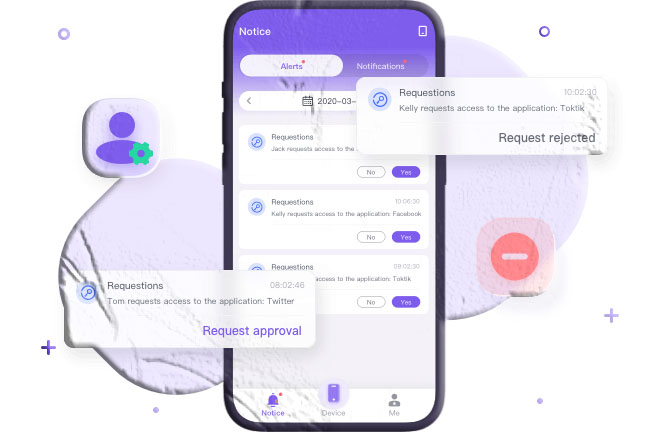
When a child encounters a restricted app, they can send a request for access. The request appears in the parent’s dashboard with options:
- Grant access for a short, defined period (say, 30 minutes).
- Grant access for the rest of the day.
- Decline the request, with an optional brief explanation.
- Discuss it later (the request stays in the queue).
Why This Matters
A static restriction can’t anticipate every situation. A homework project requires a specific app the parent had blocked. A friend wants to video-chat, and the messaging app is in the bedtime lockdown window. The school sends a last-minute notification through an app that’s normally restricted during school hours.
The request system handles these cases without requiring you to permanently change the rules. The child asks. The parent decides. Access is granted for the moment, then the normal rules resume.
This approach has several quiet benefits:
It teaches the right behavior. A child who asks for access — and gets it for legitimate reasons — learns that the system is a tool, not an adversary. A child who has to circumvent the system to get what they need learns that the system is an enemy. The first outcome produces better long-term cooperation.
It catches edge cases. Most family rules can’t anticipate every situation. The request system makes room for the exceptions without breaking the general rule.
It surfaces useful information. A pattern of requests for a specific app is data worth paying attention to. Maybe the limit is too tight. Maybe the app has become more central to the child’s social life than you realized. Maybe there’s an ongoing project the rules don’t account for.
It builds the parent-child collaboration that long-term self-regulation depends on. Children who feel heard by the rules tend to respect them. Children who feel ignored tend to find ways around them.
How to Set It Up
Setting up the App Blocker takes about ten minutes for a typical family. Here’s the full walkthrough.
Step 1: Have the Conversation First
Don’t install app restrictions on a child without telling them. This is true for every feature in MyParental, but it’s especially true for the App Blocker, where a child suddenly hitting a restriction they didn’t know existed is guaranteed to produce resentment.
For younger children: “We’re going to set up some rules on your phone so certain apps only work at certain times — like games only on weekends, or no games during bedtime. The phone will just handle it so we don’t have to keep talking about it.”
For older children and teenagers: “Here’s what’s going to happen. Your phone is going to start enforcing some app rules — a time limit on a couple of apps, a bedtime cutoff, no games during school hours. I want us to set the limits together so they feel reasonable. If something needs to be different in a specific situation, you can request access from your phone and I’ll review it.”
Mention the request system specifically. Knowing they can ask — and that you’ll consider the request fairly — changes how kids relate to the restrictions.
Step 2: Install MyParental on Your Device
Download MyParental from the MyParental site. Create your account and enable two-factor authentication.
Step 3: Install the Companion App on the Child’s Device
On the child’s phone or tablet, install the MyParental companion app from the same official store. Open it and choose the option to link to a parent account.
Step 4: Pair the Two Devices
In your parent app, tap Add a Child. Enter the pairing code shown there into the companion app on the child’s device. The two apps connect within seconds.
Step 5: Grant the Necessary Permissions
The companion app will request a few permissions on the child’s device — usage access, notifications, and on Android, accessibility services to enforce app restrictions. Each request comes with a clear explanation of why it’s needed. Read them and grant them all; the App Blocker’s enforcement depends on these permissions.
On iOS, the companion app uses Apple’s Screen Time framework. Apple’s Screen Time documentation describes the underlying capabilities the integration uses. On Android, parental control apps typically work alongside Google Family Link and the OS-native usage tools.
Step 6: Adjust Battery Settings (Android Only)
Some Android devices aggressively close background apps to save battery. If MyParental gets closed by the system, app blocking stops being enforced.
On the child’s device, find MyParental in the battery or app settings and mark it as allowed to run unrestricted in the background. The exact label varies by manufacturer (“Unrestricted,” “No restrictions,” “Allow auto-launch,” etc.).
Step 7: Review Current App Usage First
Before setting any restrictions, look at the app usage data for a day or two. Most parents discover their assumptions about what’s being used the most are wrong. Setting restrictions based on actual data produces far better outcomes than setting them based on intuition.
Step 8: Set Your First Three Rules
Once you have a baseline, set the first three rules. For most families, the right starting point is:
- A daily time limit on the one app absorbing the most time. This is usually a single game or social platform.
- A bedtime schedule that locks entertainment apps about an hour before sleep.
- One scheduled window for focused activity — either a homework block or a screen-free dinner.
Don’t add more rules on day one. Live with these three for a week. Watch how the child responds. Note which rules feel natural and which create friction.
Step 9: Iterate Over the First Month
The first month is when the configuration settles. You’ll probably:
- Adjust the daily time limit once or twice.
- Refine the bedtime cutoff to a time that actually works.
- Add a weekend variation that’s more relaxed than weekdays.
- Possibly add a school-hours block.
- Loosen restrictions on apps that turned out not to be a problem.
- Tighten restrictions on apps you didn’t initially realize were heavily used.
After about a month, most families settle into a configuration that works.
📱 Get Started — Download MyParental
How the App Blocker Compares
Families considering an app blocking tool have several options. A brief, honest comparison.
Apple Screen Time (iOS)
Apple’s Screen Time is built into iOS and offers app limits, schedules, and category-based restrictions for free. For families entirely on iOS, it’s a strong starting point.
Where it falls short for some households: it doesn’t work on Android, has limited cross-device management for parents and children with different platforms, and lacks some of the request-and-approve flexibility families find useful in dedicated parental control apps.
Google Family Link (Android)
Google’s Family Link is the Android equivalent. Free, well-integrated, and capable. For Android-only households, it covers most basic needs.
The same caveats apply — it’s Android-specific, with its own enforcement gaps and a more limited cross-platform story.
Standalone App Blockers
Several focused apps offer narrow app-blocking functionality. They can be fine for households whose only concern is restricting access to specific apps.
MyParental’s App Blocker is integrated with the broader parental control suite — usage tracking, location, content filtering, communication safety, reports. Families whose needs extend beyond app blocking alone usually benefit from the integration.
Full Parental Control Suites
Several established products in this category offer app blocking as part of a broader feature set, typically priced at $50–$150 per year. They tend to be capable but expensive.
MyParental sits in the middle of this market — less elaborate than the most feature-heavy paid suites, more capable than free OS-level tools, with a free starting tier that covers the basics.
For most families, the right answer depends on which devices are in the household and how many parental control features you actually want. App blocking alone? Native OS tools may be enough. App blocking as part of a broader parental control setup? MyParental is competitive.
Using the App Blocker Well
The technical setup is the easy part. Using the feature in ways that produce healthy habits — rather than just enforcing restrictions — takes a little intentionality.
Restrictions aren’t the goal; healthy habits are. A child who has every entertainment app blocked but doesn’t develop any positive replacement activities hasn’t actually gained anything. The point is balance, not just restriction.
Use the lightest restriction that works. A time limit is gentler than a schedule, which is gentler than a full block. Pick the lightest option that addresses the actual problem.
Be transparent about what’s restricted and why. Children who understand the rules accept them better than children who keep running into mysterious restrictions.
Use the request system. Some parents under-use the request and approve feature, treating restrictions as absolute. Inviting kids to ask — and saying yes to legitimate requests — teaches the collaborative approach that produces good long-term self-regulation.
Loosen as kids mature. A restriction set that fits a ten-year-old is probably too tight for a fifteen-year-old. Visibly relaxing rules as a child demonstrates good judgment is one of the most powerful messages a parent can send.
Don’t use blocks as punishment. Restrictions tied to specific concerns about specific apps teach something. Restrictions used as consequences for unrelated behavior just break the meaning of the system.
Model what you’re asking for. A parent on their phone all evening enforcing app blocks is a difficult sell. The household’s broader phone habits matter more than any specific configuration.
Don’t outsource parenting to software. No app can substitute for time spent, conversations had, and attention given. The App Blocker structures access; the parent does the rest.
What Families Notice After Using the App Blocker
A few patterns that come up consistently in feedback.
Specific arguments shrink quickly. The most-restricted apps stop being daily flashpoints within a week or two. The conversation about “you’ve been on that app too long” stops happening because the app handles it.
Kids ask for access more often than parents expect. This is usually a good sign. A kid using the request system is a kid who’s working within the framework rather than against it.
Total screen time often drops without anyone trying. Just blocking a couple of apps during specific windows reduces overall device use by more than the sum of the individual rules. The habit of constant reaching for the phone diminishes when the most-used apps aren’t always available.
The configuration shifts in the first month. Almost every family adjusts which apps are restricted, what the time limits are, and when the schedules apply during the first few weeks. After about a month, the configuration tends to stabilize.
Some kids appreciate it more than parents expect. Older kids and teenagers often (privately) report relief at having external structure on apps they couldn’t moderate on their own. Many people of any age feel they spend too much time on certain apps; firm external limits give them permission to do something they wanted to do anyway.
Request decisions become a normal part of family rhythm. Once the system is in place, brief access requests stop feeling like negotiations and start feeling like the small logistics of any household — like asking to borrow the car.
Privacy and Security
App blocker data — which apps are installed, which are restricted, which have been used — is information about how a child spends their time. We handle it accordingly.
- Encryption in transit and at rest. Restriction settings and usage data are encrypted between devices and our servers and stored securely.
- No third-party sale of data. Family activity is processed to deliver the service, not packaged for sale.
- Limited retention. Usage and restriction data is retained for the period needed to provide the service. Retention windows are described in our Privacy Policy.
- Two-factor authentication is available and recommended on the parent account.
- Per-child controls. Each child has their own profile and independent configuration.
Frequently Asked Questions
How do I block apps on my child’s Android phone?
The cleanest way for ongoing parental control is a third-party app like MyParental, which provides per-app limits, scheduled restrictions, location-based rules, and a request system. Android’s native tools — found in Settings → Digital Wellbeing & parental controls — offer basic limits and bedtime modes that can complement parental control apps. For the deepest native control over a child’s Android device, Google Family Link is the free first-party tool.
Can I block apps on my child’s iPhone?
Yes. The native option is Apple Screen Time, available under Settings → Screen Time, which offers app limits and downtime schedules. MyParental’s App Blocker uses Apple’s Screen Time framework to provide a cross-platform parental control experience that works the same way on both iOS and Android.
How do I block an app from being downloaded?
In MyParental, you can require parent approval for new app installations — a stronger version of blocking that prevents the app from being added in the first place. On iOS, you can also require approval through Screen Time settings. On Android, Family Link’s settings allow similar approval workflows.
How do I get an app blocker for Chrome?
For browser-based website blocking, the Chrome Web Store has several extensions that block specific sites or categories. MyParental focuses on app-level blocking on mobile devices rather than browser extensions, but the two approaches can work together — a website blocker handles desktop browsing while a parental control app handles mobile.
How do I disable the App Blocker temporarily?
From the parent dashboard, you can disable any specific restriction or pause the entire App Blocker briefly. Pauses are useful for travel, family events, or any situation where the normal rules don’t fit. The system resumes automatically based on the schedule you set.
Can my child uninstall MyParental to bypass the App Blocker?
The companion app is designed to resist casual removal. You’ll receive a notification if it’s uninstalled. The most effective long-term response is usually a conversation about why the tool is there rather than an escalating cat-and-mouse game. Repeated uninstall attempts are often a signal that the restrictions feel disproportionate to the child, and the right answer is usually adjustment rather than escalation.
What happens when an app is blocked?
The app icon may still appear on the device, but opening it shows a clear, age-appropriate message explaining the restriction. The child can use the request system to ask for access if they have a legitimate reason. Critical functions — phone calls, emergency services — remain available regardless of any app restrictions.
Can I block all games at once?
Yes, using category-based restrictions. Most families find specific per-app rules work better than blanket category bans, but the option is there if you prefer broader management.
Can I have different rules for different children?
Yes. Each child has their own profile with its own configuration. The same app can be unrestricted for an older sibling and restricted for a younger one, with no manual juggling needed.
Will the App Blocker work when my child is away from home?
Yes. Restrictions are enforced by the companion app on the child’s device, not by the home network. They work wherever the device is.
How does the request system work?
When a child encounters a restriction, they can send an access request from their device. The request appears in the parent dashboard. The parent can grant a short window of access, grant it for the day, decline, or defer. The system is designed to make exceptions easy without breaking the underlying rules.
Can the request system be abused?
In practice, kids who use the request system to constantly ask for access usually settle into more reasonable patterns within a week or two once they realize requests get evaluated thoughtfully. If you find yourself getting overwhelmed with requests, that’s usually a signal the underlying limits are too tight rather than a reason to abandon the system.
Does blocking apps drain the battery?
Modern app blocking is far more efficient than older approaches. Most families don’t notice meaningful battery impact. If a specific device shows higher drain, ensuring MyParental isn’t being aggressively restricted in the background usually resolves it.
What if a blocked app is actually needed for school?
This is exactly what the request system is designed for. The child requests access; you grant a window large enough to handle the task. The block resumes after. Alternatively, you can whitelist specific apps (school portals, learning tools) so they’re never restricted in the first place.
Can the App Blocker work with my child’s school-issued device?
Many school-issued devices have their own management software that limits what third-party apps can do. MyParental works well on family-owned devices; for school-managed devices, check with your school about which parental controls are compatible.
How do I block in-app purchases?
In-app purchases are typically controlled at the app store account level rather than by parental control apps. On iOS, Apple’s Family Sharing settings require parent approval for purchases. On Android, Google Play parental controls offer similar features. These work alongside MyParental’s app-level controls.
What You Get with the App Blocker
A quick recap of what’s included:
✅ Full app blocks with clear messaging on the child’s device
✅ Per-app daily time limits with device-level enforcement
✅ Scheduled windows for individual apps or categories
✅ Location-based restrictions tied to geofences
✅ Category-level rules for broad management
✅ Request-and-approve system for flexible exceptions
✅ Whitelisting of essential apps (school, communication, emergency)
✅ Per-child configuration with independent profiles
✅ Cross-platform support (Android and iOS)
✅ Multi-parent access for households with two caregivers (on paid plans)
✅ Notifications when restrictions are hit or settings are changed
✅ Encrypted data in transit and at rest
Final Thoughts
The App Blocker isn’t about restriction for its own sake. It’s about giving families a practical way to translate the rules they’ve already agreed on into something the device actually enforces — so the conversation about phones can stop being a daily battle and start being a normal part of life.
Used well, with transparency, with the request system as a real option for exceptions, and with a willingness to adjust as a child matures, the feature can quietly remove a meaningful amount of friction from family life. The nightly arguments shrink. The negotiations about which apps and how much become fewer. The structural rules do the structural work, and parents get to focus on the parts of parenting that actually require human judgment.
It’s not a magic solution to every digital parenting challenge. It can’t substitute for engaged attention, real conversations, and the long, patient work of helping a child develop their own judgment. But it can take a real chunk of the mechanical work off your plate — and for most families, that’s enough to be worth setting up.
Start with a conversation. Set three reasonable rules. Use the request system when it helps. Adjust as you learn. The configuration that fits your household will emerge faster than you think.
Helpful links: Download MyParental • Pricing • FAQ • About Us