

WhatsApp has more than two billion active users worldwide, making it one of the most popular communication platforms on the planet. People use it to stay connected with family across continents, coordinate remote work, catch up with old friends, and even conduct informal business meetings. Voice and video calls through WhatsApp are free, clear, and remarkably easy to use.
But what happens when you want to save one of those conversations?
Maybe you had an important discussion with a business partner and need to refer back to the details later. Maybe a family member shared something meaningful during a video call and you want to keep that memory. Or perhaps, as a parent, you want to keep an eye on your child’s digital communications to make sure they are safe.
Whatever the reason, you have likely noticed that WhatsApp does not offer any built-in call recording feature. Unlike some phone apps that let you tap a button to record, WhatsApp keeps its calling interface intentionally simple — and private. The app is designed around end-to-end encryption and user privacy, which means call recording is deliberately left out of its native feature set.
That said, recording a WhatsApp call is still possible. You just need to know which tools to use and how to use them correctly. In this guide, we will walk through practical, tested methods to record WhatsApp calls on both Android and iPhone — covering free built-in options, reliable third-party apps, and important legal considerations you should know before you hit record.
⚠️ Legal Notice: Recording phone calls without informing the other party is illegal in many countries and states. Before recording any call — WhatsApp or otherwise — you must check the laws in your region and obtain consent from everyone involved. This guide is intended for legal, ethical use only.
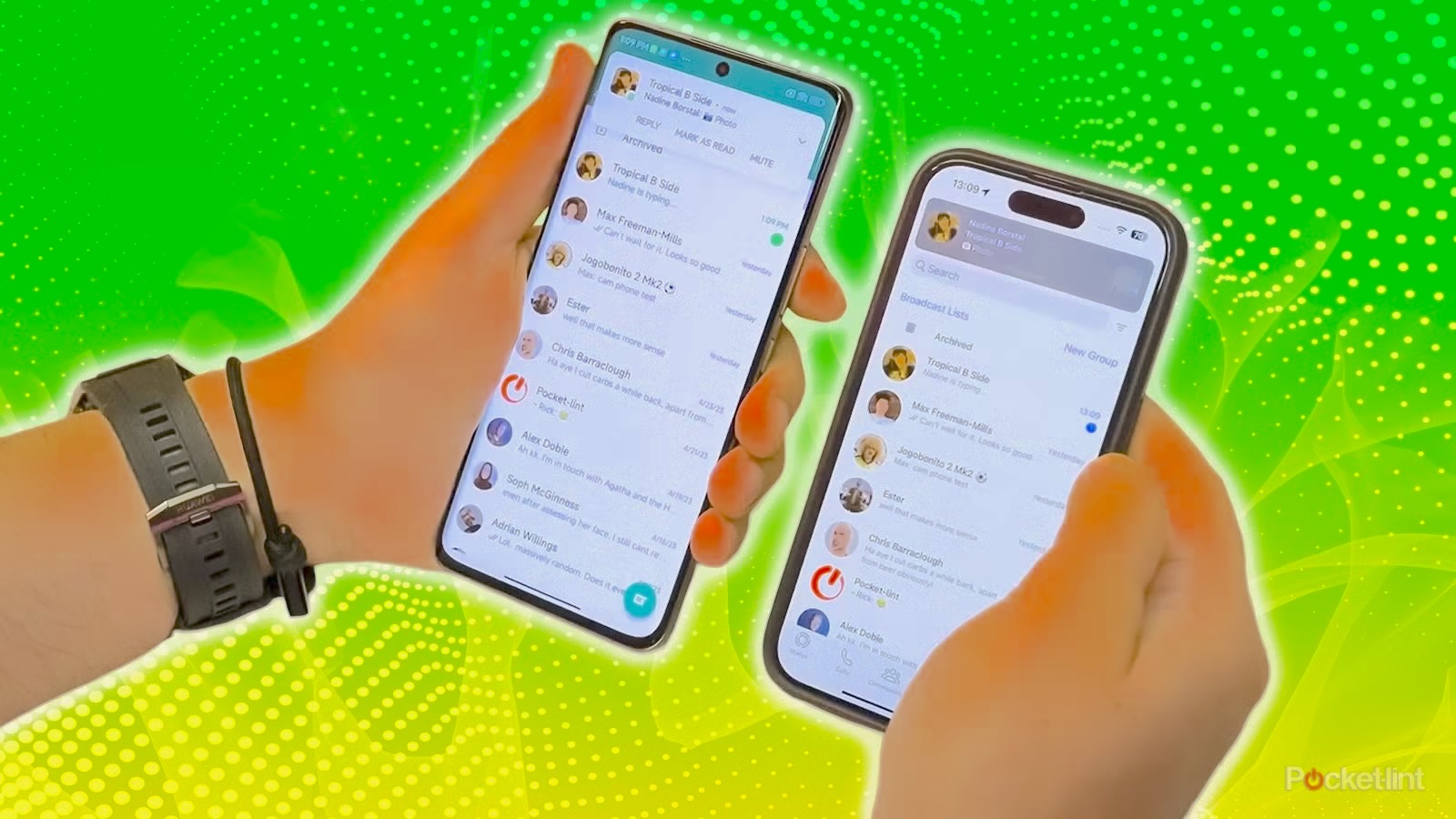
Why WhatsApp Does Not Have a Built-In Call Recorder
Before diving into the how-to steps, it helps to understand why this feature is missing in the first place.
WhatsApp’s calls are protected by end-to-end encryption. This means that the audio data traveling between two devices is scrambled and can only be decoded by the participants themselves. WhatsApp’s servers never hold an unencrypted copy of the call. Because of this architecture, the platform cannot offer a server-side recording feature the way some traditional phone services do.
Beyond the technical side, there is also a legal and ethical dimension. Call recording laws vary dramatically from country to country, and even from state to state within countries like the United States. Some jurisdictions require only one party to consent to a recording (meaning you can record your own calls). Others require all parties to consent. Building a recording feature into the app itself would place WhatsApp in the complicated position of enabling something that could be illegal depending on where the user lives.
So WhatsApp leaves the responsibility to you — and to the laws of wherever you happen to be.
What You Need to Know Before You Start Recording
A few important points to keep in mind before you start:
Consent comes first. Even in regions where one-party consent is legal, informing the other person that you are recording is not just a courtesy — it protects you legally and builds trust. Simply saying “I’m going to record this call so I can refer back to the details later” is enough in most casual situations.
Audio quality varies. Recording a WhatsApp call is not the same as recording a phone call through a dedicated app. Because WhatsApp routes audio through your device’s speaker and microphone rather than a direct call line, the quality of your recording will depend on your device, your environment, and the method you choose.
Not every method captures both voices. Some of the tools described below record only your voice, while others capture both sides of the conversation. We will note clearly which does what.
Speakerphone usually gives better results. When recording calls through screen recording or a voice memo app, having the other person’s audio playing through the phone’s loudspeaker — rather than in your ear — makes it much easier for your microphone to pick up both voices clearly.
How to Record WhatsApp Calls on Android
Android offers more flexibility than iPhone when it comes to call recording, largely because the operating system is more open and allows more access to system audio. Several approaches work well, depending on your device brand and model.
Method 1: Using the Built-In Screen Recorder (Free, Both Voices)
Most modern Android phones come with a built-in screen recording tool accessible from the quick settings panel. On many devices — particularly Google Pixel phones — this recorder is capable of capturing both your voice and the caller’s voice during a WhatsApp call.
In real-world testing, the Google Pixel 7 was able to record both sides of a WhatsApp call reliably using this method. Results on other Android models may vary, as different manufacturers implement screen recording differently.
Before you begin, keep these tips in mind:
- Always get the other person’s consent before recording.
- Do not select “single app recording” when prompted — this can cause audio issues.
- Start recording only after the WhatsApp call has connected. Starting too early may result in a silent black screen.
- Stop the screen recording before the call ends to ensure the audio is saved properly.
- Use the speakerphone during the call. If you are using headphones or an earpiece, only your own voice may be captured.
- Be prepared for occasional inconsistency — even on the same device with the same steps, some recordings capture audio clearly while others come out silent. This is a known limitation of screen recording for call audio.
Step-by-step instructions:
Step 1. Once your WhatsApp call is connected and you can hear the other person, swipe down from the top of your screen to open the quick settings (control center).
Step 2. Tap the “Screen Record” or “Screen Recorder” tile. If you do not see it, you may need to edit your quick settings panel to add it.
Step 3. When prompted, choose “Entire Screen” (not a specific app). Under the audio settings, select “Device audio and microphone” so that both the call audio and your voice are captured.
Step 4. Tap “Start Recording.” A countdown timer will appear, and recording will begin.
Step 5. During the call, tap the speaker icon to enable speakerphone. This helps ensure the other person’s voice is loud enough to be picked up clearly.
Step 6. When you are ready to finish, swipe down again and tap “Stop” in the notification bar. Make sure you do this before the call ends to prevent the audio from cutting off. The recording will be saved automatically to your Photos app or a dedicated Screen Recording folder in your gallery.
This method is completely free and requires no additional downloads. The main drawback is that it does not work on all Android devices, and audio capture can be inconsistent even when it technically should work.
Method 2: Using a Third-Party Call Recording App
If the built-in screen recorder does not work well on your Android device — or if you want something more reliable and consistent — a dedicated third-party call recording app may be a better option.
One of the most widely used options in the Android ecosystem is Cube ACR Call Recorder, available on the Google Play Store. It is designed to work with VoIP apps including WhatsApp, and many users report solid results. The free version covers basic recording, while a paid upgrade unlocks cloud backup, automatic recording, and other features.
Another popular choice is RMC: Android Call Recorder, which also supports WhatsApp calls and offers an intuitive interface.
Keep in mind that the effectiveness of third-party call recording apps on Android varies depending on your device model, Android version, and whether your phone manufacturer has imposed any restrictions on audio capture from third-party apps. Some newer Android versions have tightened permissions in this area, which can affect how well these apps perform.
General steps for most Android call recording apps:
Step 1. Download and install the app from the Google Play Store.
Step 2. Open the app and grant the required permissions, including access to your microphone, storage, and in some cases your phone’s audio system.
Step 3. Configure the app to record calls from WhatsApp specifically. Most apps have a list of supported VoIP apps you can toggle on or off.
Step 4. Make or receive a WhatsApp call. Depending on the app settings, recording may start automatically, or you may need to tap a record button manually.
Step 5. After the call ends, the recording will be saved within the app or to a folder on your device. You can then play it back, share it, or export it as needed.
Method 3: Using a Parental Control App for Remote Monitoring (MyParental)
If your goal is not personal note-taking but rather keeping a child safe online — monitoring who they are calling and what conversations they are having — a dedicated parental monitoring app is worth considering.
One such app is MyParental Parental Control, which includes a call-monitoring feature specifically designed for parents who want to stay informed about their children’s digital activity.
With MyParental, once installed and set up on the target Android device (your child’s phone), you can remotely listen to and record WhatsApp calls in real time from your own device. This is particularly useful for parents who are concerned about who their child is speaking with, especially when children may be reluctant to share that information voluntarily.
A few important notes before using this app:
- MyParental works only on Android devices; the target phone must be running Android.
- If the child is not using the speakerphone during a WhatsApp call, you will only be able to capture the child’s voice, not the caller’s.
- Parental monitoring apps should be used responsibly, with transparency appropriate to your child’s age and maturity. In many places, monitoring a minor child’s communications is legally permissible for parents, but it is still worth being aware of your local regulations.
- You can also monitor activity remotely through the MyParental web panel at webparent.MyParental.com without needing to access the device directly.
How to set it up:
Step 1. Download and install MyParental on your own device first, then follow the in-app instructions to install and configure it on your child’s Android phone.
Step 2. Bind the two devices together within the app using your account credentials.
Step 3. When your child receives or makes a WhatsApp call, open the MyParental app on your device and tap “One-Way Audio.”
Step 4. After a few seconds of loading, you will be able to listen to the call in real time. Tap the record button within the app to save the audio.
Step 5. Recordings are saved and accessible from your account, including via the web version of the platform.

How to Record WhatsApp Calls on iPhone
Recording calls on iPhone is more restrictive than on Android, primarily because Apple places strict limits on what apps can access system audio in the background. The built-in Screen Recording feature on iPhone does not capture audio from apps like WhatsApp during live calls — even with microphone access enabled and speakerphone turned on. This was confirmed in testing across multiple iPhone models.
That said, there are workable options.
Method 1: Using the Voice Memos App (Free, Both Voices)
This is the most reliable free method for recording both sides of a WhatsApp call on iPhone, and it requires nothing more than apps already installed on your device.
The Voice Memos app, which comes pre-installed on all iPhones, can pick up audio playing through the phone’s loudspeaker while it is recording. This means that if you have your WhatsApp call on speakerphone and you start a Voice Memos recording at the same time, both your voice and the other person’s voice will be captured through the microphone.
Yes, it is a bit unconventional. But it works.
Things to know before you try it:
- You must use the speakerphone during the call. If you hold the phone to your ear or use headphones, Voice Memos will only capture your own voice clearly, and the other person’s voice will be barely audible or inaudible.
- The recording quality depends on how loud you have set the speaker volume and how quiet your surrounding environment is. A noisy room will interfere with the recording.
- This method captures audio only — it does not record the video screen. If you are on a video call and want to capture the visual component, this method will not help with that.
- Using Voice Memos alongside the iPhone’s screen recorder at the same time is unfortunately not effective — the screen recording only captures the visual without the audio in this scenario.
Step-by-step instructions:
Step 1. When your WhatsApp call connects, tap the speaker icon in the WhatsApp call interface to switch to speakerphone mode.
Step 2. Without ending or minimizing the call, swipe up (or down, depending on your iPhone model) to access other apps. Open the Voice Memos app, which you can find in the Utilities folder or by searching in Spotlight.
Step 3. Tap the large red record button to begin recording. You will see a waveform appear on screen, indicating that the microphone is active and capturing audio.
Step 4. Return to the WhatsApp call if needed. The Voice Memos app will continue recording in the background.
Step 5. When the call is finished, return to Voice Memos and tap the red stop button. The recording will be saved automatically with a timestamp. You can rename it, trim it, or share it directly from the app.
This method is straightforward, free, and does not require any account or subscription. The main limitation is audio quality — since you are effectively using your phone’s microphone to record audio playing from its own speaker, the result sounds like a room recording rather than a direct line capture. In a quiet environment with good speaker volume, the quality is usually quite acceptable.
Method 2: Using Cube ACR Call Recorder for iPhone (Your Voice Only)
The Cube ACR Call Recorder app, which is popular among Android users, also has an iOS version available on the App Store.
The caveat on iPhone is significant: due to Apple’s audio access restrictions, Cube ACR on iOS cannot capture the other person’s voice during a WhatsApp call. It can only record your own side of the conversation.
For some use cases, this is still valuable. If you simply want a record of what you said during a call — for personal note-taking, documentation, or memory — this works fine. But if you need both voices, the Voice Memos method above is the better choice.
How to use Cube ACR on iPhone:
Step 1. Download Call Recorder – Cube ACR from the App Store and install it.
Step 2. Open the app and grant the requested microphone permissions.
Step 3. When you are on a WhatsApp call, switch to the Cube ACR app and tap “New Recording.”
Step 4. Select “Voice Memo” — in the free version, this is the only available recording mode for WhatsApp calls, and it captures only your voice.
Step 5. When you are done, tap the stop icon. Your recording will be saved within the app.
Note: The app may attempt to start recording automatically when a call connects, but these automatic recordings often result in silent files on iPhone. The manual “New Recording” approach described above tends to produce better results.
How to Record WhatsApp Calls on Windows
For those who use WhatsApp on a Windows PC — either through the WhatsApp desktop app or via WhatsApp Web in a browser — recording is actually more straightforward than on mobile.
Windows 10 and Windows 11 include a built-in screen and audio capture tool called Xbox Game Bar, accessible by pressing Windows + G on your keyboard. Despite its gaming-focused name, it works perfectly well for capturing any activity on your screen, including a WhatsApp call, along with system audio.
How to use Xbox Game Bar to record a WhatsApp call on Windows:
Step 1. Start or answer your WhatsApp call on the desktop app or in your browser.
Step 2. Press Windows + G to open the Xbox Game Bar overlay.
Step 3. In the Capture widget, click the microphone icon to enable audio recording (make sure both microphone and system audio are enabled).
Step 4. Click the record button (or press Windows + Alt + R) to begin recording.
Step 5. When the call ends, press Windows + Alt + R again to stop recording. The video/audio file will be saved to your Videos > Captures folder.
If you find that Xbox Game Bar is not capturing your microphone audio, check your sound settings to ensure the correct input device is selected.
How to Record WhatsApp Calls on Mac
Recording WhatsApp calls on a Mac is more challenging than on Windows. Apple’s macOS does not natively expose system audio capture to third-party tools in the same way Windows does, which means simply using QuickTime’s screen recording feature will capture your voice but not the audio coming from the other person.
To capture both sides of a call on Mac, you typically need to install a third-party virtual audio driver such as BlackHole, which routes system audio through a virtual device that can then be selected as an input for recording. This approach requires more technical setup but is free and open source.
Alternatively, paid applications like Piezo (from Rogue Amoeba) or Audio Hijack offer straightforward solutions for capturing audio from any app on your Mac, including the WhatsApp desktop client. These are polished, trusted tools commonly used by podcasters and audio professionals.
How to Record WhatsApp Calls on Samsung Phones
Samsung Galaxy devices have their own native Phone app with a built-in call recording feature. However, this records traditional cellular calls, not WhatsApp calls.
For WhatsApp calls on Samsung, the best approach is to use the built-in screen recorder (accessible from the notification shade), following the same steps outlined in the Android Method 1 section above. Samsung’s screen recorder is generally well-implemented and supports audio capture from device audio and microphone simultaneously.
If you are using an older Samsung device that does not have a screen recorder, a third-party app like Cube ACR is your next best option.
Comparing All Methods at a Glance
| Platform | Method | Cost | Captures Both Voices? | Difficulty |
|---|---|---|---|---|
| Android | Built-in Screen Recorder | Free | Yes (on most Pixel/Samsung) | Easy |
| Android | Cube ACR / RMC Recorder | Free / Paid | Yes | Easy |
| Android | MyParental (parental monitoring) | Paid | Partial (speaker required) | Moderate |
| iPhone | Voice Memos App | Free | Yes (speaker required) | Easy |
| iPhone | Cube ACR iOS | Free / Paid | No (your voice only) | Easy |
| Windows | Xbox Game Bar | Free | Yes | Easy |
| Mac | BlackHole + QuickTime | Free | Yes (setup required) | Moderate |
| Mac | Piezo / Audio Hijack | Paid | Yes | Easy |
Tips for Getting the Best Recording Quality
Once you have chosen a recording method, a few extra steps can make the difference between a clear, usable recording and a muffled, barely audible one.
Use speakerphone whenever possible. This is the single most impactful thing you can do for recording quality on mobile. Whether you are using Voice Memos on iPhone or the built-in screen recorder on Android, having both voices audible in the room — rather than confined to an earpiece — gives your microphone far more to work with.
Record in a quiet environment. Background noise is the enemy of call recordings. Turn off music, move away from fans or air conditioning units, and close windows if traffic noise is an issue.
Keep the phone still. Movement creates handling noise. If you are using your phone’s microphone to capture both sides of a call, set the phone on a flat surface rather than holding it during recording.
Test before an important call. If you know you will need to record a specific call, do a brief test run beforehand. Make a short call to a friend or family member, record it, and play it back. This confirms your setup is working before you rely on it for something important.
Check your storage before long calls. Screen recordings and audio files can be large, especially for extended conversations. Make sure you have enough free storage on your device to avoid the recording stopping mid-call.
Back up the recording immediately. Once you have a recording you need, move it to cloud storage or a computer backup straight away. Recordings stored only on your phone are at risk if the device is lost, damaged, or reset.
Legal and Ethical Considerations
This topic deserves more than a brief disclaimer. Call recording laws are genuinely complex, and the consequences of getting them wrong can be serious.
In the United States, federal law (the Electronic Communications Privacy Act) requires at least one-party consent for recording phone conversations — meaning the person doing the recording can be the sole consenting party. However, a number of states, including California, Florida, Illinois, and Washington, require all-party consent. Recording a call with someone in one of these states without their knowledge can expose you to legal liability even if you are in a one-party consent state yourself.
In the European Union, the General Data Protection Regulation (GDPR) imposes strict rules around recording and storing personal data, including audio conversations. You generally need a clear legal basis for recording, and you must inform participants.
In countries like Australia, the UK, India, and Canada, laws vary, and the safest universal practice is to inform everyone on the call that you intend to record.
Beyond legality, there is an ethical dimension worth considering. Even if recording is technically legal in your jurisdiction without telling the other person, doing so covertly can damage trust if it ever comes to light. In professional contexts, a simple “just to let you know, I’m going to record this for my notes” takes two seconds and removes any ambiguity.
If you are a parent using a monitoring app like MyParental, familiarize yourself with the laws in your country regarding monitoring a minor’s communications. Most jurisdictions allow parents to monitor minor children’s digital activity, but practices that apply to adult children may fall into different legal territory.
Frequently Asked Questions
Can WhatsApp detect that I am recording a call?
No. WhatsApp does not send any notification to the other person when you record a call using a screen recorder, voice memo app, or third-party recording tool. The recording happens entirely on your device and is not visible to WhatsApp or the other caller. However, this does not change the legal requirement to inform participants in jurisdictions where all-party consent is required.
Does recording a WhatsApp call reduce its quality?
Recording does not directly affect call quality — the call itself runs at the same audio quality whether you are recording or not. However, if you are using speakerphone for recording purposes, you may notice that the call sounds slightly different than it does through an earpiece, since you are now hearing the audio through your speaker rather than directly.
Can I record a WhatsApp video call on iPhone?
As mentioned in the guide, the iPhone’s native screen recorder cannot capture WhatsApp call audio. For video calls specifically, this is a significant limitation. The Voice Memos method will capture audio but not the video feed. Currently, there is no free, built-in way to record both audio and video of a WhatsApp call on iPhone simultaneously. Third-party screen recording apps with audio capture capabilities exist, but their effectiveness on iOS varies considerably.
How long can I record?
There is no built-in time limit on most recording methods. The practical limit is your device’s available storage space. A one-hour audio recording in standard quality typically takes between 30 and 60 megabytes of storage. Screen recordings with video take considerably more space.
Where are my recordings saved?
This depends on the method used. Built-in screen recordings on Android are usually saved in the phone’s gallery or a “Screen Recordings” album in Google Photos. On iPhone, Voice Memos recordings are saved within the Voice Memos app and can also be synced to iCloud. Third-party apps save recordings within their own in-app library, often with an option to export to your device’s storage or a cloud service.
Can I record WhatsApp group calls?
Yes, the same methods apply to group calls as they do to one-on-one calls. The main consideration is that in a group call, the consent requirement extends to every participant on the call. Legally and ethically, all members of the group should be informed before you start recording.
Is it safe to use third-party call recording apps?
It depends on the app. Stick to apps with a strong reputation, many verified reviews, and a transparent privacy policy. Apps available on the official Google Play Store or Apple App Store have been reviewed for basic security standards, though this is not a guarantee of complete safety. Be cautious about granting excessive permissions — a call recorder does not need access to your contacts, location, or camera. Cube ACR is one of the more trusted names in this space with a long history on Android.
What if the other person hears an echo or feedback?
This can happen if you are using speakerphone for recording while also using the phone’s microphone to capture audio. To reduce feedback, lower the speaker volume slightly, or move to a space with soft furnishings that absorb sound. Alternatively, use a recording method that does not require speakerphone, though these tend to capture only one side of the conversation.
Final Thoughts
WhatsApp’s decision not to include a native call recording feature is a deliberate one, rooted in privacy principles and the legal complexity of a global user base. But if you have a legitimate reason to record a call — and you have obtained the appropriate consent — the methods in this guide give you practical, tested ways to do it on virtually any device.
For Android users, the built-in screen recorder is often the simplest starting point, particularly on Google Pixel and Samsung devices. If that falls short, apps like Cube ACR or RMC offer more reliability. For parents specifically, a dedicated monitoring solution like MyParental provides remote access and additional oversight features beyond just call recording.
For iPhone users, the Voice Memos method is the most straightforward free option that captures both voices. It requires speakerphone and a quiet environment, but it works.
Whatever your use case, always start with legality and consent. A recording is only useful if you can actually use it — and that means making sure you obtained it properly from the start.
Always verify the current availability and terms of any app mentioned in this guide, as app features and policies can change over time. The Google Play Store and Apple App Store listings linked above are the most up-to-date sources for app information.