
You type out a message, hit send, and nothing happens. Or worse — it sends, but there’s only one grey tick sitting under it. No second tick. No blue tick. Just that single icon that tells you the message left your phone but went nowhere useful.
If you use WhatsApp for anything important — running a business, staying in touch with family abroad, coordinating a team — a delivery failure isn’t just annoying. It can mean a missed opportunity, an unanswered emergency, or a client left waiting. The stakes of a messaging problem are real.
The frustrating thing about WhatsApp delivery issues is that they don’t always come with a clear error message. The app just sits there with that single grey tick, giving you no indication of whether the problem is on your side, the other person’s side, or somewhere in between. Understanding what the tick system actually means — and then knowing exactly which fix applies to your situation — is the difference between resolving the issue in two minutes and spending an hour trying random things that don’t help.
This guide does both. We’ll explain the full WhatsApp tick system so you can immediately diagnose where the breakdown is happening, then walk through every possible cause and its corresponding fix — for both iPhone and Android, for connectivity issues, for app problems, for server outages, and for situations where the problem isn’t technical at all.
We’ll also cover what to do when WhatsApp itself is down and you need an alternative way to reach someone, and how parental monitoring tools like MyParental play a role for families wanting visibility into their children’s WhatsApp usage and message activity.
Reading WhatsApp’s Tick System: Diagnosing the Problem Before You Fix It
WhatsApp’s tick indicators are more informative than most people realise. Before trying any fix, spend thirty seconds reading these ticks — they tell you exactly where in the delivery chain the message got stuck, which narrows down the likely cause significantly.
No Ticks (Animated Clock or Circle)
If you see a spinning clock icon or a circle animation next to your message instead of any tick marks, the message hasn’t left your device yet. It’s queued and waiting to be sent. This means the problem is definitively on your end — most commonly, no active internet connection. The message will send automatically as soon as your connection is restored, without any further action from you.
One Grey Tick
A single grey tick means your message has been successfully sent from your device and received by WhatsApp’s servers. The problem at this point has shifted to the recipient’s side. Their device has not yet received the message — this can happen because they’re offline, their phone is switched off, they’re in an area with no signal, or their WhatsApp isn’t running in the background. The message will deliver automatically when their device comes online.
However, a persistent one-tick message that stays that way for an unusually long time — particularly if messages to other contacts are going through normally — can also indicate that you’ve been blocked by that contact. More on this later.
Two Grey Ticks
Two grey ticks confirm the message has been delivered to the recipient’s device. WhatsApp has successfully pushed it to their phone. At this point, the message is sitting in their inbox waiting to be read. If they have read receipts turned off, two grey ticks is as far as the indicator will go regardless of whether they’ve seen the message.
Two Blue Ticks
Both ticks turning blue means the recipient has opened WhatsApp and read the message. If you’re seeing two grey ticks but never blue, either the recipient hasn’t opened the conversation yet, or they’ve disabled read receipts in their WhatsApp privacy settings — which is a common choice and doesn’t mean anything is wrong technically.
With this framework in mind, the rest of this guide separates fixes by which category of problem you’re dealing with: messages not leaving your device (no ticks), messages stuck at one tick, or persistent delivery failures across all contacts.
Part 1: Why WhatsApp Messages Aren’t Being Delivered — Every Possible Cause
Internet Connectivity Problems (Your Side)
WhatsApp is a purely internet-based messaging service. Unlike SMS, it doesn’t use your mobile carrier’s text messaging system — every message, call, photo, and voice note travels over a data connection, whether that’s Wi-Fi or mobile data. Without a working internet connection, nothing can leave your device.
This is the single most common cause of WhatsApp messages not sending, and it’s usually the first thing to investigate. A connection that appears active — your phone shows full Wi-Fi bars — isn’t necessarily a working connection. Wi-Fi networks can be connected but not passing traffic, mobile data can show signal while your carrier is experiencing congestion, and VPNs can create apparent connectivity while blocking certain services.
Internet Connectivity Problems (Recipient’s Side)
When you see one grey tick and messages are otherwise sending normally, the recipient is offline. This could be because their phone is switched off, they’re in an area with poor signal, they’ve enabled Airplane Mode, their mobile data is turned off, or they’re simply not connected to Wi-Fi. In these cases, there’s nothing wrong on your end — your message will deliver automatically the moment their device reconnects.
WhatsApp Server Outages
WhatsApp operates globally at massive scale, but it does experience outages — sometimes affecting specific features (calls, media sharing, message delivery) and occasionally taking the entire service down. Since WhatsApp is owned by Meta, the same infrastructure issues that affect Facebook and Instagram can sometimes affect WhatsApp simultaneously.
Server-level outages are identifiable by a specific pattern: messages aren’t delivering to anyone, not just one contact, and other WhatsApp users around you are experiencing the same issue. These situations resolve themselves once Meta restores service — individual troubleshooting steps have no effect on server-side problems.
Outdated App Version
WhatsApp releases regular updates that address known bugs, improve performance, and maintain compatibility with evolving server-side systems. Running a significantly outdated version can cause delivery problems — sometimes because specific features have been deprecated, sometimes because older app versions lose compatibility with WhatsApp’s servers after a certain point. WhatsApp has historically given users notice before cutting off old versions, but the transition isn’t always seamless.
WhatsApp Account Restrictions or Bans
WhatsApp enforces its Terms of Service and can temporarily or permanently ban accounts that are flagged for spam, abusive messaging, or using modified versions of the app. A banned or restricted account may find that messages appear to send but never deliver — either showing one tick indefinitely or failing entirely. If you’ve received a notification from WhatsApp about a restriction or ban, this would be the cause.
Storage Full on Either Device
When a phone’s storage is nearly full, apps can struggle to function properly. WhatsApp specifically may have difficulty processing and storing incoming messages when storage is critically low — which can result in delivery failures or messages that deliver but don’t generate a notification. This affects both the sending and receiving side.
Being Blocked by the Recipient
If someone blocks you on WhatsApp, your messages to them will appear to send (one grey tick) but will never deliver (no second tick). WhatsApp doesn’t explicitly notify you when you’ve been blocked — the one-tick status looks identical to the “recipient is offline” status. This is intentional, to protect the privacy of users who have chosen to block someone.
There are indirect signs that may indicate a block: you can no longer see the person’s profile photo, their “last seen” status is not visible, and calls don’t connect. None of these are definitive alone — the person may simply have changed their privacy settings — but the combination of all three alongside persistent one-tick messages is a strong indicator.
Phone Number Changes or Account Issues
If the recipient has changed their phone number and set up a new WhatsApp account, messages sent to their old number will show one tick indefinitely — the old number is essentially an inactive account. Similarly, if they’ve deleted their WhatsApp account, the same thing occurs.
Device-Specific Software Issues
Phone software bugs, corrupted app data, or conflicts with other apps can occasionally cause WhatsApp to behave unexpectedly. These issues tend to resolve with a restart or a cache clear, but in persistent cases may require reinstalling the app or updating the device’s operating system.

Part 2: How to Fix WhatsApp Messages Not Sending (No Ticks / Circle Icon)
If your messages are showing no ticks — stuck with the circle or clock animation — the problem is on your device. Here’s how to work through it systematically.
Fix 1: Check and Restore Your Internet Connection
The first and most important diagnostic step is confirming whether your internet connection is actually working, not just appearing to be active.
Open a web browser on your phone and try loading a page you haven’t visited recently — a news site or any page you know should load quickly. If it loads without issue, your connection is fine and the WhatsApp problem lies elsewhere. If it doesn’t load, or loads extremely slowly, your connection is the issue.
Here are the steps to restore connectivity:
- Toggle Wi-Fi off and back on: Swipe down to your quick settings panel and tap the Wi-Fi icon to disable it, wait five seconds, and re-enable it. This forces your phone to re-establish the connection to your router.
- Switch between Wi-Fi and mobile data: If your Wi-Fi is causing the problem, switching to mobile data (or vice versa) is a quick workaround that confirms whether one connection type is working while the other isn’t.
- Toggle Airplane Mode: Enabling Airplane Mode for 15 seconds and disabling it again resets all of your device’s wireless connections simultaneously — Wi-Fi, mobile data, and Bluetooth. This is a fast way to force a full network reconnection.
- Restart your router: If Wi-Fi is the issue and other devices on the same network are also struggling, unplug your router from the power source, wait 30 seconds, and plug it back in. Allow two to three minutes for it to fully restart before testing again.
- Check with your ISP or carrier: If none of the above restores connectivity, there may be an outage on your provider’s end. Contact your internet service provider or mobile carrier to ask whether there are any known issues in your area.
Fix 2: Check WhatsApp’s Data Permission on Your Device
WhatsApp needs explicit permission to use background data in order to send and receive messages when you’re not actively using the app. If this permission has been revoked — often by battery or data saving modes — messages can fail to send.
On Android:
- Go to Settings > Apps and tap WhatsApp.
- Tap Data Usage or Mobile Data & Wi-Fi.
- Enable “Allow Background Data Usage” if it’s not already on.
- Also check Settings > Connections > Data Usage > Data Saver and confirm WhatsApp is listed as an unrestricted app, or turn off Data Saver entirely.
On iPhone:
- Go to Settings > Cellular (or Mobile Data).
- Scroll through the app list and confirm the toggle next to WhatsApp is enabled.
- If you’re connecting via Wi-Fi and experiencing issues, ensure WhatsApp doesn’t have Wi-Fi assist restrictions in Settings > General > Background App Refresh.
Fix 3: Disable Battery Saving Modes
Battery Saver on Android and Low Power Mode on iPhone both restrict background app activity — including the processes WhatsApp uses to maintain its connection to its servers and queue outgoing messages. If either of these modes is active, messages may fail to send or may only send when you open WhatsApp directly.
On Android:
- Open Settings > Battery.
- Turn off Power Saving Mode or Battery Saver if it’s enabled.
- Also check for manufacturer-specific battery management: on Samsung, look in Device Care > Battery > Background Usage Limits. Make sure WhatsApp is not in the list of restricted background apps.
On iPhone:
- Go to Settings > Battery.
- Turn off Low Power Mode if it’s active.
After disabling these modes, open WhatsApp and check whether the queued messages now send.
Fix 4: Check If WhatsApp’s Servers Are Down
Before spending time on device-level troubleshooting, it’s worth quickly confirming whether the issue is on WhatsApp’s end rather than yours. Visit Downdetector’s WhatsApp page to see whether there are any reported outages. If the outage graph is spiking, a significant number of users are affected and the problem will resolve when Meta restores service — no troubleshooting on your part will change this.
You can also check Meta’s own Meta Status page for official service status updates across WhatsApp, Facebook, and Instagram.
During an outage, the best course of action is to switch to an alternative communication method temporarily and wait for WhatsApp service to be restored.
Fix 5: Restart WhatsApp
A full app restart — closing WhatsApp completely from the app switcher and reopening it — forces the app to re-establish its connection to WhatsApp’s servers and re-attempt sending any queued messages. This resolves a surprising number of minor delivery glitches.
On iPhone: Swipe up from the bottom of the screen (or double-tap the Home button on older models) to open the app switcher. Find WhatsApp and swipe it upward to close it. Wait a few seconds and reopen.
On Android: Tap the Recent Apps button, find WhatsApp in the list, and swipe it away to close it fully. Reopen from your app drawer.
After reopening, check whether queued messages have now sent.
Fix 6: Restart Your Phone
A full device restart clears system memory, ends background processes that may be conflicting with WhatsApp, and resets all network connections. It’s a more thorough reset than closing the app alone and resolves many persistent issues that don’t respond to simpler fixes.
On iPhone: Press and hold the power button (and volume down on Face ID models) until the power slider appears. Slide to power off. Wait 30 seconds, then hold the power button to restart.
On Android: Press and hold the power button and select Restart (or Power Off, wait 30 seconds, then power back on).
After the device restarts, open WhatsApp and test whether message sending has been restored.
Fix 7: Clear WhatsApp’s Cache (Android)
On Android, a corrupted app cache can cause WhatsApp to behave erratically — including failing to send messages in certain situations. Clearing the cache removes temporary files without affecting your messages, media, or account settings.
- Go to Settings > Apps > WhatsApp.
- Tap Storage.
- Tap “Clear Cache.”
- Reopen WhatsApp and test message delivery.
Note: “Clear Data” (separate from “Clear Cache”) removes all locally stored WhatsApp data including your account login. Avoid this unless you’ve exhausted other options and have a current backup of your chats.
Fix 8: Update WhatsApp
Keeping WhatsApp updated is one of the most straightforward ways to avoid delivery bugs. Each update typically includes fixes for known issues, performance improvements, and compatibility updates for the latest server-side changes. If you’ve had automatic updates disabled, you may be running a version with bugs that have already been patched.
On Android: Open the Google Play Store, search for WhatsApp, and tap Update if a newer version is available.
On iPhone: Open the App Store, tap your profile photo, scroll to pending updates, and update WhatsApp if available.
After updating, reopen WhatsApp and test whether the delivery issue has resolved.
Fix 9: Check Available Storage on Your Device
When a device’s storage is nearly full, apps can struggle to function correctly. WhatsApp may fail to process outgoing messages if it can’t write the necessary temporary files to disk.
Check your available storage:
On iPhone: Go to Settings > General > iPhone Storage. If you’re below a few gigabytes, delete some photos, videos, or unused apps to free up space.
On Android: Go to Settings > Storage to see your current usage. Clear unnecessary files or move media to cloud storage to free up space.
As a general rule, keeping at least 1–2GB of free storage on your device prevents storage-related app issues across all apps, not just WhatsApp.
Fix 10: Uninstall and Reinstall WhatsApp
If none of the above fixes have worked, a clean reinstallation is the most thorough software-level fix available. It removes all local app files — including any corrupted data — and installs a fresh copy of the latest WhatsApp version.
Before uninstalling, back up your chat history to avoid losing it:
On Android: Open WhatsApp > Settings > Chats > Chat Backup and tap “Back Up” to save your chats to Google Drive.
On iPhone: Go to WhatsApp > Settings > Chats > Chat Backup and tap “Back Up Now” to save your chats to iCloud.
After backing up, uninstall WhatsApp, reinstall it from the App Store or Play Store, and restore your backup during the setup process.
Part 3: How to Fix WhatsApp Messages Stuck on One Tick (Recipient-Side Issues)
When your message shows one grey tick and messages to other contacts are going through normally, the delivery problem is on the recipient’s end — not yours. There’s no technical fix you can apply on your own device to change this. However, there are practical steps you can take to address the situation.
Reach Out Through Another Channel
The most direct solution is to contact the person through a different method to let them know you’re trying to reach them on WhatsApp. Send an SMS, call them directly, or use a different messaging app if you have one in common. A quick “hey, check WhatsApp” message via SMS resolves the issue immediately if they simply have their data turned off or their phone on silent.
For business contexts — where a client or partner isn’t responding via WhatsApp — this kind of follow-up through an alternate channel is good professional practice regardless of whether there’s a technical issue. It shows you’re making the effort and ensures important messages aren’t lost.
Wait for the Recipient to Come Online
If the person is simply offline temporarily — travelling, in a meeting, sleeping in a different time zone — your message will deliver automatically when they reconnect. WhatsApp holds messages on its servers until the recipient’s device comes online, and this process is automatic. You don’t need to resend the message or take any action.
Consider Whether You’ve Been Blocked
If messages to this specific contact have been stuck on one tick for an extended period, and you’ve noticed that you can no longer see their profile photo or last-seen status, it’s worth considering the possibility that you’ve been blocked. As mentioned earlier, WhatsApp doesn’t confirm blocks, so this requires reading indirect signals.
The combination of indicators that suggest a block: persistent one tick on all messages, no profile photo visible, “last seen” not visible, and calls that don’t connect. If all of these are present, the person has likely blocked you. In this case, there is no technical fix — the appropriate response is to respect the other person’s decision and reach out through a different channel only if there’s a genuine reason to do so.
WhatsApp’s official guidance on blocking covers what happens from both the blocker’s and blocked person’s perspective.
Verify the Contact’s Phone Number Is Still Active
If someone has changed their phone number, their old WhatsApp account may be inactive. Messages to the old number will show one tick indefinitely because there’s no active account to deliver to. If you know the person has a new number, add it as a new contact and message them there.
Part 4: What to Do When WhatsApp Itself Is Down
Service outages at Meta’s infrastructure level are rare but do happen — and when they do, they can affect not just WhatsApp but Facebook Messenger and Instagram DMs simultaneously. During a major outage, there’s nothing to do at the app level except wait. But if you depend on WhatsApp for anything time-sensitive, having a backup communication plan in place before an outage occurs is genuinely valuable.
Short-Term Alternatives During an Outage
Several messaging apps can serve as effective substitutes for WhatsApp during an outage, provided both parties have them installed:
- Signal — An end-to-end encrypted messaging app with a clean interface and features comparable to WhatsApp. Widely regarded as one of the most secure messaging apps available. Works on iPhone, Android, and desktop.
- Telegram — Supports large group chats, file sharing, and voice and video calls. Popular as a WhatsApp alternative for both personal and business use.
- iMessage (iPhone to iPhone) — Apple’s built-in messaging service works separately from WhatsApp and doesn’t depend on Meta’s infrastructure. Automatically used when both parties have iPhones.
- Standard SMS — Not internet-dependent, works through your mobile carrier. Coverage and cost vary but it’s universally available on all phones.
Planning Ahead for Business Continuity
If you run a business through WhatsApp — customer service, orders, client communication — a WhatsApp outage represents real financial risk. Building a backup communication channel into your workflow before you need it is straightforward and significantly reduces this risk.
Options include: collecting email addresses from clients alongside their WhatsApp numbers, establishing a secondary contact method (Telegram, Signal, or email) with your most important clients, and letting customers know through your website or social media during an outage that you’re reachable through an alternative channel.
The WhatsApp Business platform also offers features specifically designed for business continuity — including away messages, quick replies, and integration with CRM tools — that can help manage customer expectations during outages or periods when you’re unavailable.
Part 5: Monitoring WhatsApp Message Activity with MyParental
For parents managing their children’s digital communication, WhatsApp’s closed messaging environment presents a genuine challenge. Unlike email, which is easily accessible from a parent’s account, WhatsApp is end-to-end encrypted and private by design — parents have no visibility into what their children are sending and receiving unless they physically handle the child’s phone.
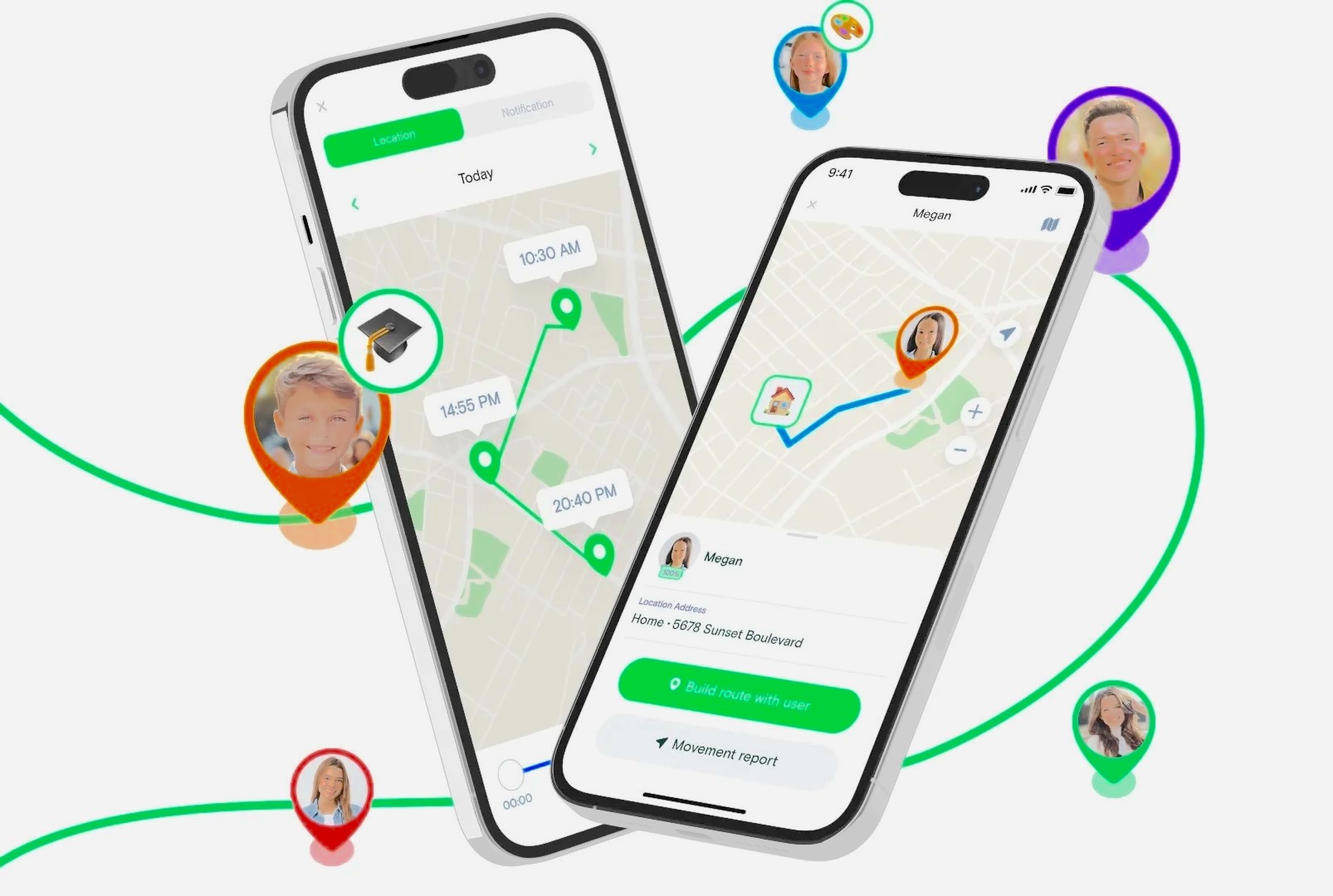
This is where a parental monitoring tool like MyParental fills a specific and legitimate gap. MyParental is designed for family device management and offers features relevant to WhatsApp activity monitoring that go beyond what WhatsApp itself provides.
What MyParental Offers for WhatsApp Monitoring
- WhatsApp activity monitoring: MyParental can track WhatsApp usage on a child’s device, providing parents with visibility into when WhatsApp is being used and overall activity patterns. This helps identify unusual usage — very late-night messaging, sudden increases in WhatsApp activity — that might warrant a conversation.
- Content keyword alerts: Parents can configure keyword lists — terms associated with bullying, dangerous activities, or contact with strangers — and receive an alert when those words appear in WhatsApp conversations on the monitored device. This is a targeted alert system rather than comprehensive surveillance, focused on flagging specific concerns rather than reading every message.
- Screen mirroring: When a keyword alert is triggered, parents can use MyParental’s screen view feature to see what’s currently on the child’s screen, giving context to the alert without requiring the parent to take the child’s phone.
- Usage time management: Parents can set daily limits on WhatsApp usage, schedule downtime (such as during school hours or at night), and receive notifications if those limits are approached or exceeded.
- Notification syncing: MyParental can sync notification activity from WhatsApp on the child’s device to the parent dashboard, providing a record of when WhatsApp messages are being received — useful context without full message access.
Setting Up MyParental for WhatsApp Monitoring
- Download and install MyParental on your own device from the official website or your device’s app store. Create an account and log in to the parent dashboard.
- Install the MyParental Kids companion app on your child’s device. The setup process generates a unique pairing code — enter this in the parent app to link the two devices.
- In the parent dashboard, go to Social Content Detection > App Detection Management and toggle on WhatsApp to enable monitoring for that app.
- Configure keyword alerts by going to Social Content Detection > Keyword Management > Create Keyword Category and entering the terms you want to monitor.
- Set usage time limits and notification preferences according to your family’s needs.
The Importance of Transparency
Parental monitoring tools are most effective — and most ethically sound — when children know they’re in place and understand the reasoning behind them. Research consistently shows that children who understand why monitoring exists, and what it covers, develop better digital judgment than those who are monitored covertly and eventually discover it.
A conversation along the lines of “I’ve set up this app because I want to make sure you’re safe while you’re getting started with messaging apps — here’s what it monitors” is far more likely to produce a healthy long-term outcome than silent surveillance. The Internet Matters and Common Sense Media websites both offer detailed guidance on age-appropriate conversations about online safety and parental monitoring.
WhatsApp Message Delivery: Complete Troubleshooting Reference
| What You See | What It Means | Where the Problem Is | What to Do |
|---|---|---|---|
| Clock / circle icon | Message hasn’t left your device | Your device / connection | Check internet connection; disable battery/data saver; restart app |
| One grey tick (new, all contacts) | Sending fails to all contacts | Your device / WhatsApp servers | Check connectivity; check for server outage; restart phone; update app |
| One grey tick (one contact only) | Message delivered to server, not to recipient | Recipient’s device or account | Wait for them to come online; contact via another channel; consider block possibility |
| Two grey ticks, no blue | Delivered but not read | No problem — recipient hasn’t opened it, or read receipts are off | No action needed |
| Messages not sending after update | App or OS compatibility issue | App / operating system | Clear cache; uninstall and reinstall WhatsApp; update OS |
| Messages fail only on Wi-Fi | Wi-Fi network issue | Network | Restart router; try mobile data; check if other apps work on same Wi-Fi |
| All Meta apps down simultaneously | Server outage | Meta servers | Check Downdetector; switch to alternative app; wait for service restoration |
Frequently Asked Questions
Why is my WhatsApp message only showing one tick but it was delivering fine before?
A sudden change from normal delivery to persistent one-tick status with a specific contact usually points to one of three things: the recipient has gone offline (phone off, no data, or Airplane Mode), they’ve changed their phone number or deleted their WhatsApp account, or they’ve blocked you. Check whether messages to other contacts are delivering normally — if they are, the issue is isolated to that recipient. Try contacting them through another channel to see if they respond.
How do I know if someone has blocked me on WhatsApp?
WhatsApp doesn’t send you any notification when you’re blocked. The indirect signs to look for are: messages to that contact persistently show only one grey tick and never deliver, you can no longer see their profile photo or last seen timestamp, and WhatsApp calls to them don’t connect. No single one of these is conclusive — the person may have simply changed their privacy settings — but all of them together is a strong indicator. WhatsApp provides some official guidance on what to expect when blocked.
Can I send a WhatsApp message without an internet connection?
No. WhatsApp requires an active internet connection — either Wi-Fi or mobile data — to send any message, including text messages, voice notes, photos, and calls. If you have no internet access, the message will queue on your device and send automatically when you reconnect. There is no SMS fallback in WhatsApp; it operates entirely over internet data.
Why do my WhatsApp messages sometimes send but not deliver even with a good connection?
This can happen when the recipient’s device is online but WhatsApp isn’t actively running in the background on their phone. Some Android devices with aggressive battery management will stop WhatsApp’s background processes to conserve power, meaning messages don’t deliver until the recipient opens WhatsApp. This is a known issue particularly on Android phones from manufacturers with strict battery optimisation — Samsung, Xiaomi, and Huawei devices are frequently cited. The recipient can fix this by whitelisting WhatsApp from battery optimisation on their device.
Will deleting and reinstalling WhatsApp delete all my messages?
Not if you back up your chats first. WhatsApp stores chat backups in Google Drive (Android) or iCloud (iPhone). Before uninstalling, go to WhatsApp > Settings > Chats > Chat Backup and tap “Back Up Now.” When you reinstall WhatsApp and set it up again with the same phone number, you’ll be offered the option to restore from backup. All your messages will be restored from the last backup point. Messages received after the last backup won’t be included, so backing up immediately before uninstalling minimises the loss window.
Is it possible for messages to show two ticks but not actually be delivered?
Two grey ticks confirm that the message has been successfully delivered to the recipient’s device — this is a server confirmation, not an estimate. It’s technically reliable. However, “delivered to the device” doesn’t mean the recipient has seen it. They may not have opened WhatsApp, or they may have notifications turned off and not been aware the message arrived. Two grey ticks means it’s there; blue ticks (if they have read receipts enabled) means it’s been read.
What should I do if WhatsApp messages aren’t delivering to anyone?
If messages are failing to all contacts, not just one, start by checking your internet connection — this is the most common cause. Test another app that requires internet. If your connection is fine, check whether WhatsApp is experiencing a server outage via Downdetector. If no outage is reported, try restarting the app, restarting your phone, clearing the WhatsApp cache (Android), and updating the app. If all else fails, try uninstalling and reinstalling WhatsApp after backing up your chats.
My WhatsApp stopped working after updating my phone’s OS. What do I do?
OS updates can occasionally change notification permissions, background data rules, or battery management behaviour in ways that affect WhatsApp. After a major OS update, check three things: that WhatsApp’s notification permissions are still enabled in system settings, that battery optimisation hasn’t been applied to WhatsApp, and that background data usage is still allowed. On Android, also check that WhatsApp’s storage permissions weren’t changed. Usually one of these permissions was reset during the update.
Conclusion
A WhatsApp message not delivering is rarely a dead end — in most cases, it’s a specific, fixable problem that can be diagnosed quickly once you know how to read the signs. The tick system does a lot of the work for you: no ticks means the problem is on your end, one grey tick means the problem is on the recipient’s end or with their account, and understanding that distinction immediately rules out half the possible causes.
For most people, the fix is one of the first steps in this guide: restoring a dropped internet connection, disabling a battery saver mode that was quietly killing background data, clearing the app cache, or updating to the latest version of WhatsApp. These resolve the overwhelming majority of delivery failures, and most of them take under two minutes to try.
The harder situations — being blocked, a recipient’s account being inactive, or a full Meta server outage — require a different approach: alternative contact channels, patience, or both. Building a backup communication method into your workflow before you need it is genuinely worthwhile if you rely on WhatsApp for anything time-sensitive or business-critical.
For families managing children’s WhatsApp use, tools like MyParental offer a structured way to maintain visibility into messaging activity without needing to constantly check a child’s phone directly — most effectively as part of an open household agreement about digital safety and responsible communication.
For further reference, WhatsApp’s official FAQ covers message delivery, privacy settings, and account management in detail. For digital safety guidance relevant to families and children’s messaging habits, Internet Matters is one of the most comprehensive and regularly updated resources available.