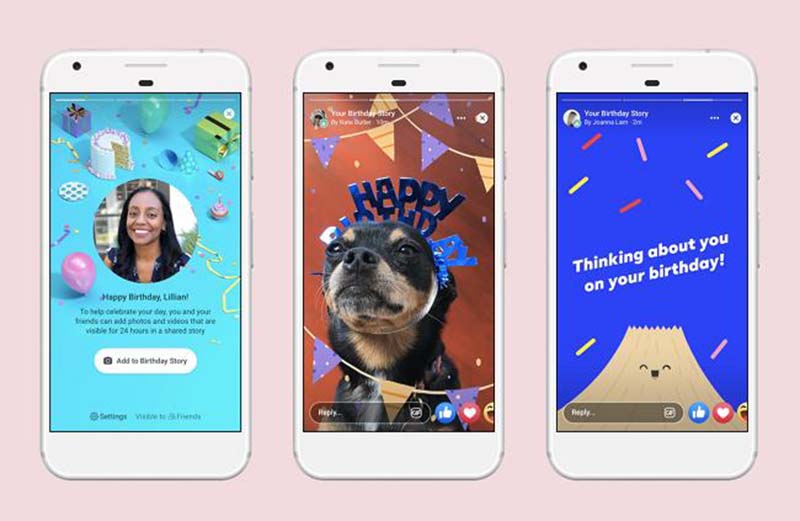

There’s a certain curiosity that kicks in almost immediately after you post a Facebook Story. Within an hour, you’re back in the app checking whether anyone has seen it. Not because you’re keeping score — but because knowing who’s actually engaging with what you share feels like a natural extension of the social experience.
Facebook Stories have become a significant part of how people share their daily lives on the platform. Unlike a regular post that lives permanently on your timeline, a Story is casual and ephemeral — a photo, a short video, a spontaneous thought that disappears after 24 hours. The format encourages more in-the-moment sharing precisely because it doesn’t stick around. And the viewer list it generates is one of the more interesting pieces of feedback the platform provides, giving you a window into who’s actually paying attention.
But the viewer feature comes with nuances that aren’t immediately obvious. What does it mean when someone shows up under “Others” instead of by name? Why do some viewers seem to disappear? Can people see your Stories without you knowing? And what does Facebook actually track — can you tell if someone screenshotted your Story? What about anonymous viewing?
This guide answers all of those questions comprehensively. It covers the mechanics of how Facebook Stories work, step-by-step instructions for checking your viewers on any device, a detailed breakdown of the “Others” viewer category that confuses many users, how to control your Story privacy settings, how to archive old Stories you’d otherwise lose, and — importantly — what parents should understand about Stories as a feature their children use.
What Is a Facebook Story and How Does It Actually Work?
Before diving into the viewer mechanics, it helps to understand what a Facebook Story is at a technical and functional level — because some of the quirks around viewer lists and privacy make more sense once you know how the feature is designed.
The Basic Structure of a Facebook Story
A Facebook Story is a piece of content — a photo, short video, boomerang, text card, or music clip — that you share to your Story feed. Once posted, it appears horizontally at the top of the Facebook app interface and at the top of facebook.com, in a row alongside other friends’ and pages’ stories. Viewers tap or click your profile circle to open your story and watch it.
Stories are designed to feel casual and low-stakes: they disappear automatically after 24 hours. This time limit is intentional — it creates a different posting psychology than regular timeline posts. When content is temporary, people tend to share more frequently and spontaneously, without the self-editing that comes from knowing something will be on your profile indefinitely.
A blue ring around your profile picture indicates you have a story with unviewed content. Once someone views your story, that ring appears differently from their perspective (indicating they’ve seen it). From your own perspective, you’ll see the story in your story bar until it expires.
What Facebook Records About Story Views
When someone views your Story, Facebook records:
- That they viewed it — their account is added to your viewer list
- Their identity — whether they’re a Facebook friend, a follower, or someone who found your story through public settings
- The approximate time they viewed (though this isn’t always displayed precisely to you)
What Facebook does not record or notify you of:
- Whether someone viewed your story multiple times
- Whether someone took a screenshot of your story
- Whether someone screen-recorded your story
These absences are worth noting, particularly for parents and anyone who shares content they’d prefer not to have captured permanently.
Who Can See Your Story?
Who sees your Story depends entirely on your privacy settings at the time of posting. The options are:
- Public — anyone on Facebook, including people who aren’t your friends
- Friends — only your confirmed Facebook friends
- Friends except… — your friends, with specific people excluded
- Specific friends — only a selected list of people
- Custom — a combination of inclusions and exclusions you define
The privacy setting you choose when posting applies to that specific story. You can change it after posting, but only within the 24-hour window. Stories you share in the future will use whatever setting you configure as your default, which can be changed at any time in Settings.
How Stories Differ From Regular Posts
Unlike a regular Facebook post, which stays on your timeline indefinitely (unless you delete it) and shows you like/comment counts but not a full viewer list, Stories give you a named viewer list and disappear automatically. This makes them both more traceable in terms of who’s watching (you can see names, not just counts) and more temporary in terms of how long the content exists.
The ephemeral nature is also why archiving matters — if you want to keep a record of a Story after the 24 hours expire, you need to have archiving enabled in advance.
How to See Who Viewed Your Facebook Story: Step-by-Step
Checking your Story viewer list is straightforward, but the specific steps differ slightly depending on whether you’re on the mobile app or a desktop browser. Here’s how to do it on each platform.
On the Facebook Mobile App (Android and iPhone)
The mobile app is where most people access their Stories, and the viewer list is most easily accessed here.
Step 1: Open the Facebook app on your Android or iPhone. Make sure you’re logged into the account that posted the story you want to check.
Step 2: Your active stories appear at the top of the Feed section — they’re the circular profile images in the horizontal row at the very top of your home screen. Tap your own profile circle to open your current story.
Step 3: Once your story is open and playing, look at the bottom-left corner of the screen. You’ll see a small eye icon or the word “Viewers” along with a count of how many people have seen the story. Tap this icon or text.
Step 4: Alternatively, instead of tapping, you can swipe upward on the screen while your story is displayed. This gesture opens the same viewer panel from the bottom of the screen.
Step 5: The viewer panel shows you a scrollable list of everyone who has viewed your story during its 24-hour active period. Each entry shows the viewer’s profile photo and name. At the bottom or in a separate section, you may see the “Others” count (more on this below).
Step 6: If you have multiple slides or segments in your story (multiple photos or videos posted together), the viewer list typically reflects total viewers across the full story. Some versions of the app allow you to check viewers per individual segment — look for navigation options while in the viewer panel.
On Facebook Desktop (Browser)
Checking story viewers from a desktop or laptop browser is slightly less intuitive than the mobile app but follows a similar logic.
Step 1: Open a web browser and navigate to facebook.com. Log in to your account.
Step 2: Look for the Stories section at the top of your News Feed. Your own active story will appear here. Click on your profile circle to open your story.
Step 3: Once your story is playing, look for a viewer count or “Viewers” text at the bottom of the story viewer interface. Click on it.
Step 4: A panel will appear showing the list of viewers — the same information as on mobile, including named viewers and the “Others” category if applicable.
Note: The desktop version of Facebook has undergone multiple interface redesigns. If the layout you see differs from the description above, look for any viewer count indicator on the story screen — it may be positioned differently depending on the current version of the site.
What the Viewer List Shows You
Once you’ve opened the viewer panel, here’s what you’re looking at:
Named viewers: These are Facebook accounts you’re friends with (or who are connected to you in ways that allow identification) who have viewed your story. Their profile photo and display name appear in the list.
The “Others” count: A separate line that shows a number — for example, “Others 3” — representing viewers whose identities aren’t disclosed to you. The next section covers exactly who “Others” includes and why.
Viewer count total: The number of total views combines named viewers and Others viewers.
Viewing order: Facebook doesn’t currently sort the viewer list chronologically (showing who saw it first vs. most recently) in a clear, consistent way. The order has changed multiple times over the years and isn’t definitively documented by Facebook. Don’t read too much meaning into the order of names in your viewer list.
Understanding “Others” on Facebook Story: Who Are They?
The “Others” designation in your Facebook Story viewer list is one of the most frequently misunderstood aspects of the feature. Most people assume it simply means “strangers” or “non-friends” — but the reality is more specific, and slightly more interesting.
The Two Categories of “Others” Viewers
Based on how Facebook’s system works, “Others” viewers fall into two distinct groups:
Group 1: Non-friend viewers who have access to your story.
If your story privacy is set to “Public” or includes followers, people who aren’t in your Facebook friends list can see your story. These viewers — whether they’re strangers who found your story through the platform, followers who have requested to follow your public profile, or acquaintances who aren’t connected to you on Facebook — appear in the “Others” section rather than the named viewer list.
This is the most straightforward interpretation: Others = people who aren’t your Facebook friends. If you see “Others 5,” at least part of that count represents five people who watched your story without being in your friend list.
Group 2: People who were your friends when they viewed the story but subsequently blocked you.
This is the less-obvious but genuinely documented behavior: if someone who is (or was) your Facebook friend views your story and then blocks you afterward, they don’t disappear from the viewer count — they shift from the named viewer list into the “Others” count.
The practical implication is that if you see “Others 1” and you posted your story only to Friends, that one “Other” is someone who blocked you after watching. If your story was public, the Others count blends both categories, making it impossible to separate them.
Can You Find Out Who “Others” Are?
For the most part, no — and this is by design. Facebook doesn’t expose the identities of non-friend viewers or blocked accounts in your story viewer list.
The one exception to the “can’t know” rule for blocked viewers: if the person eventually unblocks you, their Facebook friendship and therefore their identity becomes visible again. In the interim, you won’t know who from the “Others” group was previously a friend who blocked you versus a genuine stranger.
For public stories with large “Others” counts, the identity information is simply unavailable. This is a privacy trade-off Facebook has made deliberately — public stories allow wider reach, but that reach comes with less detailed viewer identity information.
Why Does the “Others” Count Matter?
In most cases, it probably doesn’t. If you’re sharing casual stories with friends, knowing that some “Others” viewed your content is marginally useful information at best.
Where it becomes more relevant is for parents monitoring their children’s Facebook activity. A high “Others” count on a child’s public story means unknown adults are viewing that content. For younger children or teenagers who don’t fully appreciate the implications of posting publicly, this viewer data is a useful conversation starter about audience awareness and privacy settings.
How to Manage Who Can View Your Facebook Story
Facebook provides meaningful control over who sees your stories, and understanding these controls is essential for anyone who wants to balance sharing with privacy. There are two pathways to adjust Story privacy settings.
Option 1: Change Privacy Directly from an Active Story
If you’ve already posted a story and want to change who can see it — or if you want to verify the current privacy setting — you can adjust it directly from the story itself.
Step 1: Open your active story by tapping your profile circle at the top of the Facebook Feed.
Step 2: While the story is displayed, tap the three dots (⋮) in the upper-right corner of the screen. On some versions of the app, this may appear as a menu icon or settings gear.
Step 3: From the options that appear, select “Edit story privacy.”
Step 4: You’ll see the available audience options:
- Public — anyone on Facebook and potentially beyond, including people who aren’t your friends or followers
- Friends — only your confirmed Facebook friends
- Friends except… — your full friends list minus specific individuals you choose to exclude
- Specific friends — a manually selected list of people
- Custom — full customization combining inclusion and exclusion lists
Step 5: Select your preferred audience and confirm the change. The new setting applies to the current story for the remainder of its 24-hour life, and Facebook may apply it as the default for future stories as well.
Option 2: Change Story Privacy Through Facebook Settings
For more deliberate control — setting a default privacy level that applies to all future stories — the Settings menu is the right place to go.
Step 1: Open the Facebook app and tap the hamburger icon (three horizontal lines) in the top-right corner of the screen on Android, or the bottom-right on iPhone.
Step 2: Tap the cog icon (⚙️) to open Settings & Privacy, then select Settings.
Step 3: In the Settings menu, scroll down to find “Stories” under the “Audience and Visibility” section.
Step 4: Tap “Story Privacy.” This shows you the current default audience for your stories.
Step 5: Select the audience option you want as your default — Public, Friends, or Custom — and save the change.
Any story you post after this change will default to the audience you’ve selected. You can still override the setting for individual stories at the time of posting.
Practical Privacy Recommendations
For most adult users: The “Friends” setting provides a reasonable balance — your content is visible to the people you’ve intentionally connected with on Facebook, without being exposed to strangers or casual followers.
For anyone who shares sensitive personal content: “Specific friends” or a custom list gives you granular control, though it requires more active management.
For parents of children who use Facebook: If your child has a Facebook account and posts stories, checking their Story privacy setting to ensure it’s not set to “Public” is one of the most straightforward things you can do to reduce exposure to unknown viewers. Facebook’s minimum age requirement is 13, and the platform’s privacy defaults aren’t always set conservatively for younger users. Reviewing these settings together is a practical and non-confrontational way to address online safety.
For public figures or pages: Public is appropriate when the goal is maximum reach, but understand that public stories generate “Others” viewers by design — strangers are the point.
How to Hide Your Facebook Story from Specific People
There are situations where you want to share a story broadly — with friends, or even publicly — but exclude specific individuals. Facebook’s story privacy controls accommodate this.
Hiding a Story from Specific Friends
Step 1: Follow either the “from your story” or “from Settings” path described above to reach the Story Privacy options.
Step 2: Select “Friends except…” from the audience options.
Step 3: In the search or list that appears, find and select the friend(s) you want to exclude. Their names will be added to the exclusion list.
Step 4: Confirm the selection. Your story will be visible to all other friends but hidden from the people you’ve excluded.
This exclusion is not announced to the excluded person — they won’t receive a notification that they’ve been left off your story’s audience. They simply won’t see your story appear in their story feed.
Hiding Your Story from Non-Friends
If you’ve been sharing stories publicly and want to stop non-friends from seeing them, simply changing your Story Privacy from “Public” to “Friends” accomplishes this immediately. Future stories will be friends-only, and the current story’s audience will update accordingly.
Does Facebook Notify Someone If You Screenshot Their Story?
This is one of the most commonly asked questions about Facebook Stories, and the answer is clear: No, Facebook does not notify Story creators when someone screenshots or screen-records their Story.
This stands in contrast to Snapchat, which does notify users when their snaps are screenshotted, and Instagram Stories, which also does not currently notify creators of screenshots. Facebook’s position has been consistent — screenshots are not flagged or reported to the person whose story was captured.
What This Means in Practice
If you post a Facebook Story, anyone who views it can capture that content permanently — as a screenshot or screen recording — without any notification to you. The story may disappear from Facebook after 24 hours, but a viewer who captured it retains a copy.
This has implications for the content you share in Stories. While the ephemeral format may feel low-stakes — “it’s gone after a day” — any content in a public or friends-visible story can be captured and retained indefinitely by any viewer, without your knowledge.
For most casual stories this is irrelevant. For stories containing sensitive information, personal details, identifiable location data, or content you’d be uncomfortable seeing shared further, this is worth being aware of.
Screenshot Visibility: The Historical Context
Facebook has experimented with screenshot notification features in some contexts in the past — including in certain Messenger formats — and has removed them. As of the current version of Facebook, there is no screenshot notification for Stories. Facebook’s help documentation doesn’t document screenshot notifications as a feature, which is the clearest indicator of current policy.
How to View Facebook Stories Anonymously
There are legitimate reasons to want to view a Facebook Story without the creator knowing you watched it — checking in on a post from an account you don’t want to interact with, viewing content from someone you have a complicated relationship with, or simply preferring not to have your views tracked.
Facebook’s standard behavior is to record your view when you watch a story. However, several methods can allow you to view stories without triggering the view recording:
Method 1: Airplane Mode Viewing
This is the most commonly cited workaround, though its reliability has diminished as Facebook has updated its app.
Step 1: Open the Facebook app and let the stories load in your feed. Wait for the story you want to view anonymously to pre-load — you can see them loading in the story bar at the top.
Step 2: Once the story appears to have loaded, enable Airplane Mode on your phone (which disables all wireless connections).
Step 3: With Airplane Mode active, open the story and view it. Because the app can’t communicate with Facebook’s servers while offline, the view may not be recorded.
Step 4: After viewing, force-close the Facebook app completely before disabling Airplane Mode. This prevents the app from syncing the view data when the connection is restored.
Important caveat: This method is unreliable with modern versions of the Facebook app, which have become better at queuing and syncing data even across connectivity interruptions. It may not work consistently.
Method 2: Half-Swiping the Story
On mobile, you can partially swipe into an adjacent story to catch a glimpse of a neighboring story without fully opening it. This is genuinely limited — you see only a portion of the story at an angle — but for some use cases it provides just enough to know what the story contains.
This works because you haven’t technically opened the story fully, so Facebook doesn’t record a view. It’s a marginal technique at best, but it’s genuinely available and doesn’t require any apps or account changes.
Method 3: Using a Secondary Account
Creating or logging into a secondary Facebook account — one that isn’t connected to your primary account — allows you to view Stories from that account without your primary account appearing in the viewer list. The secondary account would appear in “Others” (if the story is set to Public) or wouldn’t see the story at all (if it’s set to Friends and the secondary account isn’t a friend).
This method only works for public stories or stories from accounts where the secondary account is also a friend.
Method 4: Browser Extensions
Some browser extensions designed for social media privacy claim to allow anonymous Facebook story viewing. These typically work by modifying how your browser interacts with Facebook’s web interface, preventing view recording. The reliability and safety of these extensions vary significantly — using browser extensions that interact with your Facebook session carries inherent security risks, as they can access your account data. Only use extensions from reputable, well-reviewed developers, and be selective about what permissions you grant.
How to View and Save Old Facebook Stories (Story Archive)
Once a Facebook Story’s 24-hour window expires, it disappears from the public-facing story feed. But Facebook offers an archiving feature that saves your stories privately, so you can review them after they’ve expired.
Critical note: Story Archive must be enabled before a story expires to save it. You cannot retroactively archive stories that have already disappeared.
How to Enable Story Archive
Step 1: Open the Facebook app and tap the hamburger icon (☰) in the top-right corner.
Step 2: Tap the cog icon (⚙️) to go to Settings.
Step 3: Scroll down and tap “Stories” under “Audience and Visibility.”
Step 4: Tap “Story Archive” and toggle “Save to Archive” to the ON position.
From this point forward, any story you post will automatically be saved to your archive when it expires after 24 hours.
Accessing Your Story Archive
Step 1: Go to your Facebook profile page (tap your profile photo or name).
Step 2: Look for the “Archive” option — it may appear as a small icon near the top of your profile, sometimes labeled with a clock or archive symbol. On some versions of the app, it appears when you tap the three dots (⋮) near your profile cover photo.
Step 3: Inside the Archive, your saved stories are organized chronologically. You can review, download, or share them from here.
Why Story Archiving Matters
For casual users, archiving is a personal memory tool — a way to keep a record of the everyday moments you shared without them vanishing permanently.
For parents monitoring their children’s Facebook activity, story archiving is relevant in a different way. If your child has archiving enabled, their old stories are preserved in their account, allowing you (if you have access to the device) to see what they’ve been sharing publicly even after the 24-hour window has passed. This isn’t a monitoring workaround per se — it requires access to the device — but it’s useful context for parents who find old Stories worth reviewing.
Facebook Stories and Child Safety: What Parents Need to Know
Facebook has a minimum age requirement of 13 for account creation. In practice, research from organizations like Common Sense Media consistently shows that a significant number of children under 13 have Facebook accounts (often with parental permission or knowledge), and that teenagers in the 13–17 range are active on the platform.
Stories are among the most visible features on Facebook — they sit at the top of the Feed and are designed for easy, casual sharing. For younger users who may not fully think through their audience settings, public Stories create exposure to an undefined audience of strangers.
The Specific Risks of Public Stories for Young Users
Unknown viewers: A public story from a teenager can be viewed by anyone on Facebook, including adults with no legitimate connection to the child. The “Others” count in the viewer list may represent this exposure, but only partially — the child sees a number, not identities.
Location information: Stories shared at specific locations — a school event, a neighborhood park, a regular hangout — can inadvertently reveal location patterns to unknown viewers. A series of stories that consistently shows the same locations effectively maps a child’s routine.
Screenshot and redistribution: As discussed above, Facebook doesn’t notify users of screenshots. A story containing a child’s image, shared publicly, can be captured and distributed without any notification.
Social engineering risk: Stories make it easy for unknown adults to study a child’s interests, social circle, and daily routine — information that can be used in grooming attempts through subsequent messaging.
These risks aren’t reasons to prohibit Facebook use outright — that’s a decision for each family — but they are reasons to have specific conversations about Story privacy settings and audience awareness.
Practical Steps for Parents
Review Story privacy settings together. Sit with your child and go through their Story privacy settings (following the steps above). Make sure Stories are set to “Friends” at minimum, not “Public.” Discuss why this matters.
Check the “Others” count on existing stories. If your child has posted public stories, showing them the “Others” count and explaining that those are unknown viewers can make the privacy risk tangible rather than abstract.
Enable Story Archive. If you want to maintain the ability to review what your child has been sharing after the 24-hour window, enable Story Archive on their account. Be transparent about this — telling your child that stories are being archived sets a clearer expectation than doing it covertly.
Have the screenshot conversation. Many teenagers assume stories are safe to share because they disappear. Explaining clearly that any viewer can screenshot and permanently capture story content changes how they think about what to share.
When Standard Parental Conversation Isn’t Enough
For parents who want more comprehensive oversight of their child’s Facebook activity — not just Stories but overall communication patterns, contact activity, and device usage — Facebook’s built-in controls cover only part of the picture. A child can change their Story privacy settings at any time, and a parent has no notification when they do.
MyParental Parental Control provides a layer of oversight that operates at the device level rather than the platform level, meaning it isn’t as easily circumvented by changing an in-app setting.
Relevant to Facebook Stories specifically, MyParental provides:
Screen mirroring: View the child’s device screen in real time. If the child is browsing their Story feed or reviewing their viewer list, you can see that activity from the parent dashboard without needing to handle the device physically.
Notification mirroring: Receive copies of notifications arriving on the child’s device. If someone who viewed their story sends a follow-up message, that incoming notification is visible to the parent.
App usage tracking: See how much time the child spends on Facebook specifically, and at what times of day — providing context for whether Facebook use is encroaching on sleep hours, homework time, or other activities.
Location tracking: Know where the child’s device is physically located, which provides real-world context for the location information that may be appearing in their stories.
Content keyword detection: Configure alerts for specific keywords that appear in app activity, helping flag concerning communications without requiring the parent to read every message.
Setting Up MyParental Transparently
The most effective implementation is one the child knows about. Having the conversation — “I’m going to be able to see what you do on your phone because I want to make sure you’re safe, not because I don’t trust you” — produces better outcomes than covert installation.
Step 1: Download MyParental Parental Control at https://myparental.app/download-myparental-parental-control/ on the parent’s device. Create a parent account.
Step 2: On the child’s device, install the MyParental Kids companion app. Set this up with the child present.
Step 3: Link the two devices using the pairing code generated in the parent app.
Step 4: Configure monitoring preferences appropriate to your child’s age and the specific concerns you have — not every feature needs to be active. Discuss with your child which features are enabled and why.
The American Academy of Pediatrics’ recommendations on social media and adolescents consistently emphasize that parental involvement in digital life works best when it’s open and communication-focused rather than purely restrictive or covert.
Advanced Facebook Story Features Worth Knowing
Beyond the core viewer functionality, a few additional features expand what Stories can do and affect how you might use them.
Story Reactions and Replies
Viewers can react to your Story using emoji reactions or send you a direct reply message through Facebook Messenger. These reactions and replies are private — only you and the sender can see them. They don’t appear as comments visible to other story viewers.
When you receive a story reply, it arrives as a Facebook message in your Messenger inbox. You can reply to it like any other message, starting a private conversation.
Sharing Others’ Stories
If someone shares a post to their Story and allows resharing, you may see an option to share their story content to your own Story. This resharing carries attribution — it shows the original creator’s name.
You can control whether others can reshare your Stories: in Settings → Stories, look for the option to allow or disallow story resharing.
Facebook Stories vs. Instagram Stories
Since Meta owns both platforms, it’s worth briefly noting how the two story products differ. Instagram Stories have a broader cultural footprint for most demographics — stories originated on Instagram and remain more central to that platform’s identity. Facebook Stories are used more commonly by older demographics and have somewhat different engagement patterns.
For users active on both platforms, Meta’s help documentation explains that Stories are not automatically cross-posted between Facebook and Instagram (though the option to share across platforms may appear during story creation). Managing privacy settings applies separately to each platform.
Frequently Asked Questions
Why can’t I see who viewed my Facebook story?
There are a few possible reasons. Most commonly: no one has viewed your story yet. If you posted recently, give it more time. Alternatively, your Story privacy setting may have been set in a way that limited distribution — if Stories are set to “Only Me” or a very narrow audience, view counts will be minimal. Finally, if your Story has expired (more than 24 hours have passed), the viewer list is no longer accessible unless you had Story Archive enabled before expiration.
Does Facebook tell you when someone screenshots your story?
No. Facebook does not notify users when their story is screenshotted or screen-recorded. This is the current policy and has been consistent for Facebook Stories. Unlike Snapchat, which notifies users of screenshots, Facebook records only that a view occurred — not whether content was captured. The full content of any public or friends-visible story can be saved by any viewer without your knowledge.
What does “Others” mean on Facebook story viewers?
“Others” in your story viewer list has two components: viewers who aren’t your Facebook friends (followers, public viewers, or strangers who found your public story), and — less obviously — former friends who viewed your story and then blocked you. For public stories with large Others counts, the majority are likely non-friend viewers. For friends-only stories with an unexpected Others count, it may indicate someone blocked you after viewing. Unfortunately, Facebook doesn’t reveal the identities within the Others category.
Can I see who viewed my Facebook story after 24 hours?
Only if you had Story Archive enabled before the story expired. Once a story expires, the viewer list is no longer accessible through normal means. To access the archive after the fact, go to your Facebook profile → Archive. If Archive wasn’t enabled before the story expired, that viewer data is gone. Going forward, enable “Save to Archive” in Settings → Stories to preserve future stories and their data.
How do I stop specific people from seeing my Facebook stories?
In your Story Privacy settings (accessible from the story itself or through Settings → Stories → Story Privacy), select “Friends except…” and add the people you want to exclude. They won’t be notified of the exclusion — they simply won’t see your stories appear. For broader restriction, switching your default Story Privacy from “Public” to “Friends” prevents all non-friends from seeing your stories.
Can I view a Facebook story without them knowing?
Facebook records a view whenever you open and watch a Story. The most widely cited workaround is enabling Airplane Mode after the story loads in the app, watching it while offline, and force-closing the app before reconnecting — but this method’s reliability has decreased as Facebook has improved its data sync behavior. Partially swiping to an adjacent story (the “half-swipe” method) allows a partial view of a neighboring story without triggering a full view recording. Browser extensions designed for anonymous viewing exist but carry security risks.
Why does the order of my Facebook story viewers seem random?
Facebook has not publicly documented exactly how it sorts the viewer list, and the algorithm has changed multiple times. Unlike some social platforms that show viewers chronologically, Facebook’s ordering appears to incorporate factors like your interaction history with each viewer — friends you interact with most frequently may appear higher in the list. Don’t read significant meaning into position — whether someone appears first or last in your viewer list isn’t necessarily informative about when they viewed or how closely they follow your content.
Is there a way to see who viewed my Facebook story if my account is public?
For your Facebook friends who view a public story, their names appear in your named viewer list. For non-friends who view a public story, they appear in the “Others” count without individual identification. There is no way to reveal the identities of non-friend viewers — Facebook’s privacy model intentionally obscures this information for “Others” viewers.
Conclusion
Facebook Stories strike a balance between spontaneity and control — designed to be casual and temporary, but with enough viewer data to tell you who’s actually paying attention. The viewer list feature is one of the more transparent things Facebook offers: unlike the algorithm-driven opacity of Feed ranking or ad targeting, your Story viewer list gives you a clear, named record of who watched what you shared.
The nuances — the “Others” category, the story archiving system, the screenshot transparency gap, the privacy controls — are all manageable once you understand them. Checking your viewers takes three taps. Adjusting who can see your stories takes a few settings changes. And archiving ensures you don’t lose content you want to keep.
For parents, the same transparency that makes Stories useful for adults creates specific exposure risks for children who may not think carefully about their audience settings. A child’s public Story is visible to anyone on Facebook — and anyone can capture it permanently without any notification. Understanding the viewer mechanics, having direct conversations about privacy settings, and using monitoring tools like MyParental where appropriate gives parents meaningful ability to stay informed without being overbearing.
The Stories feature, like most social media tools, is best used with clear awareness of how it works. That awareness is exactly what this guide is designed to provide.
This article is for informational purposes only. Facebook’s features and interface may be updated over time. For the most current information, refer to Facebook’s official Help Center. Always use any monitoring or privacy tools in compliance with applicable laws and with appropriate transparency toward those involved.