
Most people don’t think about how to track a cell phone until they need to — and that moment usually arrives without warning. Maybe you set your phone down somewhere in the house and it’s completely silent. Maybe a teenager is two hours late getting home from a friend’s house and isn’t picking up. Maybe you’re coordinating with family members across an unfamiliar city and need to know where everyone is in real time. Maybe the phone is genuinely lost or stolen and every minute matters.
Whatever the situation, the capability to locate a cell phone using GPS is something the vast majority of modern smartphones already have built in. The hardware is there — nearly every smartphone manufactured in the past decade includes an A-GPS chip (Assisted GPS, which combines satellite data with Wi-Fi and cellular tower signals for faster, more accurate location fixes). The question is whether you’ve activated the native features designed to use that hardware, and whether you know which tools give you the most useful results for your specific situation.
This guide covers five distinct methods for GPS-tracking a cell phone, organized from the built-in native features available on Android, Samsung, and iPhone to dedicated third-party family tracking apps. Each method is explained with complete setup instructions, a clear assessment of what it does well and where it falls short, and guidance on which situations it’s best suited for.
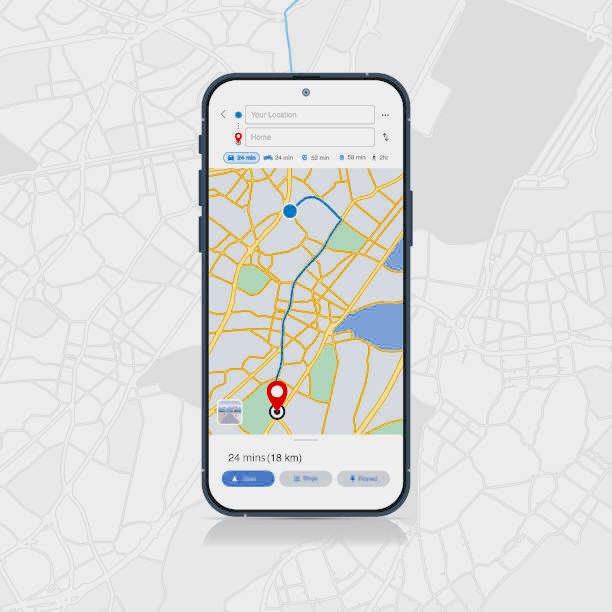
How GPS Tracking Actually Works on a Cell Phone
Before diving into the specific methods, understanding the technology underneath helps you choose the right tool and set realistic expectations about accuracy and performance.
A-GPS: The Technology in Your Pocket
The GPS system that most people know — the Global Positioning System — was originally designed by the US Department of Defense for military navigation and was made available for civilian use in the 1980s. The system consists of approximately 31 operational satellites orbiting the Earth at roughly 12,500 miles altitude, continuously broadcasting precise timing signals that ground-based receivers use to calculate position through a process called trilateration.
Pure GPS can theoretically determine position to within about 10–30 meters in ideal conditions — but ideal conditions (clear sky, multiple satellite signals, no interference) aren’t always available, and initial GPS lock can take 30–90 seconds in a device that hasn’t recently acquired a satellite fix.
Smartphones use Assisted GPS (A-GPS), which addresses these limitations by supplementing satellite data with two additional location technologies:
Wi-Fi positioning: Companies like Google and Apple maintain databases mapping Wi-Fi network identifiers (MAC addresses and SSIDs) to physical locations. When your phone sees nearby Wi-Fi networks, it queries these databases and gets a quick, approximate position fix — often within a few meters in areas with dense Wi-Fi coverage.
Cell tower triangulation: By measuring signal timing and strength from multiple cell towers simultaneously, the phone estimates its position based on where those towers’ coverage areas overlap. Accuracy varies from a few hundred meters in dense urban areas to several kilometers in rural areas with sparse tower coverage.
The combination produces a location fix that’s typically faster than pure GPS, works better indoors, and maintains reasonable accuracy across a wider range of environments.
What “Real-Time” GPS Tracking Actually Means
When apps describe “real-time” tracking, the meaning varies:
- True real-time: Location updates every few seconds, creating a continuously updating position indicator. This provides the most accurate picture of movement but uses the most battery.
- Frequent polling: Location updates every 1–5 minutes. Sufficient for monitoring general whereabouts without the battery impact of continuous tracking.
- On-demand location: Location is only fetched when you actively request it, rather than updating continuously.
The distinction matters in practice: a child walking home from school shows up as a moving pin on the map with true real-time tracking; with on-demand location, you see where they were when you last checked, not where they are right now.
Privacy and Legal Foundations
GPS tracking a device requires that device to be actively sharing its location. This happens through a combination of:
- Location Services being enabled on the device (the hardware GPS and related systems must be authorized to run)
- A specific app or service having been granted location permission
- An active data connection to transmit location to wherever you’re viewing it
A phone with Location Services disabled, airplane mode enabled, or powered off cannot transmit its GPS location to any external service. Understanding this prevents unrealistic expectations about tracking a phone that the owner has deliberately made untraceable.
Legal context: tracking a device you own, or a minor child’s device as their parent or guardian, is legal in most jurisdictions. Tracking another adult’s device without their knowledge and consent is illegal in virtually every country — this applies regardless of the tracking method used. All methods in this guide are presented for use with owned devices or with appropriate parental authority over minor children’s devices.
Method 1: Google Find My Device (Android)
What It Is and Why It’s the Starting Point for Android
Google Find My Device is the native location and device management service built into Android. If you have an Android smartphone with a Google account — which describes the overwhelming majority of Android phones globally — Find My Device is already integrated into your device and waiting to be activated.
The service is free, doesn’t require any third-party app installation for the owner to track their own device, and is deeply integrated with Android’s security architecture. Beyond just showing you where your phone is, it provides remote management capabilities that are invaluable when a phone is lost or stolen.
What Find My Device Can Do
Location display: Shows your device’s current location on a map, typically accurate to within a few meters outdoors with good GPS signal. Indoor accuracy varies.
Play sound: If your phone is nearby but you can’t find it, Find My Device can prompt the phone to ring at full volume even if it’s been set to silent. Useful for the “lost phone in the sofa cushions” scenario.
Secure device: Remotely locks the phone with a new PIN, pattern, or password, preventing unauthorized access. You can also display a custom message or recovery phone number on the lock screen — useful for genuinely lost phones that might be picked up by a helpful stranger.
Erase device: As a last resort when recovery seems impossible, remotely wipe all data from the phone. Note: this prevents future tracking through Find My Device once the wipe is complete, so it’s a last-resort option rather than a first response.
Indoor mapping: For supported locations (airports, shopping malls, stadiums, large buildings), Find My Device can display indoor maps showing floor-level location detail.
Prerequisites: What Needs to Be Set Up in Advance
Find My Device won’t work retroactively if these settings weren’t enabled before the phone was lost:
- The phone must be signed into a Google account
- Location Services must be enabled on the device
- The phone must have an active internet connection (Wi-Fi or mobile data)
Critically: These settings must be configured before the phone is lost or stolen. You cannot enable them remotely on a device you no longer have access to.
Step-by-Step: Enabling Find My Device on Android
On the device you want to be able to track:
Step 1: Open the Settings app.
Step 2: Tap “Security” (or “Security & Privacy” on newer Android versions — the exact label varies by manufacturer).
Step 3: Find and enable “Find My Device” or “Remotely locate this device.” On some Samsung and other manufacturer devices running their own Android skin, this may be in a different location — try Settings → Google → Find My Device if you don’t see it under Security.
Step 4: Ensure Location is enabled: go to Settings → Location and confirm Location Services is toggled on. For best tracking accuracy, set the location mode to “High accuracy” (uses GPS, Wi-Fi, and cell networks).
Step-by-Step: Locating a Lost Device Using Find My Device
From another device or browser:
Step 1: On any device with a browser, navigate to google.com/android/find. Alternatively, download the Google Find My Device app from the Google Play Store on another Android device.
Step 2: Sign in with the Google account that’s signed into the lost device.
Step 3: From the list of devices associated with the account, select the one you want to locate.
Step 4: The device’s location appears on the map. If the location is approximate, Find My Device will indicate this. The timestamp shows when the location was last updated — if the phone has no internet connection currently, you’ll see the last known location rather than a live fix.
Step 5: Use the control options (Play Sound, Secure Device, Erase Device) as appropriate to your situation.
When Find My Device Works Well — and When It Doesn’t
Works well for: Locating a misplaced phone within your home or a familiar area, securing or wiping a stolen device, situations where the phone has internet connectivity.
Limited in: Situations where the phone has been powered off or put in airplane mode; environments with poor GPS signal; devices that haven’t had Location Services enabled in advance.
Method 2: Samsung Find My Mobile
Samsung’s Exclusive Native Tracking System
Samsung Find My Mobile is a tracking and device management system exclusive to Samsung Galaxy devices. It offers capabilities similar to Google Find My Device but with some Samsung-specific additions — and because it operates through Samsung’s own account infrastructure rather than Google’s, it provides a backup option for Samsung owners when Google Find My Device can’t be used.
One important distinction: Samsung Find My Mobile uses your Samsung account, not your Google account. If you’ve never created a Samsung account or haven’t logged into it on your device, this feature won’t be available.
What Samsung Find My Mobile Offers
Location tracking: Real-time GPS location of the device on a map interface.
Remote unlock: If you’ve forgotten your PIN or the device has been locked by someone else, Find My Mobile can send an unlock signal. This capability goes beyond what Google Find My Device offers.
Backup and retrieve calls and messages: Can retrieve recent call logs and text messages from the device remotely — useful when you need information from the phone even when you can’t physically access it.
Increase ring volume: Similar to Google’s Play Sound, can prompt the device to ring loudly regardless of its current volume setting.
Set guardian: Allows you to designate trusted contacts who can help locate your device if needed.
Wipe and lock: Remote security controls equivalent to Google’s Secure Device and Erase Device functions.
Prerequisites for Samsung Find My Mobile
- Device must be a Samsung Galaxy phone or tablet
- A Samsung account must be set up and signed in on the device
- Remote controls must be enabled in advance
- Active internet connection on the device
Step-by-Step: Enabling Samsung Find My Mobile
On the Samsung device:
Step 1: Open Settings and tap on “Samsung Account” at the top (or search for it in the Settings search bar).
Step 2: If not already signed in, sign in with your Samsung account credentials. Create one at account.samsung.com if you don’t have one.
Step 3: Return to the main Settings menu and tap “Security and Privacy” → “Find My Mobile.”
Step 4: Toggle on “Allow this phone to be found.” Also enable “Send last location” — this sends the device’s location to Samsung’s servers when the battery is critically low, giving you a last-known location even if the battery dies before you can track it.
Step-by-Step: Locating a Device Using Samsung Find My Mobile
Step 1: From any browser or device, navigate to findmymobile.samsung.com.
Step 2: Sign in with your Samsung account credentials.
Step 3: You’ll see your Samsung device listed on the dashboard. Click on the device you want to locate.
Step 4: Click “Locate My Mobile” in the left panel. The device’s location appears on the map.
Step 5: Use the available remote controls (ring, lock, erase, retrieve data) as appropriate to your situation.
Samsung vs. Google Find My Device: When to Use Each
For Samsung phone owners, both services can be active simultaneously — they’re independent systems. In practice:
- Google Find My Device is more universally accessible (works on any device with a browser and your Google login)
- Samsung Find My Mobile offers some Samsung-specific features like remote unlock and message retrieval that Google’s service doesn’t provide
- Having both enabled provides redundancy — if one system can’t locate the device, the other may succeed
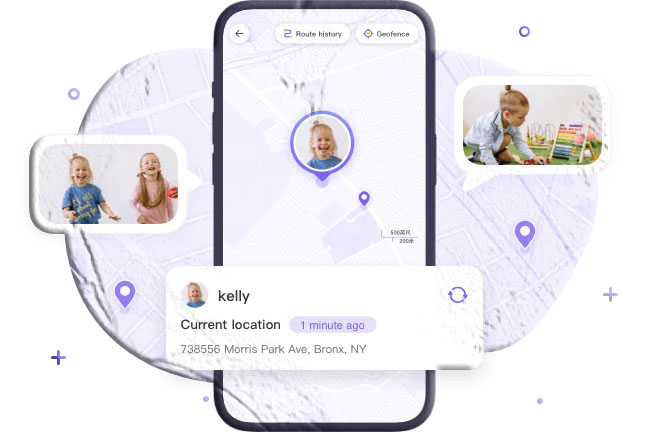
Method 3: Apple Find My (iPhone)
Apple’s Integrated Location Platform
Apple’s Find My platform is the most tightly integrated native tracking solution among the major mobile operating systems. It combines device tracking, people tracking, and item tracking (via AirTags and Find My-compatible accessories) in a single, unified platform with a strong privacy architecture.
For iPhone users who need to locate a lost device or share location with family members, Find My is the natural starting point — it requires no additional apps, integrates with the Apple ecosystem across iPhone, iPad, Mac, and Apple Watch, and has been refined through multiple iOS versions into a genuinely capable system.
What Apple Find My Offers
Device location: Real-time map display of device position. For offline devices, Find My can use nearby Apple devices (without those devices or their owners knowing) to detect the lost device’s Bluetooth signal and relay approximate location anonymously — the “Find My network.”
People location: Within Family Sharing, family members can see each other’s locations on a shared map. Adults control whether they share their location; sharing can be stopped at any time.
Lost Mode: Activates a lock screen message with a contact number, disables Apple Pay, and begins recording location history while in Lost Mode.
Play Sound: Prompts the device to emit a loud sound even if it’s silenced.
Remote erase: Permanently erases the device if recovery seems impossible.
Precision Finding (supported models): On devices with Ultra Wideband (U1 or U2 chip), Find My can provide directional and distance guidance to help you precisely locate a nearby iPhone — not just approximate location on a map.
Prerequisites for Find My iPhone
- iPhone must be signed in with an Apple ID
- Find My must be enabled on the device
- Location Services must be enabled
- The device’s battery must not be completely dead (Find My can show last known location for some time after battery death)
Step-by-Step: Enabling Find My on iPhone
Step 1: Open the Settings app on the iPhone.
Step 2: Tap your name at the top of Settings (your Apple ID profile).
Step 3: Tap “Find My.”
Step 4: Tap “Find My iPhone” and enable the following:
- “Find My iPhone” — the core toggle
- “Find My network” — allows location detection even when offline, using Apple’s device network
- “Send Last Location” — automatically sends location to Apple servers when battery is critically low
Step-by-Step: Locating an iPhone Using Find My
Method A — From another Apple device:
Step 1: Open the Find My app (pre-installed on all iPhones, iPads, and Macs).
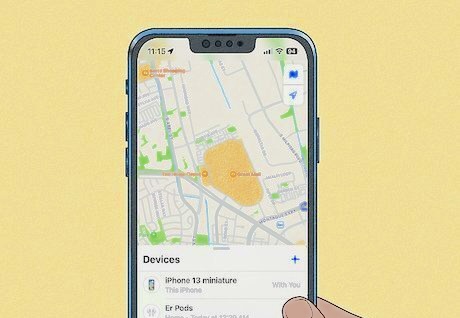
Step 2: Tap the “Devices” tab at the bottom.
Step 3: Select the iPhone you want to locate from the list.
Step 4: The device’s location appears on the map. Tap the device entry for options: Play Sound, Activate Lost Mode, or Erase This Device.
Method B — From iCloud.com:
Step 1: On any browser, go to icloud.com and sign in with your Apple ID.
Step 2: Click “Find iPhone” on the iCloud home screen.
Step 3: Click “All Devices” and select the device to locate.
Step 4: The device’s location appears with options for remote actions.
Setting Up Family Location Sharing Through Find My
Find My integrates with Apple Family Sharing to enable family location sharing without requiring separate apps.
Step 1: Set up Family Sharing: go to Settings → [your name] → Family Sharing → Add Family Member and invite family members.
Step 2: For location sharing specifically, each family member needs to enable “Share My Location” in Settings → [their name] → Find My → Share My Location.
Step 3: Once sharing is enabled, family members appear on the People tab of the Find My app with their real-time location visible.
For Apple’s complete documentation on Find My, Apple’s Find My support page provides current and comprehensive guidance.
Method 4: MyParental Family Locator (Dedicated GPS Tracking App)
Why a Dedicated Tracking App Adds Value Beyond Native Features
Native tracking tools — Find My Device, Find My Mobile, Find My iPhone — are excellent for their primary purpose: locating a lost or stolen device. But they have limitations that become apparent when the goal isn’t recovering a lost phone but rather ongoing family safety monitoring:
- No geofencing alerts: Native tools show you where a device is when you check; they don’t alert you when the device crosses a boundary you’ve defined
- No location history: You see current position but can’t review where the device has been over the past days or weeks
- Limited cross-platform support: Apple’s Find My works best within the Apple ecosystem; Android and iPhone family members can’t share location easily through native tools alone
- No parental safety features: Native tools track location only; they don’t address the broader digital safety landscape around who the child is communicating with
A dedicated family tracking app fills these gaps by building location monitoring into a comprehensive family safety platform.
MyParental Family Locator: Purpose-Built for Family Safety
MyParental Family Locator is designed around the specific needs of families — parents monitoring children’s whereabouts, families staying connected across distances, caregivers keeping track of elderly relatives — rather than the device-recovery focus of native tracking tools.
Core GPS Features
The parent’s dashboard displays the child’s current location on a continuously updating map. Position data uses A-GPS (combining satellite, Wi-Fi, and cellular data) for reliable accuracy across indoor and outdoor environments. The tracking frequency is configurable — more frequent updates provide more precise movement tracking at the cost of higher battery consumption.
30-Day Location History
Unlike native tools that show only current position, MyParental maintains a searchable timeline of the device’s locations going back 30 days. Parents can review which routes a child took, which locations they visited, how long they stayed at each stop, and when their pattern deviated from normal. This retrospective capability is invaluable when something concerning happened and you need to understand the sequence of events.
Geofencing with Automatic Alerts
Parents define virtual boundaries around specific locations — the child’s school, a friend’s house, a sports facility, the neighborhood boundaries, or any address of importance. When the child’s device enters or exits any defined boundary, the parent receives an automatic push notification immediately.
This automation replaces the need for check-in texts. Instead of the child sending “I got to school” or the parent repeatedly opening a tracking app to verify, the geofence delivers the notification automatically. It’s one of the most practically valued features for parents who want safety awareness without constant active monitoring.
Low Battery and Offline Alerts
If the child’s battery drops below a configurable threshold, or if the device goes offline (airplane mode enabled, phone powered off, or cellular data connection lost), the parent receives an immediate alert. This prevents the frustrating situation of assuming everything is fine when the child’s phone has simply lost connectivity.
Beyond Location: Digital Safety Features
App and Screen Time Management
Set daily usage schedules for specific apps or the phone overall. Block apps that are inappropriate for the child’s age or that tend to disrupt homework and sleep. Schedule times when the phone is unavailable — dinner time, homework hours, or after a set bedtime.
Screen Mirroring
View the child’s device screen in real time through the parent dashboard. This provides direct visibility into what’s actively happening on the phone when specific concerns arise.
One-Way Audio Monitoring (Android)
Listen to the ambient sounds around the child’s device in real time, providing environmental context when you can’t reach the child by call and want to confirm they’re in a safe situation.
Social Media and App Communication Monitoring
Receive alerts when specific keywords appear in app activity. Monitor notification patterns from messaging and social media apps to identify unusual communication volumes or new contacts worth investigating.
Access the camera on the child’s Android device to view the surrounding environment remotely. This is distinct from screen mirroring — it shows you the physical environment around the phone rather than what’s on screen.
Setting Up MyParental Family Locator
Step 1: Download MyParental Parental Control on the parent’s device. Create a parent account using your email address.
Step 2: On the child’s device, download the MyParental Kids companion app. Install this with the child’s knowledge — explain what the app monitors and why you’re setting it up. Transparent setup produces better outcomes than covert installation.
Step 3: In the parent app, a unique pairing code is generated for your account. Open MyParental Kids on the child’s device and enter the pairing code to link the two accounts.
Step 4: Grant required permissions on the child’s device — location access (set to “Always” for continuous tracking), notification access, and any additional permissions required for the features you’re enabling.
Step 5: Set up geofences for the locations most relevant to your family’s routine — home, school, after-school activities, and the boundaries of your neighborhood. Configure alert preferences.
Step 6: From your parent dashboard, the child’s location begins updating in real time. Explore and configure additional safety features based on your family’s specific needs.
Pricing
MyParental offers a free trial for testing core features. Subscription plans are available monthly, quarterly, and annually, with the per-month cost decreasing at longer commitment levels. Current pricing is available at MyParental’s website.
Method 5: Apple’s Find My (Friends and Family Sharing)
A Simpler Alternative for Cooperative Location Sharing
While Method 3 covered using Find My for device recovery (locating a specific device you own), the Find My app also serves as a cooperative location sharing platform — and for families or friend groups where everyone uses Apple devices and is willing to share their location mutually, it provides an elegant, built-in solution that requires no additional apps or subscriptions.
This method is different from the device-recovery use case in one important way: it’s designed for willing, mutual location sharing between adults, not one-directional monitoring. Both parties see each other’s location, and either can stop sharing at any time.
How People Location Sharing Works in Find My
The People tab in the Find My app (distinct from the Devices tab) shows the real-time locations of people who have shared their location with you. This works across the full Apple ecosystem — you can see a family member’s location whether they’re on iPhone, iPad, or Mac.
Location sharing in the People tab is:
- Voluntary: The person being tracked initiates the sharing from their own device
- Reversible: Sharing can be stopped at any time from the shared person’s device
- Mutual by default: When you invite someone to share locations, they typically see yours as well
- Time-configurable: You can share “indefinitely” or “for one hour” depending on the situation
Setting Up Location Sharing Through Find My (People Tab)
Step 1: Open the Find My app on your iPhone. Tap the “People” tab at the bottom of the screen.
Step 2: Tap “Share My Location.”
Step 3: Search for the contact you want to share with by name or Apple ID.
Step 4: Select how long to share: For One Hour, Until End of Day, or Share Indefinitely.
Step 5: Tap “Send.” The recipient receives a notification asking if they want to share their location back with you.
Step 6: Once they accept, both of your locations appear on each other’s Find My People map.
Family Sharing Integration
For ongoing family location visibility, connecting Find My with Apple Family Sharing provides a more structured setup:
Step 1: Set up Family Sharing at Settings → [your name] → Family Sharing if not already configured.
Step 2: Each family member needs to enable Share My Location: go to Settings → [their name] → Find My → Share My Location and toggle it on.
Step 3: In the Find My app, family members who have enabled sharing appear in the People tab automatically.
Family Sharing supports up to six family members, makes purchasing and sharing easy across the group, and integrates with Screen Time (Apple’s parental controls system) for children’s devices.
Limitations for Family Safety Monitoring
Find My People is excellent for cooperative adult location sharing but has meaningful limitations for parental monitoring:
- No geofencing alerts — you can’t receive a notification when a family member arrives or leaves a specific location
- No location history — you see current position, not where someone has been over the past week
- Requires Apple devices on both ends — doesn’t work cross-platform
- Can be disabled by the child from their device — no mechanism preventing a teenager from turning off location sharing
For these reasons, Find My People works best as a casual family coordination tool rather than a comprehensive parental safety solution. Families who want ongoing, alert-based monitoring with location history are better served by a dedicated tracking app like MyParental.
Choosing the Right Method for Your Situation
| Method | Best For | Requires Setup in Advance | Works When Phone is Off? | Geofencing? | Cross-Platform? |
|---|---|---|---|---|---|
| Google Find My Device | Locating lost/stolen Android | Yes | No | No | Any browser |
| Samsung Find My Mobile | Samsung-specific tracking + remote unlock | Yes | No | No | Any browser |
| Apple Find My (device) | Locating lost/stolen iPhone | Yes | Partial (Find My network) | No | Apple devices |
| MyParental Family Locator | Ongoing family safety monitoring | Yes | No | Yes | Android + iPhone |
| Apple Find My (people) | Cooperative adult location sharing | Yes | No | No | Apple devices only |
Understanding GPS Accuracy: What to Expect
GPS accuracy on smartphones varies depending on environmental conditions. Understanding realistic expectations prevents frustration when a location appears on the map but the phone isn’t precisely where the pin suggests.
Outdoors with clear sky access: Accuracy of 3–10 meters is typical under good conditions — precise enough to tell you which building or which section of a parking lot a device is in.
Urban areas (urban canyon effect): In dense city environments where GPS signals bounce off buildings before reaching the device, accuracy can degrade to 20–100 meters. The device knows it’s in a general area, but pinpoint precision is reduced.
Indoors: GPS signals struggle to penetrate buildings. Accuracy indoors typically relies more heavily on Wi-Fi positioning and cell tower triangulation, which may only provide 50–200 meter accuracy depending on Wi-Fi density.
No internet connection: The GPS hardware in the phone can still calculate position from satellite signals, but without internet, that position can’t be transmitted to the tracking service. The phone knows where it is; you can’t see it.
Battery-saving modes: Some devices reduce location update frequency when battery is low, which can cause tracking to appear delayed or approximate.
Key Reasons to Enable GPS Tracking on Your Family’s Devices
GPS tracking features on family devices serve specific, practical purposes that most families encounter at some point:
Child safety and commute confirmation: Knowing a child arrived at school safely, or tracking the route they’re taking home, removes the anxiety of waiting for a text they may or may not remember to send.
Emergency location access: If a child or family member is in distress and can’t communicate clearly, a parent or emergency responder with access to their GPS location can reach them faster than any other method.
Lost device recovery: The most straightforward use — finding a device that’s been misplaced, left behind, or stolen. All native tracking features were built primarily for this scenario.
Teen driver awareness: For families with new drivers, location tracking provides reassurance about routes taken and time of arrival without requiring the teenager to check in by text while driving.
Coordinating in unfamiliar areas: When traveling or at large events, shared GPS visibility removes the need for repeated “where are you?” calls and texts.
Elderly care: GPS tracking with geofencing alerts is increasingly used by families caring for elderly relatives with cognitive decline, providing immediate notification if they leave a defined safe area.
Privacy Considerations: Tracking Responsibly
Every GPS tracking capability described in this guide involves tradeoffs between visibility and privacy that are worth thinking through carefully.
The Consent Principle
The most important principle is consent. GPS tracking a device with the knowledge and agreement of the device’s user produces better outcomes — practically and ethically — than covert monitoring in almost every situation.
For minor children, parental authority creates a legitimate context for monitoring even without the child’s explicit agreement. But most child development researchers, including guidance from the American Academy of Pediatrics, recommend transparency — explaining to children that their location is visible and why — as producing better behavioral outcomes than secret surveillance.
For adults, consent is not optional. Tracking an adult’s location without their knowledge is illegal in most jurisdictions, regardless of the relationship or the tracker’s motivations.
Age-Appropriate Monitoring
The level of location monitoring appropriate for a 9-year-old is different from what’s appropriate for a 17-year-old. Younger children benefit from and typically accept location monitoring as a safety measure. As children approach adulthood, their privacy interests increase, and monitoring should become more collaborative — mutual location sharing rather than one-directional parental oversight.
Data Security
Location data is among the most sensitive personal information your devices generate — it reveals your home, your workplace, your healthcare providers, your religious practices, your relationships, and your routines. Regardless of which tracking method you use, understand:
- Where the location data is stored (on the device, in a cloud account, on a third-party server)
- Who can access that data
- How long it’s retained
- What security protections are in place
The Electronic Frontier Foundation’s guide to location privacy provides detailed analysis of location data handling across major tracking platforms.
Frequently Asked Questions
Can I GPS track a phone without the owner knowing?
Not legitimately. Tracking another adult’s phone without their knowledge is illegal in most countries regardless of the method used. For your own devices, and for minor children’s devices as a parent, tracking is legal. For adults — including adult children, spouses, or partners — tracking without explicit, informed consent is a legal and ethical violation regardless of the tracking technology used.
How accurate is GPS tracking on a smartphone?
Under good conditions (outdoors, clear sky, multiple satellite signals), modern A-GPS provides accuracy of 3–10 meters — precise enough to identify which building or section of a location a phone is in. Accuracy degrades indoors (typically 50–200 meters), in dense urban areas with tall buildings (20–100 meters), and in areas with poor cellular and Wi-Fi coverage. Battery-saving modes can also reduce update frequency, making tracking appear less current.
Can I track an iPhone from an Android phone (or vice versa)?
Apple’s Find My platform is primarily Apple-to-Apple. The iCloud.com web interface works from any browser, including on Android, but real-time People sharing in Find My requires iOS devices on both ends. Cross-platform family tracking is handled better by dedicated third-party apps — MyParental supports both Android and iPhone, allowing families with mixed-device households to track from either platform.
What happens to GPS tracking when a phone is turned off?
When a phone is powered off, its GPS hardware stops functioning and it can no longer transmit location data. Native tracking apps will show “Last seen at [location] [time]” rather than live tracking. Apple’s Find My can sometimes detect offline iPhones through its network (nearby Apple devices detecting the lost phone’s Bluetooth signal), but this is approximate detection, not precise GPS. For tracking to function, the phone must be powered on and connected to internet.
Do tracking apps drain the phone’s battery?
GPS-based tracking has a real but manageable battery impact. Continuous, high-frequency tracking (location updates every few seconds) is the most power-intensive. Apps that update every 5–10 minutes when the device is stationary and more frequently when movement is detected use significantly less battery while maintaining useful accuracy. Most dedicated tracking apps, including MyParental, allow configuration of update intervals to balance accuracy against battery consumption.
Can a child turn off location tracking on their iPhone?
On iPhone, a child can disable location sharing through Find My or turn off Location Services in Settings. Apple’s Screen Time parental controls allow parents to restrict access to Settings changes — including requiring a Screen Time passcode to change privacy settings — which prevents unauthorized disabling of location features. For Android, similar restrictions are available through Google Family Link. Dedicated apps like MyParental also implement technical measures to make unauthorized disabling more difficult.
Is Google Find My Device or Apple Find My better?
They serve the same core function (locating a lost device) but in separate ecosystems. For Android devices, Google Find My Device is the native solution. For iPhone, Apple Find My is the native solution. If you have Samsung specifically, Find My Mobile offers additional Samsung-specific capabilities. For families with mixed Android and iPhone devices who want shared location features, a cross-platform dedicated app is more practical than trying to bridge these separate native systems.
Conclusion
GPS tracking a cell phone isn’t a single thing — it’s a collection of capabilities that range from basic lost-device recovery to comprehensive, ongoing family safety monitoring. Understanding which solution fits which need is what makes these tools genuinely useful rather than confusing.
For recovering a lost or stolen device, the native platforms are both free and effective: Google Find My Device for Android, Samsung Find My Mobile for Samsung-specific features, and Apple Find My for iPhone. All three require advance setup — enabling location features and signing into the appropriate account — which is the most important action to take today if you haven’t already.
For ongoing family safety monitoring with real-time alerts, location history, and geofencing, dedicated apps like MyParental Family Locator provide the capabilities that native tools don’t: automatic boundary alerts, searchable location history, and a comprehensive digital safety platform that addresses who your child is communicating with as much as where they physically are.
For cooperative location sharing among adults who all consent to the arrangement, Apple Find My’s People tab and Family Sharing provide an elegant, no-cost solution within the Apple ecosystem.
The starting point for all of these, regardless of which method you choose, is the same: enable the relevant features now, while the phone is in your hands and everything is working normally. The value of GPS tracking depends entirely on having activated it before you need it.
This article is for informational purposes only. GPS tracking capabilities and app features may change with software updates. Always ensure that any location tracking complies with applicable laws in your jurisdiction and respects the privacy rights of those involved. Tracking another adult’s device without their informed consent is illegal in most countries.