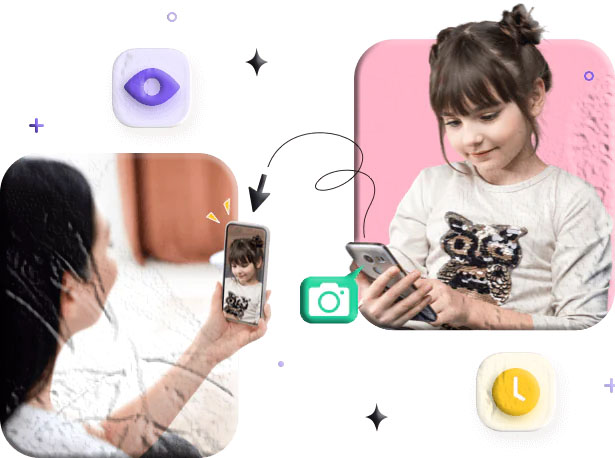

Most people treat their smartphones as extensions of themselves. Banking apps, private messages, work emails, health data, personal photos, saved passwords — it’s all in there. And while we tend to think of phone security in terms of physical access (keeping the screen locked, not handing it to strangers), the more insidious threat is invisible: someone accessing the device from a distance, capturing what’s on your screen without ever touching it.
The question “can someone remotely screenshot my phone?” gets asked in a lot of different contexts. A person who suspects a partner is monitoring them. An employee who wonders whether company-managed software can capture what they do on a work device. A parent trying to understand how monitoring apps work. Someone who clicked a suspicious link and is now worried about what it did. Someone who simply noticed their phone behaving strangely and wants to know whether that behavior means anything.
The short answer to the question is: yes, remote screen capture is technically possible, under specific circumstances, using specific software. But the full answer is more nuanced — because understanding whether it’s actually happening to you requires knowing what types of software enable it, what the real warning signs look like, and what distinguishes normal phone behavior from genuinely suspicious activity.
This guide covers all of that systematically: the technical reality of remote screenshots, how to read the signs accurately, a step-by-step security response plan, and a section for parents who want to understand how monitoring tools work on their child’s device — and how to use them responsibly.
The Technical Reality: How Remote Screen Capture Actually Works
Before looking at signs and solutions, it’s worth understanding the technical landscape — because “remote screenshot” isn’t a single thing. It describes a range of different capabilities that different types of software enable in very different ways.
What Types of Software Can Capture Your Screen Remotely
Spyware and stalkerware
Spyware is software that monitors device activity without the user’s knowledge or consent. A subset of spyware specifically designed for intimate partner surveillance is sometimes called stalkerware. These apps are typically installed with brief physical access to the device — a partner who has the phone for a few minutes, a device that was left unlocked.
Once installed, spyware can operate in the background without appearing on the home screen, can be disguised under innocuous names like “System Service” or “Sync Manager,” and can capture screenshots at timed intervals or when triggered by specific activities (like opening a banking app or messaging application). The Coalition Against Stalkerware — an organization of cybersecurity companies and advocacy groups — maintains resources on detecting and removing this type of software.
Parental control applications
Parental control apps are designed for transparent, consent-based oversight — a parent installs the app on a child’s device with the child’s knowledge and uses it to monitor activity for safety reasons. Many parental control apps include screen monitoring features that allow parents to view the child’s screen in real time or capture periodic screenshots.
The critical difference between parental control apps and spyware is consent and transparency: the child knows the app is there. The technical capability may be similar, but the ethical and legal context is entirely different.
Mobile Device Management (MDM) software
Organizations that issue smartphones to employees often manage those devices using MDM software. These platforms give IT departments significant control over managed devices: they can enforce security policies, remotely wipe devices, push app updates, and in some configurations, capture screenshots of screen activity. This is typically disclosed in employee device agreements.
If you use a work-issued phone, your employer may have MDM capabilities that include screen monitoring. What’s permissible varies by country — in the EU, GDPR guidelines on employee monitoring place significant restrictions on what employers can capture, while US law is generally more permissive.
Remote access and screen mirroring apps
Apps like TeamViewer, AnyDesk, and similar remote access tools allow one device to control or view another device’s screen in real time. These are widely used for legitimate purposes — IT support, remote work, screen sharing during calls. They require explicit setup and authorization, but once authorized, they provide full screen visibility and control to the remote party.
Poorly secured screen sharing features in legitimate apps
Some video conferencing and collaboration apps have screen sharing capabilities that, if misconfigured, could allow others to see your screen without clear indicators. This is less about malicious software and more about privacy settings within legitimate applications.
What Remote Screenshot Software Generally Requires
Understanding what these tools need to function helps explain how to detect and prevent them:
- Installation access — Most monitoring software requires installation on the target device, which typically requires brief physical access or being tricked into installing it via a malicious link or app.
- Device permissions — To capture the screen and transmit data, these apps need specific permissions: Accessibility Services access (on Android), Screen Recording permission, and network access. Checking which apps hold sensitive permissions is a key diagnostic step.
- An active internet connection — Screenshots need to be transmitted somewhere. Without internet access, captured screenshots can’t be sent to whoever is monitoring the device.
- On newer devices, increasingly difficult technical requirements — Both Apple and Google have progressively hardened their operating systems against unauthorized monitoring. On current iPhones running modern iOS, installing surveillance software without jailbreaking the device has become significantly harder. Apple’s security documentation details the technical safeguards built into iOS.
Warning Signs: How to Tell If Someone May Be Remotely Capturing Your Screen
None of these signs is definitive proof on its own — phones are complex devices and unusual behavior often has perfectly innocent explanations. But a cluster of several of these signs together is meaningful and warrants further investigation.
Sign 1: Unexplained Screen Flickering or Brief Flashes
If your screen occasionally flickers, dims briefly, or seems to respond to something when you haven’t touched it, this can sometimes indicate that a background process is accessing screen content or initiating a capture.
How to evaluate this sign: Screen flickering can also be caused by hardware issues (a failing display connection), software bugs in legitimate apps, or display drivers on certain Android devices. The key distinguishing factor is whether the flickering is random or appears to correlate with specific activities — particularly financial transactions, login screens, or messaging apps. If you consistently notice screen anomalies when entering passwords or opening sensitive apps, that’s more concerning than random flickering.
What to check: Note the timing and frequency. If the screen flickers at consistent intervals (every X minutes, suggesting a timed screenshot schedule) or specifically when you’re doing sensitive activities, log these instances before investigating further.
Sign 2: Battery Draining Faster Than Usual
Screen capture and transmission are computationally expensive activities. An app running continuously in the background to monitor screen activity will consume CPU cycles and battery life beyond what normal background processes require.
How to evaluate this sign: Battery drain has many causes — poor cellular signal makes the radio work harder, a recently updated app may have a power consumption bug, aging battery cells lose capacity over time. The relevant question is whether the drain is recent and unexplained. If your phone’s battery life has noticeably declined without a clear cause (new app installation, system update, physical move to an area with weaker signal), that’s worth investigating.
What to check on Android: Go to Settings → Battery → Battery Usage (path varies by manufacturer). Look for any unfamiliar apps or system services consuming a disproportionate amount of battery. Any app using significant battery in the background that you don’t recognize is a red flag.
What to check on iPhone: Go to Settings → Battery and scroll to Battery Usage by App. The list shows which apps have consumed the most battery over the past 24 hours or 10 days. Look for anything in the “Background Activity” column that you don’t recognize or would expect to be active.
Sign 3: Higher Than Expected Data Usage
Captured screenshots need to be transmitted to whoever is monitoring your device. This transmission consumes mobile data. An app sending regular screenshots in the background will generate mobile data usage that doesn’t correspond to any app you’re actively using.
How to evaluate this sign: Data usage spikes can come from many sources — an app downloading a large update, cloud backup syncing, streaming services buffering content. The distinguishing factor is whether the usage is attributable to known apps or is unexplained.
What to check on Android: Go to Settings → Network → Data Usage (exact path varies). Review per-app data usage. Any app with significant data consumption that you haven’t been actively using is worth flagging.
What to check on iPhone: Go to Settings → Cellular and scroll through the app list. Each app shows how much cellular data it has consumed in the current period. Look for anything using significant data that shouldn’t be active.
Sign 4: The Device Runs Slower Than Normal
Monitoring software consumes system resources — CPU processing power, RAM, and storage — beyond what’s required for the apps you’re actively using. A device that suddenly runs more slowly than it used to, without an obvious explanation like a new resource-heavy app, may be doing more background processing than it should be.
How to evaluate this sign: Slowdowns are extremely common and have many causes. An operating system update that’s still indexing data, an app that’s syncing a large library, a device with low available storage — all of these cause slowdowns that have nothing to do with monitoring software. The relevant question is whether the slowdown is persistent and unexplained, rather than temporary.
What to check: On Android, developer options (enabled under Settings → About Phone → tap Build Number seven times) include a “Running Services” view that shows every process currently active in memory. This can reveal unknown background services. On iPhone, the information is harder to access, making the battery and data usage checks more important.
Sign 5: Unfamiliar Apps in Your Installed App List
Spyware is often installed as an app that doesn’t appear on the home screen but still shows up in the full installed apps list accessible through Settings. Someone with brief access to your phone could install such an app and remove its visible icon, leaving it running invisibly.
How to check on Android:
Go to Settings → Apps (or Application Manager on some devices). This shows all installed apps, including those without home screen icons. Sort by install date and look for anything installed on a date when your phone might have been accessible to someone else. Look specifically for:
- Apps with generic names like “System Service,” “Phone Manager,” “Sync Service”
- Apps you don’t remember installing
- Apps installed in the same general time period as when you first noticed unusual behavior
How to check on iPhone:
On iPhone, go to Settings and scroll through the complete list of apps (third-party apps appear alphabetically after the built-in Apple apps). Alternatively, go to Settings → General → iPhone Storage for a complete list including storage usage. Installing monitoring software on a non-jailbroken iPhone without the user’s knowledge is significantly more difficult than on Android, but not impossible through certain enterprise certificate exploits.
Sign 6: Unexplained Changes to Accessibility Settings
On Android, the Accessibility Services framework is the primary mechanism through which legitimate monitoring, screen reading, and parental control apps operate. These services require explicit user permission, but once granted, provide very broad access to screen content and app activity.
What to check: Go to Settings → Accessibility → Installed Services (Android) or Settings → Accessibility (iPhone). Review every service that has been granted accessibility access. If you see any service you don’t recognize or didn’t intentionally enable, that’s a significant red flag.
Sign 7: Suspicious Account Activity or Security Alerts
If your phone has been compromised by software capable of capturing your screen, that software may also be capturing your login credentials — essentially keylogging your passwords as you type them.
Signs that someone may have gained access to your credentials:
- Receiving security alerts that someone logged into your accounts from an unrecognized location or device
- Accounts showing activity you didn’t perform
- Password reset emails you didn’t request
- Receiving two-factor authentication codes you didn’t initiate (meaning someone is trying to log in with your correct password)
If you notice any of these, change passwords immediately — starting with your most sensitive accounts (email, banking, primary social media) — and enable two-factor authentication on every account that supports it. Google’s account security checkup and Apple’s Apple ID security guidance walk through reviewing and securing account access.
Sign 8: The Phone Is Warmer Than Normal
Continuous background processing generates heat. A phone that runs warm even when you’re not actively using it — sitting on a desk with the screen off — may be doing more background work than it should. This is a weak signal by itself but worth noting alongside other signs.
<!– IMAGE PLACEHOLDER 2: Person holding a smartphone with a settings screen visible showing app permissions, representing the process of checking and reviewing phone security settings –>
How to Stop Remote Screenshots: A Step-by-Step Security Response
If multiple signs from the list above apply to your phone, here’s a systematic approach to identifying and eliminating the threat. Work through these steps in order — start with the least disruptive options and escalate only if needed.
Step 1: Audit App Permissions
The first and most important diagnostic step is reviewing which apps have been granted sensitive permissions. Monitoring apps need specific permissions to function — taking them away immediately disables their capabilities, even before you’ve identified and removed the app itself.
On Android:
Go to Settings → Privacy → Permission Manager (on Android 10 and later). This gives you a permission-first view: tap any permission type and see every app that has been granted it. The permissions most relevant to screen capture and monitoring are:
- Accessibility — found under Settings → Accessibility → Installed Services; any unrecognized service here should be disabled immediately
- Camera — revoke from any app that doesn’t have a clear reason to need it
- Microphone — same as above
- Location — revoke from any app that doesn’t need location for its core function
- Storage — broad storage access is often used to save captured screenshots; revoke from unrecognized apps
On iPhone:
Go to Settings → Privacy & Security. Each permission type (Location Services, Camera, Microphone, etc.) shows a list of apps that have requested it. Review each list and revoke access from any app you don’t recognize or that has no legitimate reason to need the permission.
Additionally on iPhone, go to Settings → Privacy & Security → Screen Time and check whether Screen Time is enabled under someone else’s Apple ID — this is a mechanism sometimes used by controlling partners to enable monitoring through Apple’s own parental control framework.
Step 2: Remove Unrecognized Apps
Having reviewed permissions, go through your full installed app list (Settings → Apps on Android; Settings → General → iPhone Storage on iPhone) and remove any app you:
- Don’t remember installing
- Can’t identify the purpose of
- Notice has been granted sensitive permissions without a clear reason
When removing apps, go through the Settings app list rather than just deleting from the home screen — some monitoring apps have no home screen icon but still appear in Settings and must be removed from there.
Step 3: Check for Jailbreak or Root Status
Many monitoring apps — particularly those with deep screen capture capabilities — require a jailbroken iPhone or rooted Android device to function. Detecting whether your device has been modified is an important diagnostic step.
On iPhone: Download an app like Certo AntiSpy (which runs on a Mac computer connected to the iPhone), or check for the presence of apps like Cydia or Sileo, which are package managers typically installed as part of a jailbreak process. A jailbroken device will sometimes have these apps in the installed list.
On Android: Rooting detection varies by device. Some anti-malware apps include root detection. Alternatively, look for apps like “SuperSU” or “Magisk” in your installed apps list — these are common tools used as part of the Android rooting process.
If your device has been rooted or jailbroken without your knowledge, that’s a serious security event that likely warrants a factory reset rather than piecemeal app removal.
Step 4: Run a Mobile Security Scan
Mobile antivirus and security apps aren’t foolproof, but they catch a significant portion of known spyware and malicious apps. Run a scan with a reputable security app:
For Android:
- Malwarebytes for Android — well-regarded for detecting stalkerware and spyware specifically
- Bitdefender Mobile Security — comprehensive malware detection
- Kaspersky for Android — includes a dedicated privacy audit feature
For iPhone:
iOS’s sandboxed app architecture makes traditional antivirus scanning less effective, but apps like Lookout Security can check for known spyware indicators and configuration profiles that may have been installed to enable monitoring.
Step 5: Review Linked Accounts and Active Sessions
Monitoring isn’t always through an app on the device itself — it can also happen through your accounts. Someone with access to your iCloud or Google account may be able to access your photos, location, and certain app data without any software on the device.
For Apple devices: Sign in to appleid.apple.com and review all devices signed in with your Apple ID. Remove any device you don’t recognize. Change your Apple ID password and enable two-factor authentication if not already active.
For Android devices: Go to myaccount.google.com and check “Security → Your devices.” Remove any unfamiliar device. Review “Third-party apps with account access” for any apps with broad permissions you don’t recognize. Change your Google account password.
Step 6: Disable Wireless Connection as a Temporary Measure
If you’re in the middle of diagnosing a suspected compromise and need to stop potential data transmission immediately, disabling Wi-Fi and mobile data cuts off the internet access that monitoring software needs to transmit captured content.
This is explicitly a temporary measure — you can’t function without connectivity indefinitely — but it stops active transmission while you work through the diagnostic steps above. Enable Airplane Mode (which disables all wireless transmission including cellular) for the most complete cutoff.
Step 7: Reset All Settings (Without Erasing Data)
If you’ve removed suspicious apps but still notice unusual behavior, resetting all settings returns your configuration to defaults without erasing your personal data. This will remove any misconfigured accessibility settings, unusual network configurations, or display settings that a monitoring app may have altered.
On iPhone: Go to Settings → General → Transfer or Reset iPhone → Reset → Reset All Settings. Your apps and data remain; all settings return to factory defaults.
On Android: Go to Settings → General Management → Reset → Reset All Settings (path varies by manufacturer). Similar effect — data is preserved, settings are restored to defaults.
Step 8: Factory Reset — The Nuclear Option
If everything else fails, a factory reset eliminates any software-based threat with certainty. It wipes the device completely — every app, every setting, every piece of stored data — and returns it to the state it was in when it left the manufacturer.
This is irreversible without a prior backup, so back up any critical data first. Note that if your backup was created while the monitoring app was installed, restoring from that backup may re-introduce the problem. Consider restoring only your contacts, photos, and documents rather than a full app-state backup.
On iPhone: Settings → General → Transfer or Reset iPhone → Erase All Content and Settings. After the reset, set up as a new device rather than restoring from backup, or restore selectively from iCloud.
On Android: Settings → General Management → Reset → Factory Data Reset. Confirm when prompted.
After a factory reset, set a strong device passcode immediately, enable full-disk encryption (Android) or verify it’s active (it’s always on for iPhone), and review app permissions carefully as you reinstall apps one by one.
Can You Detect Remote Screenshots in Real Time?
This is a question many people have — the desire not just to investigate after the fact but to catch it happening. The honest answer is that real-time detection is difficult for the average user.
On Android: Android 12 and later introduced indicators — a small dot or icon in the status bar — when an app is accessing the camera or microphone. While this doesn’t specifically cover screen capture, it provides some visibility into background sensor access. A green dot in the top-right corner indicates camera or microphone access is active.
On iPhone: iOS similarly introduced camera and microphone indicators in iOS 14. A green dot indicates the camera is active; an orange dot indicates the microphone is active. These appear even for background access, which gives users a signal when unexpected processes access these sensors.
Neither platform has a dedicated screen capture indicator (a signal that appears when an app is taking a screenshot of the display), though this has been a requested feature. For now, the behavioral signs described earlier in this guide are the primary detection mechanism.
Third-party security apps like Malwarebytes and Lookout run ongoing background monitoring and may alert you to suspicious behavior in real time, though they work from known threat signatures rather than behavioral analysis alone.
For Parents: Using Screen Monitoring Legitimately and Responsibly
Everything covered so far has been about detecting and stopping unauthorized monitoring — someone doing something to your device without your knowledge or consent. But there’s a different context where screen monitoring is entirely appropriate: parents monitoring their minor children’s devices for safety.
The capability that makes spyware threatening — the ability to capture what’s on a screen — is also what makes parental monitoring tools genuinely useful for keeping children safe online. The difference, again, is transparency and consent: the child knows the app is there, parents have installed it through an open conversation about digital safety, and the monitoring serves a protective purpose rather than a controlling one.
Why Parents Use Screen Monitoring Tools
Children and teenagers face real risks online: exposure to inappropriate content, contact from predators, cyberbullying, scams, and social engineering. Research from the Pew Research Center consistently shows that a significant proportion of teenagers have encountered disturbing content, unwanted contact, or online harassment.
A parent who can see what’s on their child’s screen — or receive alerts about specific types of content — has a meaningful capability to intervene before harm occurs rather than after. This is qualitatively different from surveillance; it’s active safety management.
MyParental Parental Control: Screen Monitoring for Family Safety
MyParental Parental Control is a family safety app that includes screen monitoring among its features, designed specifically for the parent-child context. Unlike spyware, it’s installed openly on the child’s device with the child’s knowledge, and its capabilities are disclosed to the child as part of the setup process.
What MyParental’s screen monitoring provides:
Live screen mirroring — Parents can view the child’s device screen in real time through the MyParental dashboard. This provides visibility into active apps, conversations, and content without requiring the parent to handle the device.
App permission management — Parents can see which apps on the child’s device have been granted sensitive permissions (camera, microphone, location), providing oversight over the device’s permission landscape.
Real-time location tracking — Know where the child’s device is at any given time, with geofencing alerts when the device enters or leaves defined areas.
Notification mirroring — Receive a copy of notifications arriving on the child’s device, providing awareness of incoming communications without necessarily reading the full message content.
Keyword detection — Configure alerts that trigger when specific words or phrases appear in the child’s app activity — a targeted approach that focuses monitoring on specific safety concerns rather than blanket surveillance.
App usage controls — Set time limits on specific apps or schedule periods when certain apps are unavailable (homework time, bedtime).
Setting Up MyParental for Transparent Family Monitoring
Step 1: Have the setup conversation first. Before installing anything, explain to your child what the app does, why you’re installing it, what you will and won’t use it for, and how long you plan to have it in place. The conversation is the foundation — the app is the tool.
Step 2: Download the MyParental Parental Control app on your own device at https://myparental.app/download-myparental-parental-control/. Create a parent account.
Step 3: On your child’s device, download the MyParental Kids companion app. Install it while your child is present so they see what’s being set up.
Step 4: Link the devices using the pairing code shown in the parent app. The process is quick and straightforward.
Step 5: Configure the specific monitoring features relevant to your family’s situation — not every feature needs to be active. Choose the level of oversight that matches your child’s age, the specific risks you’re concerned about, and your family’s agreed boundaries.
Step 6: Keep the conversation open. As your child matures, revisit which monitoring features are still appropriate. The American Academy of Pediatrics recommends scaling parental monitoring in proportion to a child’s demonstrated responsibility and maturity rather than maintaining maximum oversight indefinitely.
The Difference Between Parental Control and Spyware
It’s worth stating this distinction clearly because the technical capabilities can overlap:
Spyware: Installed without the device owner’s knowledge, operated without their consent, designed to conceal its presence, used to monitor and control rather than protect.
Parental control software: Installed with the child’s knowledge, operated transparently, designed to be visible to the child, used to protect and guide rather than to surveil secretly.
The technology may be similar. The ethics, the legality, and the real-world impact are entirely different.
Frequently Asked Questions
Can someone take a screenshot of my phone without being near it?
Yes, under specific circumstances. If monitoring software has been installed on your device — through brief physical access, a malicious app installation, or a phishing link — it can capture screenshots remotely over the internet. This requires the software to be present on the device, the device to have an active internet connection, and the software to have appropriate system permissions. It doesn’t happen spontaneously and requires some form of prior installation event.
Do all monitoring apps require jailbreaking or rooting?
No, but deeper monitoring capabilities generally do. Basic monitoring apps that work within normal system permissions can track location, app usage, and some notification content on non-jailbroken or non-rooted devices. More intrusive features — like continuous screen capture at will, or hiding the app completely from the installed apps list — typically require jailbreaking (iPhone) or rooting (Android), which bypasses the operating system’s built-in protections. The fact that jailbreaking or rooting is often required is actually a protective factor: detecting that your device has been modified is a meaningful warning sign.
Will a factory reset remove all monitoring software?
Yes, a factory reset returns the device to its original state and removes all installed software, including monitoring apps. The caveat is that if you restore from a backup that was created while the monitoring app was installed, you may inadvertently reinstall it. For this reason, after a factory reset motivated by a security concern, it’s better to set up as a new device and reinstall only the apps you specifically need, rather than restoring a full backup.
Can monitoring software capture my phone screen when it’s locked?
Generally, no. Most monitoring software captures the screen during active use — when the display is on and you’re interacting with apps. A locked screen provides no content to capture, and the processing involved in screen capture typically requires the screen to be active. Keeping your screen locked when not in use is a meaningful deterrent, though it doesn’t address the underlying presence of monitoring software if it has already been installed.
Is it legal for my employer to take screenshots of my work phone?
It depends on your jurisdiction, your employment contract, and whether the device is company-owned or personal. In most US states, employers have broad authority to monitor company-owned devices. In the EU, employer monitoring rights are significantly curtailed by GDPR and national labor law, even on company-owned devices. The key is disclosure: employees should have been informed, typically through an acceptable use policy or employment agreement, that the device may be monitored. If you have questions about a specific situation, consulting an employment attorney in your jurisdiction is the appropriate step.
What should I do if I believe a partner is monitoring my phone?
If you suspect a partner is using monitoring software to track your device, the situation has safety dimensions beyond the technical. The National Domestic Violence Hotline provides specific guidance on technology safety in relationships where monitoring or control is occurring. Their technology safety page covers how to check for monitoring apps, how to create safer communication channels, and how to seek help without alerting the person who may be monitoring your device. If you’re in immediate danger, contact emergency services.
How do I know if my iPhone has been jailbroken without my knowledge?
Signs of jailbreaking on an iPhone include: the presence of apps like Cydia or Sileo (app stores used on jailbroken devices), apps that claim to provide system-level access not normally available on iOS, performance or stability issues that came on suddenly, and failure of certain Apple security features. Security tools like Certo AntiSpy (run from a Mac computer) can perform a more thorough jailbreak detection scan. A factory restore through iTunes/Finder also removes a jailbreak completely.
Can a monitoring app be installed through a text message link or email attachment?
Phishing links and malicious email attachments can attempt to install software on your device, but the practical barriers are significant. On iPhone, installing software outside of the App Store requires either a jailbroken device or the installation of an enterprise certificate (which requires user interaction to approve). On Android, installing apps from unknown sources requires enabling a specific setting (which shows a warning prompt). Clicking a link typically can’t install monitoring software silently on a modern, updated device — but it can direct you to pages that attempt to trick you into enabling those installation settings yourself. Keeping your operating system updated and being careful about links from unknown sources are the primary defenses here.
Conclusion
The possibility of remote phone screenshots sits at the intersection of real technical capability and significant practical barriers. Can it happen? Yes. Does it require sophisticated access, specific software installation, and a set of circumstances that go beyond someone simply knowing your phone number or being in the same room? Also yes.
The most likely vector for unauthorized phone monitoring in most people’s lives isn’t some sophisticated remote hack — it’s someone with brief physical access to the device installing software while it’s left unlocked. That understanding shapes the most effective prevention: strong device passcodes, keeping the phone with you or locked when in the presence of someone you don’t fully trust, and periodic audits of your installed apps and permissions.
If you’ve noticed multiple signs from the list in this guide — unusual battery drain, unexplained data usage, unfamiliar apps, suspicious account activity — working through the step-by-step security response above addresses each possible cause systematically. Start with permission audits and app removal, escalate to settings reset, and use a factory reset as a last resort if other measures don’t resolve the issue.
For parents, the same monitoring capabilities that make spyware threatening are what make parental control tools genuinely useful. The ethical line between the two isn’t about the technology — it’s about transparency, consent, and purpose. Tools like MyParental, used openly as part of an ongoing family safety conversation, give parents meaningful capability to protect their children in digital environments that carry real risks.
Your phone security, ultimately, is about more than any single app or setting. It’s about building habits — regular permission reviews, strong authentication, software updates, and awareness of your device’s behavior — that make unauthorized access harder at every level.
This article is for informational and educational purposes only. If you believe your device has been compromised or you are experiencing harassment or surveillance, seek help from appropriate professionals — including cybersecurity specialists, law enforcement, or domestic violence support services depending on your situation.