See which apps your child uses, how much time they spend on each, and act on what you find. MyParental’s App Usage feature gives parents a clear, daily picture of their child’s app activity — with built-in tools to set time limits, block specific apps, and filter notifications when something needs attention.
What App Usage Tracking Actually Shows You
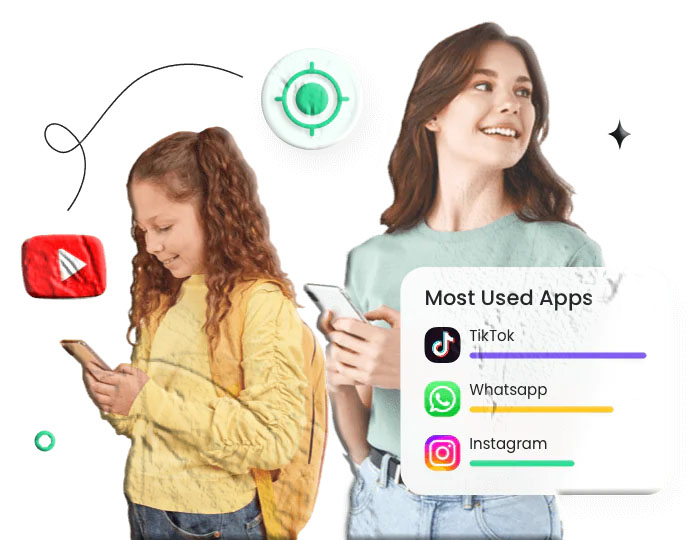
MyParental’s App Usage feature is organized around a few core views:
| View | What it shows | Best for |
|---|---|---|
| Installed apps | The complete list of apps on the child’s device, with install dates | Spotting new apps you didn’t know about |
| Daily usage | Time spent in each app today | Seeing where the time actually went |
| Top apps | Most-used apps ranked by time | Identifying the heavy hitters in your child’s daily routine |
| Notifications | Which apps are sending notifications, and how many | Calming a device that won’t stop buzzing |
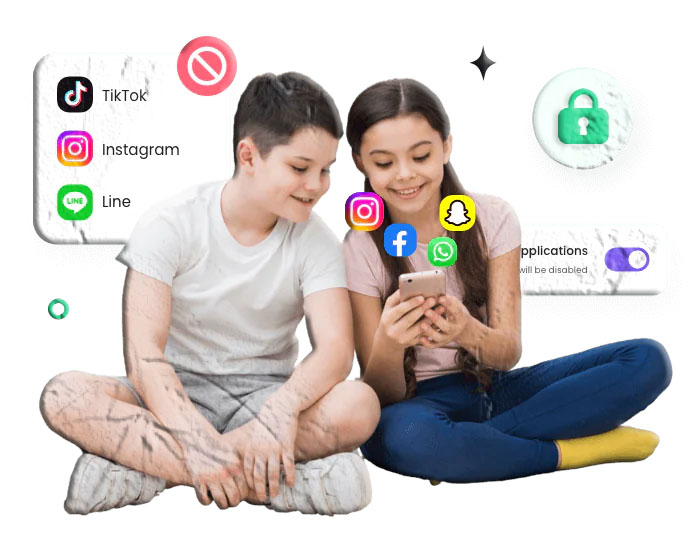
| App blocker | Tools to restrict, time-limit, or fully block specific apps | Acting on what you find |
The structure is intentional. The first three views are about seeing what’s happening; the fourth and fifth are about doing something about it. Most families spend their first week or two mostly looking, then gradually start making adjustments once they understand the actual pattern of their child’s device use.
What Most Parents Discover in the First Week
Almost every parent who turns on app usage tracking is surprised by something in the first few days. The surprises tend to fall into a handful of categories.
The total time is higher than expected. This is the most common reaction. The pattern of “fifteen minutes here, ten minutes there” adds up faster than memory captures it. Seeing a clean daily total tends to be the first useful piece of information.
One app is doing most of the work. Often it’s a single game or social platform absorbing the majority of the daily time. The other dozen installed apps each get a couple of minutes. Once you know which app is the heavy hitter, the conversation about screen time can focus on something specific rather than a vague total.
There are apps you didn’t know existed. Kids install apps. Sometimes a lot of them. Some are perfectly fine — a calculator, a school assignment helper, a clone of a familiar game. Some are new social platforms you haven’t heard of yet. The installed apps list reveals them all, with install dates, so you can see what was added recently versus what’s been there forever.
The notification volume is staggering. Many parents are shocked at how many notifications a phone receives in a normal day — hundreds, in some cases. Each one is an interruption, a request for attention, a small tug back to the screen. Seeing the count by app makes it concrete in a way that abstract “you’re on your phone too much” conversations never quite do.
An app’s actual use doesn’t match its advertised purpose. A “homework helper” app turns out to mostly be a chat platform among the students using it. A “creativity” app turns out to host a community feature that’s where most of the time goes. Knowing what an app is used for in practice (not what its store listing claims) is genuinely useful information.
None of these discoveries is a crisis. They’re just information. And information is what makes thoughtful adjustments possible.
Seeing What’s Installed
The most basic view in the App Usage feature is the simplest: a complete list of every app on the child’s device, with the date each one was installed.
Why This View Matters
Apps appear on phones constantly. Some are intentional — the child downloaded a school app, a sibling shared a game, a teacher recommended a study tool. Some are casual — a friend at school said “try this,” and ten seconds later it was installed. Some are picked up almost accidentally through ads or app store recommendations.
A scrollable list of everything that’s currently installed, with install dates, lets you spot:
- New apps you haven’t talked about. Anything installed in the last few days that you don’t recognize is worth a brief check-in conversation.
- Apps you thought were uninstalled. Sometimes a child removes a problematic app while you’re watching and reinstalls it later. The install date reveals when something came back.
- Apps that probably shouldn’t be there. A messaging platform you’d rather your young child not have. A game that’s age-inappropriate. A social platform with a stated minimum age your child hasn’t reached yet.
What to Do With What You Find
Most discoveries are benign. A child installing a calculator app, a homework reference tool, or a clone of a familiar game doesn’t require any action.
The cases where action makes sense are usually one of three:
- A clearly age-inappropriate app. Block it, talk about why, and move on.
- A new social platform you haven’t researched yet. Pause it briefly — most parental control apps let you toggle restrictions — until you’ve had time to understand what it is and whether it’s a fit for your family.
- A pattern of secretive installations. A child quietly installing and uninstalling the same app repeatedly is usually a sign that the app and the household rules are in tension. The right response is usually a conversation, not just another block.
For broader context on how to evaluate specific apps for age-appropriateness, Common Sense Media’s app reviews cover most major platforms in detail, with notes on what each app actually does and what age groups it’s suitable for.
Daily Usage: Where the Time Actually Went
The daily usage view is where most of the practical value of the feature lives. For each day, you see:
- Total screen time across all tracked apps.
- Per-app totals, sorted by time spent.
- Active periods showing when during the day the device was in use.
- A comparison to the previous day or week, so trends are visible.
Why the Per-App Breakdown Matters More Than the Total
The total daily screen time is the number every parent asks about first. It’s also the number that’s least useful on its own. “Three hours of screen time” can mean three hours of educational apps, three hours of one game, three hours split across a dozen apps, or three hours mostly spent in a single social platform. Each of those is a completely different situation requiring different conversations.
The per-app breakdown tells you the actual story. When you can see that 80% of the daily time is going into one specific app, the conversation changes from “you’re on your phone too much” to “let’s talk about that one app you’ve been using a lot.” The second conversation is far more productive than the first.
Spotting Patterns Over a Week
A single day’s data is noisy. A child might have an unusually heavy game day after a particularly hard day at school, or an unusually light day because they were out with family. Over a week, real patterns become visible:
- Which days are heavy and which are light?
- Are the heavy days correlated with anything else (sleepover days, weekends, days with no after-school activities)?
- Are certain apps spiking at specific times (late evening, early morning, during the homework window)?
These patterns are often more useful than any single day’s data. They’re what you actually act on.
Tip: Resist the temptation to comment on every detail you see. The information is for your awareness, not for daily commentary. Children who feel every minute is being analyzed lose trust in the system quickly. Save observations for the patterns that genuinely matter.
Notifications: The Hidden Driver of Screen Time
Here’s something most parents don’t think about until they see the numbers: a meaningful portion of a child’s screen time isn’t initiated by the child. It’s initiated by their apps.
A notification arrives. The phone buzzes. The child glances. The notification preview is interesting. They unlock the device to see more. Five minutes later they’re three apps deep, having forgotten what they originally came to look at. This pattern repeats dozens of times a day.
MyParental’s notification view shows:
- Total notifications per day, across all apps.
- Per-app notification counts, so you can see which apps are doing the buzzing.
- Time-of-day distribution, so you can see when the interruptions are concentrated.
What to Do With Notification Data
The most common useful action is simply to silence the notifications from a few of the worst-offender apps. Most apps don’t need to actively push notifications to a child’s phone all day — the child can open them when they choose. Once notifications are quieted, the device tends to demand less attention overall, and screen time often drops without any explicit limit being set.
For platform-specific guidance on notification controls, Apple’s notifications documentation and Google’s notification settings overview explain the device-level tools that work alongside parental control apps.
The App Blocker
The App Blocker is the action layer of the feature. Once you’ve seen what’s happening, the blocker is how you do something about it.
Three Levels of Restriction
The blocker offers three approaches, in increasing order of strictness:
Time limits. Allow the app, but cap it at a certain amount of time per day. The child can use it freely until they hit the limit, at which point it becomes unavailable until the next day. This is the gentlest option and often the right starting point for most apps that aren’t outright problematic.
Scheduled restrictions. Allow the app, but only during certain windows. A social app might be available after homework hours but blocked during the school day and after bedtime. A game might be available on weekends but blocked on school nights. Scheduling tends to work better than total blocking for older kids who understand the structure.
Full blocking. The app is unavailable. The child can see the icon but can’t open it. This is the right level for apps that are clearly age-inappropriate or that have demonstrated they can’t be used in a balanced way.
A Few Practical Notes
Start with limits, not blocks. For most apps, a time limit produces better outcomes than a full block. Outright bans tend to invite workarounds; reasonable limits tend to teach self-regulation. Save blocks for cases where the app itself is the problem rather than the amount of time spent on it.
Don’t blanket-block by category. “Block all games” or “block all social apps” sounds tidy but rarely fits how a real child’s day works. Specific apps with specific rules tend to land better than sweeping category-level bans.
Make the rules visible to the child. A child who understands which apps have which limits and why is much more accepting of the limits than one who keeps running into restrictions they don’t understand. The transparency principle that runs through all of MyParental applies here too.
Adjust as kids mature. A daily limit that fits a ten-year-old is probably too tight for a fifteen-year-old. Visibly loosening rules in response to demonstrated maturity is one of the most powerful messages a parent can send.
How to Set It Up
The full setup takes about ten minutes for a typical family. Here’s the walkthrough.
Step 1: Have the Conversation First
Before installing anything, talk with your child about what you’re doing. This is true for every feature in MyParental, but it’s especially worth doing for app usage, because a child who feels caught off-guard by sudden limits responds very differently than one who knows the rules in advance.
For younger children: “I’m going to put an app on your phone that helps me see what other apps you use and how long. We’ll set some daily limits together so you have plenty of time for the things you like and still time for everything else.”
For older children and teenagers: “We’re going to use a parental control app that shows me which apps you spend the most time on. I’m not interested in micromanaging every minute — I want us to be able to have honest conversations about screen time without it being a guessing game. We can set the rules together and adjust as we go.”
Step 2: Install MyParental on Your Device
Download MyParental from the MyParental site. Open the app and create your account using your email address and a strong password. Enable two-factor authentication if it’s offered.
Step 3: Install the Companion App on the Child’s Device
On the child’s phone or tablet, download the MyParental companion app from the same official app store. Open it and choose the option to link to a parent account.
Step 4: Pair the Two Devices
In your parent app, tap Add a Child. A pairing code appears on the screen. Enter that code in the companion app on the child’s device. The two apps connect within a few seconds.
Step 5: Grant Usage Access Permission
The companion app will request usage access on the child’s device. This is the permission that allows the app to see which apps are being used and for how long. The app walks you through the permission grant with a clear explanation.
On Android, the path is typically Settings → Special app access → Usage access → MyParental → Allow. On iOS, the integration uses Apple’s Screen Time framework, which the companion app helps configure during setup.
Without this permission, the app usage features can’t function. The rest of the parental control features (location, web filtering) continue to work, but the per-app insights specifically depend on usage access being granted.
Step 6: Set Battery Optimization (Android Only)
This step matters more than it sounds. Some Android devices, particularly certain manufacturer customizations, aggressively close background apps to save battery. If MyParental gets closed by the system, app usage tracking stops.
On the child’s device, find MyParental in the battery or app settings and mark it as allowed to run unrestricted in the background (sometimes labeled “Unrestricted,” “No restrictions,” or “Allow auto-launch”). The exact wording varies by manufacturer.
Step 7: Wait a Day Before Setting Limits
This is the most underrated step. Don’t try to set limits on the first day. Let the tracker run for 24 to 48 hours so you have actual data to work with. Setting limits based on what you assume your child does is far less effective than setting them based on what they actually do.
After a day or two, you’ll see:
- The total daily time pattern.
- Which specific apps absorb most of the time.
- When during the day the heaviest use happens.
- Which apps are sending the most notifications.
Then you can set limits that fit the actual situation.
Step 8: Set Initial Limits and Restrictions
Once you’ve seen the baseline, open the App Blocker section of the dashboard. Reasonable starting points for most families:
- A daily limit on the one or two heaviest-use apps. Often 30 to 60 minutes per day, depending on the app and the child’s age.
- A bedtime cutoff for all apps. Most kids do better with no apps at all in the final hour before bed.
- A school-hours block on entertainment apps. Games and social platforms available after school, but not during it.
- Notification quieting for the most disruptive apps. Often the single highest-impact change.
Resist the temptation to set restrictions on every app you see. Start with the few that genuinely matter and add more only if the pattern shows you need to.
📱 Get Started — Download MyParental
Why Parents Find This Feature Useful
A few patterns that come up consistently in feedback from families after a few weeks of using the App Usage feature.
Conversations get less abstract. Instead of “you’re on your phone too much” — a vague complaint that doesn’t lead anywhere — parents can have specific conversations: “I noticed you’ve been spending two hours a day on [specific app] lately. What’s going on?” Specific is far easier to discuss than vague.
Surprises get caught early. A new social platform that suddenly dominates a teenager’s afternoons. An old game that’s been quietly creeping back up after the family agreed to set it aside. A homework app that turned out not to be used for homework. Catching these patterns in the first week of their emergence tends to be much more effective than catching them three months in.
Total screen time often drops without anyone explicitly trying. Just turning down notifications, setting modest limits on the one or two heaviest apps, and making the time visible to the child tends to reduce total daily usage substantially. The child wasn’t “addicted” — they were just being prompted constantly. Removing the prompts removes much of the demand.
The family conversation shifts. Some families report that once the data is on the table and the rules are agreed on, the device stops being a constant point of contention. The rules are clear. The limits are enforced by the device, not by repeated parental requests. Everyone can focus on other things.
Kids learn about their own usage. The companion app on the child’s device can show the child their own usage data (depending on settings). For older children and teenagers, seeing the numbers themselves often produces more reflection than parental nagging ever did. “I didn’t realize I was doing that much” is a useful starting point for self-regulation.
How MyParental’s App Tracking Compares
Families considering an app tracking tool often look at several options. A brief, honest comparison.
Built-in Tools (Apple Screen Time, Google Family Link)
Apple’s Screen Time and Google’s Family Link both offer free app usage tracking and limits. They’re well-integrated into their respective ecosystems and cost nothing — a strong starting point for many households.
Where they tend to fall short is cross-platform consistency (households with both iPhones and Android phones face two completely separate systems), depth of notification analysis, and the way per-app limits interact with the broader parental control suite. MyParental aims to provide a single unified dashboard across both platforms, with app usage as one part of a larger set of family safety features.
Standalone Screen Time Apps
Several apps focus narrowly on screen time tracking and limits, sometimes with cleaner interfaces than the OS-native tools. They’re a fine option for families whose only concern is app time.
MyParental’s app usage feature is integrated with the broader parental control suite — content filtering, location, communication safety, reports. Families whose needs extend beyond screen time alone usually benefit from the integration.
Full Parental Control Suites
There are several established parental control products in this category, typically priced at $50–$150 per year. They generally offer deep feature sets including app tracking and limits.
MyParental sits in the middle of this market. Less elaborate than the most feature-heavy paid suites, more capable than free OS-level tools, with a free starting tier that covers the basics.
For most families, the right answer depends on which devices are in the household and how many parental control features you actually want to use. App usage tracking alone? OS-native tools may be enough. App usage as part of a broader family safety setup? MyParental is competitive.
Healthy Habits for Using App Tracking Well
The technical setup is the easy part. Using the feature well takes a little intentionality.
Use data, not assumptions. Most parents have intuitions about what their children do on their phones. Some of those intuitions are right. Many are not. Let the data inform you before reacting to it.
Don’t comment on every detail. The information is for your awareness, not for litigation. A child who feels every minute is reviewed will start hiding what they can. Save observations for the patterns that genuinely matter.
Adjust rather than escalate. If a rule is creating constant friction, look hard at whether the rule is right rather than escalating the enforcement. Sometimes the answer is to loosen up. Sometimes it’s to talk about why the rule exists in the first place.
Include the child in the conversation. Older kids respond much better to limits they helped set than to limits imposed on them. “Help me figure out a daily limit that feels fair to you” usually lands better than “I’ve decided you can have 45 minutes.”
Loosen as kids mature. The point isn’t perpetual surveillance. It’s helping a child develop the judgment to eventually manage their own device use without external structure. As they show they can, visibly relax the rules.
Don’t outsource parenting to software. Apps can structure access and surface patterns. They can’t substitute for conversations, modeling, and engaged attention. The tool supports good parenting; it doesn’t replace it.
Privacy and Security
App usage data is sensitive information about how a child spends their time. We handle it accordingly.
- Encryption in transit and at rest. Usage data is encrypted between devices and our servers, and stored encrypted on our systems.
- No third-party sale of data. Family activity data is processed to deliver the service, not packaged for sale to third parties.
- Limited retention. Usage data is retained for the period needed to provide the service, then aged off. Specific retention windows are described in our Privacy Policy.
- Two-factor authentication is available and recommended on the parent account.
- Per-child controls. Each child profile has its own settings, and you can configure how much detail is collected per child based on their age and your family’s preferences.
Legal Considerations
In most jurisdictions, parents have legal authority to monitor and manage app usage on devices used by their minor children, particularly devices the parent owns and provides. Laws vary by country and sometimes by region within a country. If you have any uncertainty, check the law in your area.
MyParental is designed for parental monitoring of minor children with appropriate awareness. Using it on the device of an adult without their explicit, informed consent is illegal in many jurisdictions and is not what the product is built for.
Frequently Asked Questions
How do I install MyParental’s app usage tracking?
Install the parent app on your own device. Create an account. Install the companion app on your child’s device from the same official store. Pair the two devices using the code generated in the parent app, and grant the usage access permission on the child’s device. The full step-by-step is in the How to Set It Up section.
Why isn’t app tracking working on iPhone?
A few common causes: the iOS version is below the minimum required (typically iOS 14.5 or later for full functionality), Screen Time permissions haven’t been granted to MyParental, Content & Privacy Restrictions are blocking the integration, or there’s an iCloud account issue. Check Settings → Screen Time → Content & Privacy Restrictions → Privacy and make sure tracking-related permissions are allowed. The companion app’s onboarding flow walks through each of these.
Is there a way to see what apps my child is using?
Yes. MyParental shows the complete list of installed apps on the child’s device, the time spent in each one each day, and trends over time. You can also see the apps your child uses most frequently and the notifications they receive. For broader context, Apple’s Screen Time and Google Family Link are free first-party tools that provide some of the same information at the OS level.
How can I see what apps my child has downloaded?
If you share an app store account with your child or have family sharing set up, you can see a list of apps downloaded on their devices through the store account. For more detailed and ongoing visibility — including actual usage time, notifications, and trends rather than just a download list — a parental control app like MyParental provides a more complete picture.
Can I see how often a specific app has been used?
Yes. The per-app daily usage view shows the time spent in each app each day, and the trend view shows usage patterns over time. You can see not just how many minutes were spent, but when during the day the heaviest use occurred.
Can I set limits on individual apps?
Yes. The App Blocker section of the dashboard lets you set per-app daily time limits, scheduled availability windows, or full blocks on specific apps. Limits are enforced by the device, not by reminders — when a child hits a daily limit, the app becomes unavailable until the next day.
Will my child know which apps are limited?
In our recommended setup, yes. When a child hits an app’s time limit, the device displays a clear, age-appropriate message rather than a confusing error. We design the product for transparent family use rather than covert restriction.
What happens if my child tries to uninstall the companion app?
The companion app is designed to resist casual removal, and you’ll receive a notification if it’s uninstalled. The most effective long-term response is usually a conversation about why the tool is there rather than an escalating cat-and-mouse game.
Can I block all games or all social apps with one setting?
You can block specific apps individually, which is usually more effective than blanket category bans. Sweeping category-level restrictions tend to create more friction than focused per-app rules.
Does app usage tracking work across both Android and iPhone?
Yes. MyParental supports both major platforms, though the specific capabilities reflect what each operating system permits for parental control apps. Some features work slightly differently on Android versus iOS because of platform-level differences in how third-party apps can integrate with the system.
Will tracking drain my child’s battery?
Modern usage tracking is far more efficient than it was a few years ago. Most families don’t notice a meaningful battery impact. If a specific device shows higher drain, ensuring battery optimization isn’t restricting MyParental in the background usually resolves it.
Can I see app usage when my child is away from home?
Yes. As long as the child’s device has an internet connection (cellular or Wi-Fi), usage data flows to the parent dashboard. You don’t need to be on the same network or in the same location.
How accurate is the per-app time tracking?
Accurate within normal expectations. The system tracks when each app is actively in the foreground on the device. Brief background activity is generally not counted as use. The numbers are reliable enough for the kinds of conversations and decisions families typically use them for.
Can multiple children share the same configuration?
Each child has their own profile with their own settings. You can copy a configuration from one child to another if it makes sense, but most families end up with somewhat different rules per child based on age and individual situation.
Does app usage tracking work for apps that aren’t on the app store?
Most modern devices restrict installation to apps from the official app store, so this rarely comes up. For Android devices that allow sideloading, MyParental’s usage tracker generally captures sideloaded apps the same way it captures store-installed ones, though specific apps may behave differently.
What if my child uses a friend’s device?
MyParental tracks usage on devices that are paired with the child’s profile. If a child uses a friend’s device, that activity isn’t visible. This is a real gap in any device-level monitoring tool and is one of the reasons why active engagement and conversation matter more than the technology alone.
What You Get with App Usage Tracking
A quick recap of what’s included:
✅ Complete list of installed apps with install dates
✅ Daily time-per-app tracking with clear totals
✅ Weekly and monthly trend views
✅ Notification volume by app
✅ Per-app time limits with device-level enforcement
✅ Scheduled availability windows for individual apps
✅ Full app blocking when appropriate
✅ Per-child configuration (different rules for different ages)
✅ Cross-platform support (Android and iOS)
✅ Daily and weekly summary reports
✅ Encrypted data in transit and at rest
Final Thoughts
The App Usage feature is one of the most quietly useful tools in MyParental. It doesn’t promise to solve screen time in a single dramatic gesture. It doesn’t pretend to know your child’s life better than you do. What it does is make visible what’s usually invisible — the specific apps, the actual minutes, the notification patterns — and give you the tools to act on what you see.
Used well, with realistic expectations and a willingness to adjust as you learn what fits your family, the feature can quietly change the texture of daily life. Less arguing about phones. More specific, useful conversations when conversations are needed. A child who understands their own habits a little better, and a parent who has data instead of guesswork.
It’s not a substitute for parenting, and it’s not magic. It’s just better information, paired with simple tools to act on it. For most families, that’s enough.
Helpful links: Download MyParental • Pricing • FAQ • About Us