
Facebook introduced Secret Conversations to give users a safer, more private way to communicate. Despite being available for years, many people still don’t fully understand how this encrypted chat system works or how to access it. If you’re trying to view secret conversations on Messenger—either your own or your child’s—this guide breaks everything down clearly.
What Are Secret Conversations on Messenger?
Secret Conversations are private, end‑to‑end encrypted chats inside Facebook Messenger. This encryption ensures that only the sender and receiver can read the messages—not even Facebook has access to them. The technology behind this feature is powered by the widely trusted Signal Protocol, used by secure messaging apps around the world. Learn more about the protocol here: 🔗 https://signal.org/docs/
Key Features of Secret Conversations
- End‑to‑end encrypted messages, calls, photos, and videos
- Self‑destruct timers that automatically delete messages
- Chats stored only on the devices used
- Optional encrypted voice and video calls
Secret Conversations are different from hidden messages, which are simply filtered messages from people you’re not connected with. Those appear in Message Requests, not in encrypted chat mode. More details here: 🔗 https://www.facebook.com/help/messenger-app
How to Start a Secret Conversation on Messenger
Some chats automatically switch to encrypted mode, but you can also enable it manually:
- Open Messenger and select the person you want to chat with.
- Tap their name at the top of the screen.
- Scroll down and choose Go to Secret Conversation.
You can also make encrypted voice or video calls from within this chat. The process is identical on both Android and iOS.
How to View Secret Conversations on Messenger
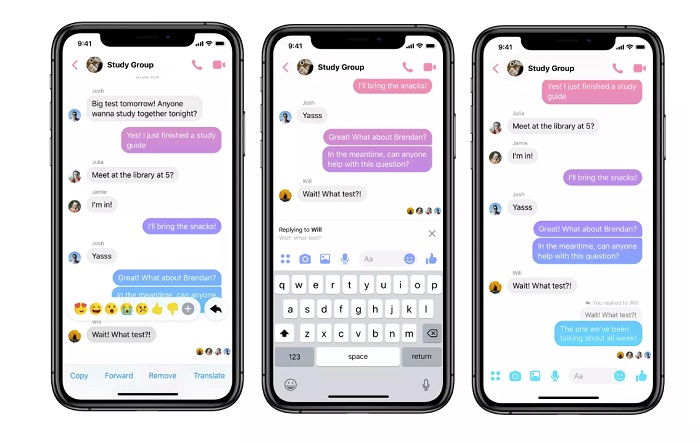
Messenger makes it fairly simple to access your encrypted chats. Here are the two main methods:
1. View Secret Conversations from the Chats Screen
- Open the Messenger app.
- Tap the pencil icon in the top‑right corner.
- Look for the “Secret Conversation” label under the contact’s name.
- If you remember the person’s name, search for them and select the chat marked as a secret conversation.
2. View Secret Conversations Through Archived Chats
If you archived a secret chat (not deleted), you can still retrieve it:
- Open Messenger.
- Tap your profile icon or the gear icon.
- Select Archived Threads.
- Choose the chat you want to unarchive.
- It will return to your main inbox, where you can open it normally.
Note: Deleted secret conversations cannot be recovered.
How Parents Can Monitor Secret Conversations Safely
For parents, encrypted chats can raise concerns—especially if children are communicating with strangers or accessing inappropriate content. While Messenger itself does not allow parents to view encrypted messages, parental‑control tools can help monitor overall activity.
One such tool is MyParental Parental Control, which alerts you when harmful keywords or risky behavior is detected on your child’s device.
How to Use MyParental to Monitor Messenger Activity
- Install MyParental Parental Control from the Play Store or App Store.
- Link your child’s device using the on‑screen instructions.
- Go to Social Content Detection → Keyword Management and add harmful keywords.
- Open App Management and enable monitoring for Messenger.
- The app will notify you whenever concerning content appears.
MyParental also helps with:
- Screen‑time scheduling
- Location tracking
- Surroundings monitoring
- App usage control
Bonus: How to Find Hidden Messages on Facebook
Hidden messages are not the same as Secret Conversations. These are messages from people you’re not connected with, and they appear in Message Requests or Spam.
Here’s how to find them on different devices:
1. On Web/Desktop
- Open Facebook in your browser.
- Click the Messenger icon.
- Select the three dots at the top.
- Choose Message Requests.
- You’ll see hidden messages under “You May Know” or “Spam.”
2. On Android
- Open the Messenger app.
- Tap Chats in the top-left corner.
- Select Message Requests.
- Choose You May Know or Spam.
3. On iPhone (iOS)
- Open Messenger.
- Tap your profile picture.
- Select Message Requests.
- Choose You May Know or Spam.
Frequently Asked Questions
1. Can someone see if I open a secret conversation?
No. Messenger does not notify users when someone opens or views a secret conversation.
2. Can secret conversations be recovered after deletion?
No. Once deleted, encrypted messages cannot be restored.
3. Do secret conversations sync across devices?
No. They are device‑specific. If you start a secret chat on one phone, it won’t appear on another.
4. Can I use secret conversations for group chats?
No. Secret Conversations only support one‑on‑one chats.
5. Are secret conversations completely secure?
They use strong encryption via the Signal Protocol, but security also depends on your device’s safety.
Final Thoughts
Understanding how to view and manage secret conversations on Messenger is essential in today’s privacy‑focused digital world. Whether you want to protect your own chats or ensure your child is using Messenger safely, knowing how these features work gives you more control and peace of mind.
If you want, I can also help you create a featured image description, add schema markup, or format this article perfectly for WordPress.