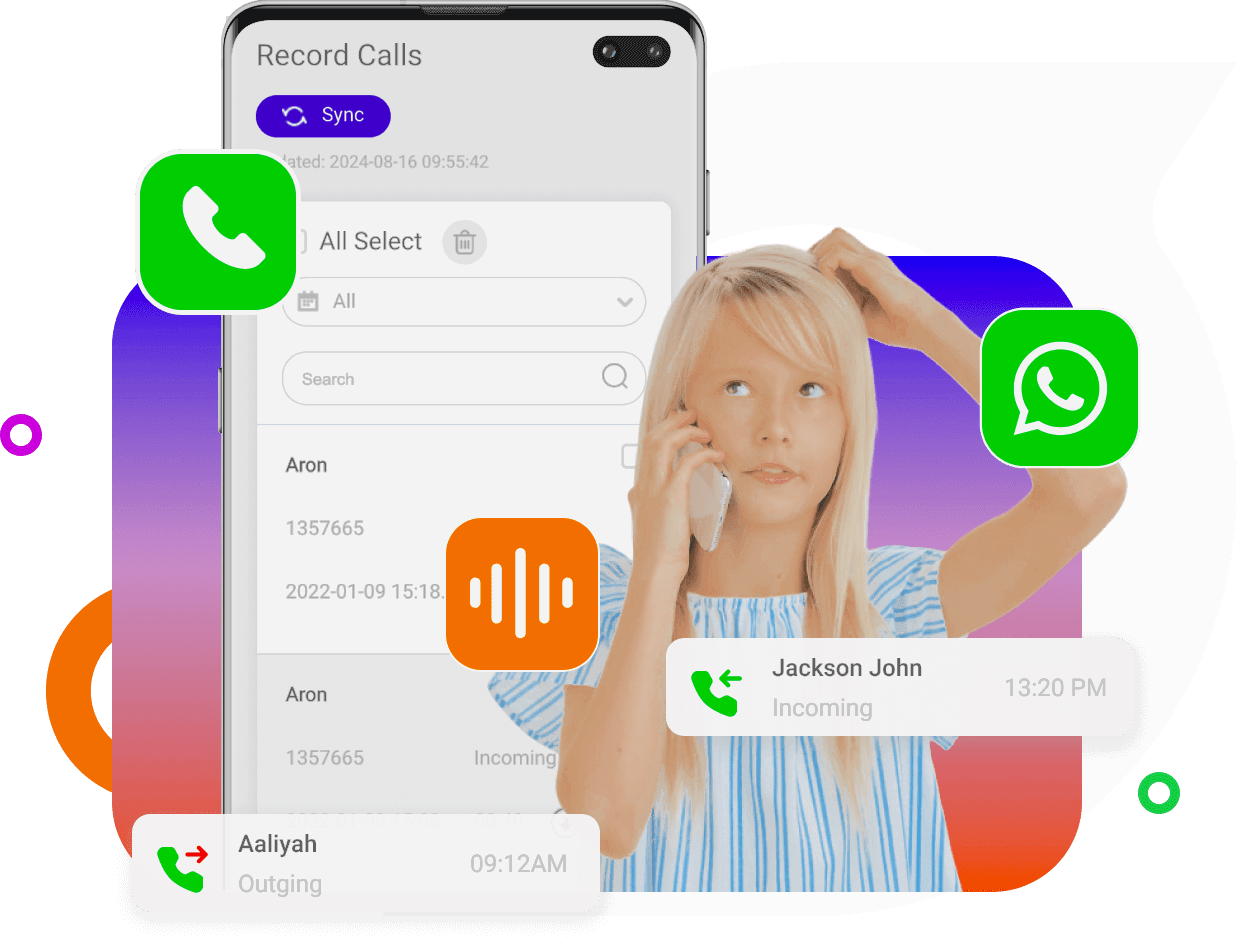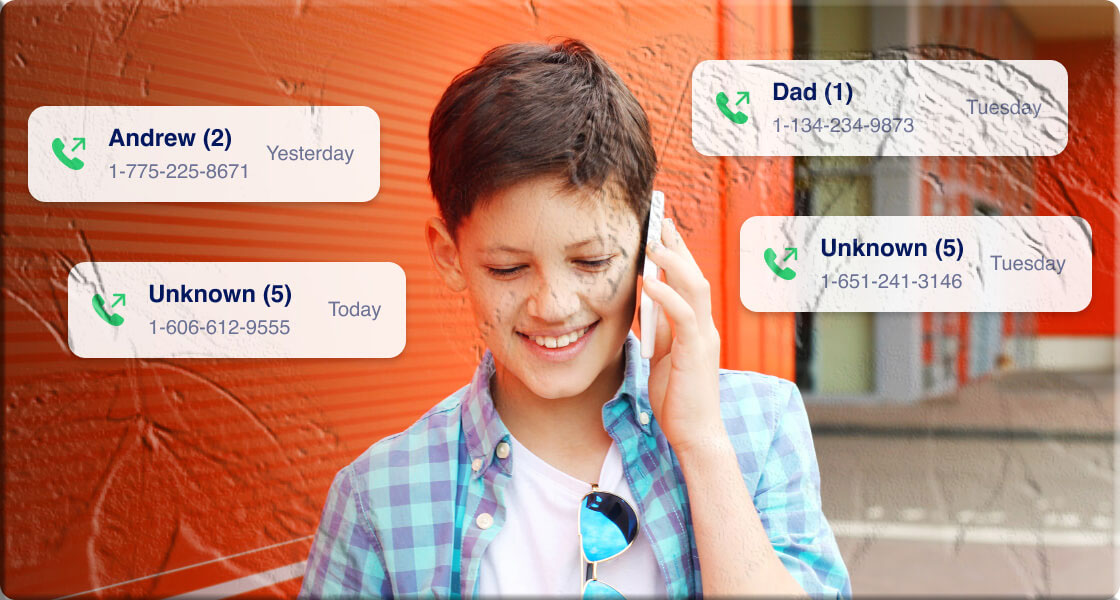

Samsung Galaxy smartphones offer one of the most convenient call‑recording systems available on Android. If your device runs Android 9 or later, you can record calls directly through the built‑in Phone app—no extra apps required. For users who need more advanced features, third‑party apps and Google Voice provide additional options.
This guide explains everything you need to know: legality, built‑in recording methods, third‑party tools, how to locate your recordings, and more.
Is It Legal to Record Phone Calls on Samsung?
Call‑recording laws vary depending on your country or region. Some places allow one‑party consent, meaning only you need to know the call is being recorded. Others require all parties to be informed.
Google has restricted third‑party call‑recording apps since 2023 because they used the Accessibility API, which is no longer permitted for recording calls. However, Samsung includes native call recording in its Phone app, which complies with Google’s policies.
In summary:
- Samsung allows call recording, but
- Your local laws determine whether you must notify the other person, and
- Android 9 or newer is required for Samsung’s built‑in recording feature.
How to Record Calls on Samsung Using the Phone App
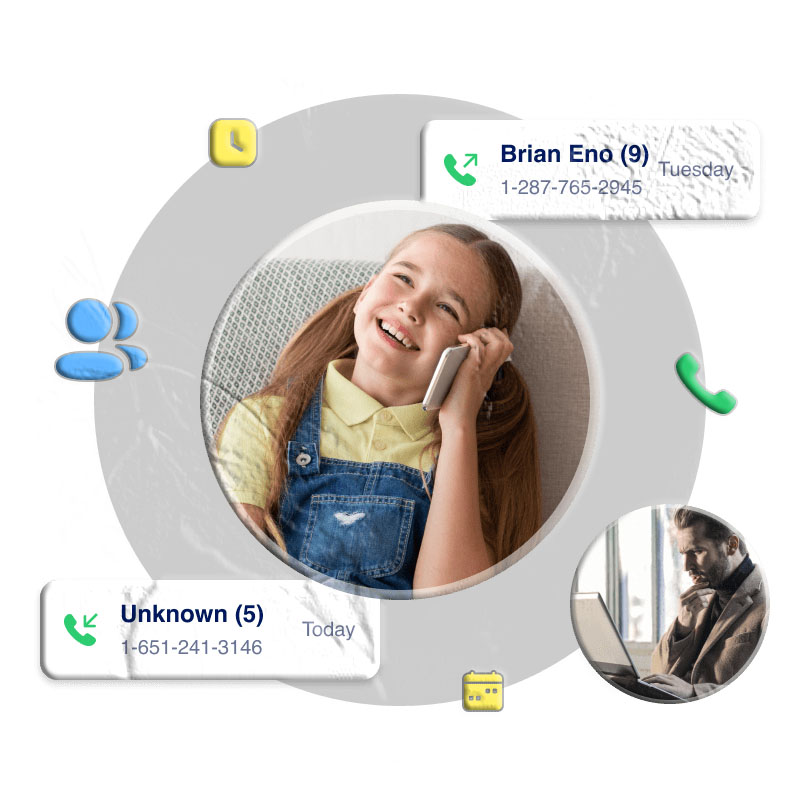
Samsung provides two recording options: automatic and manual.
1. Automatically Record Calls
This option records calls without requiring any action during the conversation.
Steps:
- Open the Phone app.
- Tap the three‑dot menu (top right).
- Select Settings → Record calls.
- Tap Auto record calls.
- Turn on the toggle.
- Choose one of the following:
- All calls
- Calls from unsaved numbers
- Calls from selected contacts
Your Samsung phone will now automatically record calls based on your chosen settings.
2. Manually Record Calls
If you prefer to record only specific calls:
- Open the Phone app and make or receive a call.
- Accept the Terms & Conditions if prompted.
- Tap Record on the call screen.
- Tap Stop recording when finished.
If the Record button is not visible, tap the three‑dot menu during the call and select Record call.
How to Record Calls Using Third‑Party Apps
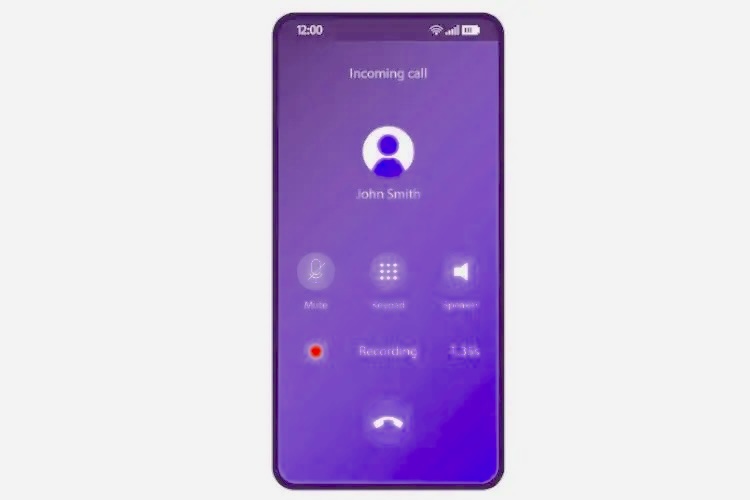
If your Samsung model or region does not support native call recording, these apps can help.
1. MyParental Call Recorder
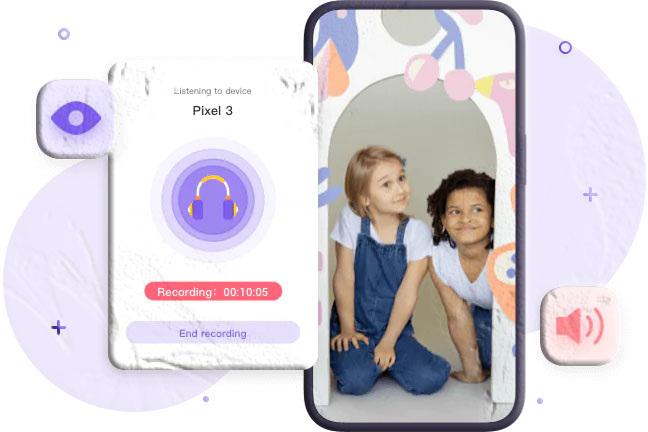
This parental‑control app offers One‑Way Audio, allowing you to hear your child’s voice and surrounding sounds. It is designed for monitoring and safety purposes.
Setup steps:
- Install MyParental Parental Control on your device and create an account.
- Install MyParental Kids on the target device.
- Connect both devices using the provided code.
- Grant microphone permissions.
- Enable One‑Way Audio to listen and record audio from the target phone.
2. Google Voice
Google Voice allows free recording of incoming calls only.
How to enable recording:
- Visit the Google Voice website.
- Click the Settings gear icon.
- Select Calls.
- Enable Incoming call options.
To record a call:
- Press 4 during the call to start recording.
- Press 4 again to stop.
- Recordings are saved in your Google Voice inbox.
3. Automatic Call Recorder
A widely used app that records both incoming and outgoing calls.
How to use it:
- Install Automatic Call Recorder.
- Accept the Terms & Conditions.
- Grant microphone and storage permissions.
- Tap the three‑dot menu → Settings.
- Select Recording mode → enable Automatic.
How to Record Calls in Different Scenarios
Samsung lets you customize recording rules based on your needs.
Record Calls from Unknown Numbers
- Open Phone → More options.
- Go to Settings → Record calls.
- Under Always record, choose Numbers not in contacts.
- Enable Always record.
Record Calls from Selected Contacts
- Open Phone → More options.
- Go to Settings → Record calls.
- Select Selected numbers.
- Enable Always record selected numbers.
- Tap Add to choose contacts.
Record a Single Call
- Open the Phone app.
- Make or receive a call.
- Tap Record on the call screen.
- Tap Stop recording when done.
Where to Find and Share Call Recordings on Samsung
Samsung stores all call recordings in one place.
To access them:
- Open the Phone app.
- Tap the three‑dot menu.
- Select Settings → Record calls.
- Tap Recorded calls.
You can long‑press any recording to share, rename, or delete it.
Conclusion
Samsung makes call recording simple with its built‑in Phone app, offering both manual and automatic options. If your region restricts native recording, apps like MyParental, Google Voice, and Automatic Call Recorder provide reliable alternatives. Whether for business, personal safety, or documentation, Samsung gives you flexible ways to capture important conversations.
FAQs About Recording Calls on Samsung
Can I record calls on Samsung without installing an app?
Yes. Samsung’s built‑in Phone app allows both manual and automatic call recording on Android 9 or later.
How do I know if someone is recording my call?
Some regions require an audio alert or verbal notification. You may hear a beep or receive a message, depending on local laws.
Can all Samsung Galaxy phones record calls?
Most modern Samsung devices support call recording, but availability depends on your region and carrier restrictions.
How do I delete a recorded call?
Go to My Files → Internal storage → Call folder → delete the file.
Can I record audio separately on Samsung?
Yes. Use the built‑in Voice Recorder app to record high‑quality audio.
How do I enable call recording on Galaxy S9 or S22?
The steps are similar across models:
- Open Phone → three‑dot menu → Settings → Record calls → enable Auto record or use Record during a call.