A daily snapshot of what happened on your child’s phone — and a weekly view of how the patterns are shifting. MyParental’s Activity Reports translate the raw stream of app usage, screen time, location, and notifications into clean summaries you can actually read in two minutes.
The Problem with Raw Data
A modern parental control app can collect an enormous amount of information about how a child uses their phone. Every app opened, every minute spent, every notification received, every place visited. In theory, all of that data is useful. In practice, very little of it is — because no parent has time to wade through it.
This is the quiet trap many parental control tools fall into. They surface everything, and in doing so, they surface nothing. A parent who has to scroll through forty-seven app usage entries, eighteen location pings, and a hundred and twelve notification events in order to figure out whether anything is worth paying attention to will, after the third day, stop looking.
Activity Reports exist to solve that problem. Instead of asking parents to read the firehose, they distill it. A few seconds of attention surfaces the things that actually matter — the patterns, the changes, the moments worth a conversation — and lets everything else fade into the background where it belongs.
This page is a thorough walk through how MyParental’s daily and weekly reports work, what they include, how to use them well, and how to make the practice of brief, regular review part of family life without it becoming surveillance.
What’s Inside the Reports
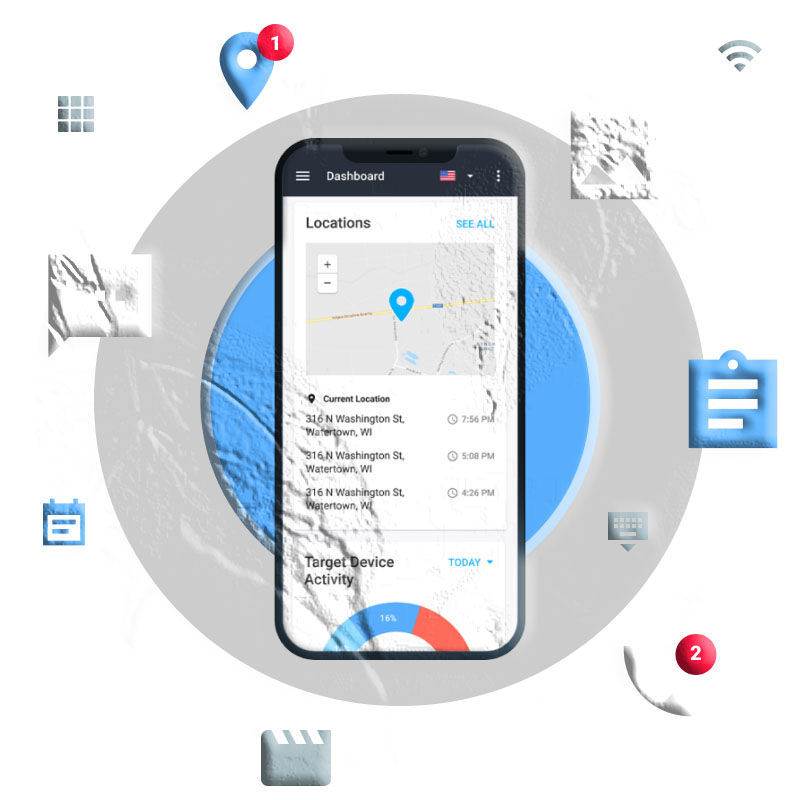
MyParental’s Activity Reports come in two main formats, with a few supplementary views for parents who want deeper detail.
| Report type | Frequency | Best for |
|---|---|---|
| Daily Summary | Once per day | Quick situational awareness |
| Weekly Report | Once per week | Spotting patterns and trends |
| Per-child Detail | On demand | Looking at one child more closely |
| Family Overview | On demand | Multi-child households scanning everything at once |
| Custom Date Range | On demand | Investigating a specific period |
The two regular reports — daily and weekly — are designed to be readable in roughly two minutes each. They surface what matters and leave the rest available if you want to dig deeper.
The Daily Summary
The daily summary arrives once per day, typically in the evening, and covers the day that just happened. It’s designed to answer the question every parent has at the end of the day: anything I should know about?
What the Daily Summary Includes
- Total screen time for the day, with a comparison to the recent average.
- Top three apps by time used, with how long each ran.
- Notable events — limits hit, blocked-app attempts, new app installations, geofence alerts.
- Brief health check of the device — battery, online status, any technical issues.
- One-line summary at the top that captures the day in plain language: “A normal day — usage and locations matched recent patterns” or “Heavier-than-usual gaming after school; bedtime cutoff worked as expected.”
What It’s Designed to Do
The daily summary is built for the parent who wants to feel informed without spending fifteen minutes a day on a dashboard. The single-line summary at the top is often enough. If something flagged catches your eye, the rest of the report is right there. If nothing did, you’ve spent twenty seconds and you can move on.
This kind of low-friction overview is the difference between a parental control tool you actually use and one that sits unread on your phone after the first week. Sustainability is the whole game.
What It’s Not
The daily summary is not a detailed transcript of your child’s day. It’s not a list of every app they touched, every message they received, every place they went. The full data is available if you need it, but the daily report is deliberately a summary. The point is signal, not noise.
The Weekly Report
The weekly report covers seven days at a time and arrives once per week — typically on a Sunday morning or Monday evening, depending on your preference. It’s where patterns become visible.
What the Weekly Report Includes
- Total weekly screen time, with comparison to the previous week and trend direction.
- Day-by-day breakdown, so heavy and light days are visible.
- Top five apps for the week with totals and trend per app.
- Notable changes — apps that grew significantly, apps that dropped, new apps installed, new contacts that appeared.
- Schedule compliance — how well bedtime cutoffs, school-hour rules, and other schedules held up across the week.
- Location pattern summary — places visited regularly, any new locations.
- Alert summary — any safety alerts that fired during the week.
- One-paragraph narrative at the top that summarizes the week’s themes.
Why Weekly Patterns Matter More Than Daily Snapshots
A single day’s data is noisy. A child might have an unusually heavy gaming day after a tough day at school, or an unusually light day because they were out with family. Reading meaning into any one day usually produces wrong conclusions.
A week of data is different. Trends become visible. A child whose screen time has crept up by 20% over the past three weeks is a different situation from one having a single big day. An app that’s grown from twenty minutes a day to two hours a day is a pattern. A new contact who appeared three weeks ago and is now in the top five most-messaged people is a relationship that didn’t exist before.
These are the kinds of observations that the daily report can’t reliably surface — and that the raw activity stream buries — but that the weekly report makes obvious.
A Useful Weekly Practice
Many families develop a short weekly habit around the report. Sunday morning, before the week starts. Fifteen minutes. Read the report, talk briefly with the child about anything notable, and adjust any rules that aren’t working.
The conversation matters as much as the report itself. “I noticed [specific app] has been getting a lot more time the last couple weeks — what’s been going on with it?” is far more productive than vague worry. The data gives the conversation a foothold.
Per-Child Detail Reports
For households with more than one child, each child has their own report stream. The summary at the top of the parent dashboard shows all children at a glance; tapping any one of them opens a more detailed view focused on that child.
What the Per-Child View Adds
- Longer trend lines — usage patterns over weeks and months rather than just the past week.
- Per-child schedule compliance — useful when different children have different rules.
- Per-child contact patterns — who they communicate with most, again at a summary level rather than a transcript.
- Comparative context — how this child’s patterns compare to their own historical baseline (not to siblings or to other families).
Why Per-Child Views Matter
A nine-year-old and a fifteen-year-old should have very different reports because they have very different needs. The per-child views ensure each child’s situation is being read on its own terms rather than as part of a household average that smooths over meaningful differences.
This also matters because most family configurations involve different rules for different children. A weekly report that doesn’t show whether each child’s specific rules are being met would be hard to act on.
Family Overview
The Family Overview is for parents who want to scan everything at once — usually as part of that brief weekly review.
What It Shows
- All children’s screen times side by side, with trend arrows.
- Cross-household alerts — any safety notifications across all children.
- Schedule compliance summary for the whole household.
- Any system-level issues — devices that have been offline, permission problems, technical hiccups worth knowing about.
When to Use It
Most parents check the per-child views during quick daily checks and the Family Overview during the weekly review. The overview is the “is the whole household healthy?” snapshot; the per-child reports are where you actually dig in if something needs attention.
Custom Date Ranges
Sometimes you need to look at a specific period — the week your child was on a school trip, the month before grades dropped, the few days around a friendship that turned difficult. The custom date range view lets you pull any window of historical data.
What It’s Useful For
- Investigating a specific concern. Something happened and you want to look at the pattern around it.
- Confirming an agreement worked. A new rule went into effect a month ago — has anything changed?
- Sharing data with a counselor or therapist. Some families share screen time and activity summaries with mental health professionals helping their child. A custom range can pull a specific window for that conversation.
- End-of-school-year reviews. Some families use the data to reflect on what worked over a full term or year.
A Note on What to Share and With Whom
Activity data is sensitive. If you’re sharing it with a third party — even a counselor your child is working with — talk to your child about it first. The conversation tends to be much easier when the child knows what’s being shared and with whom, and when they’re part of deciding what gets shared.
How to Set Up Activity Reports
Setting up reports takes about ten minutes for a typical family. Most of what’s needed is already part of the core MyParental setup; the reports configure themselves based on the other features that are active.
Step 1: Have the Conversation First
Reports aren’t separate from the rest of the parental control setup, but they do deserve a brief mention in the family conversation. Children — particularly older ones — should know that you’re getting regular summaries of their device activity, and what those summaries do and don’t include.
For younger children: “I’m going to get a quick summary every day of how much you used your phone and which apps. It’s just so I know roughly what’s going on without having to constantly check.”
For older children and teenagers: “Once a day and once a week, I’m going to get a short report from the app. It shows me how much screen time you had, your top apps, and any rules that got hit. It doesn’t show me your messages or who you’re talking to about what — just the summary stuff. If anything in the report ever needs a conversation, we’ll talk about it.”
The framing matters. Reports are aggregations, not transcripts. Saying that clearly removes a lot of the worry kids might otherwise have.
Step 2: Install MyParental on Both Devices
Download MyParental on your device. Create your account and enable two-factor authentication. Install the companion app on the child’s device from the same official store, and pair the two with the code generated in the parent app.
Step 3: Grant the Underlying Permissions
The reports are built from data collected by the core MyParental features — app usage, screen time, location, and any safety alerts you’ve enabled. These features each have their own permission requirements, which the app walks you through during setup. Without the underlying permissions, the reports will simply show less data; with them, the reports become rich.
Step 4: Configure Report Preferences
In the parent dashboard, open Reports → Settings. You can:
- Choose when daily reports arrive. Most parents pick early evening, after the school day has settled.
- Choose when weekly reports arrive. Sunday morning and Monday evening are the most common choices.
- Pick which sections to include or exclude. If you don’t have location features turned on, you can hide the location section. If you don’t want app-by-app detail, you can hide that.
- Set alert thresholds. Decide how big a change needs to be before the weekly report flags it. Defaults work for most families.
- Enable or disable email delivery. Reports appear in the dashboard regardless; email is an additional channel for parents who prefer it.
Step 5: Set a Review Rhythm
The reports are most useful when there’s a rhythm around them. A couple of practices most families find sustainable:
- A two-minute daily glance at the daily summary — usually in the evening, often paired with another small habit (after dinner, before bed).
- A fifteen-minute weekly review of the weekly report — typically Sunday morning. This is where you actually act on patterns.
- A short conversation with the child during the weekly review, especially if anything in the report prompts a question.
The conversation is the highest-leverage part. Without it, the reports become passive surveillance. With it, they become a structured way for the family to talk about what’s working and what’s not.
Step 6: Adjust Over Time
In the first month, you’ll probably find:
- Some report sections you scan every time and others you never read. Hide the ones you don’t use.
- The default alert thresholds might be too sensitive (too many flags) or not sensitive enough (real changes get missed). Adjust.
- The daily summary timing might not match when you actually have time to glance at it. Move it.
- The weekly report day might not fit your household rhythm. Pick a different one.
These adjustments take seconds and make a meaningful difference in whether the practice is sustainable.
Get Started Free Compare Plans
What Parents Tend to Notice in the First Month
A few patterns that come up consistently in feedback after a few weeks of using Activity Reports.
Most days are normal. The daily summary’s typical message is “nothing unusual.” This is its own kind of useful information. A parental control tool that constantly raises alarms either has bad defaults or a child in a genuinely difficult situation; for most families, the calm “all is normal” reading is the realistic outcome.
Patterns emerge from the weekly reports that the daily reports never showed. A creeping increase in usage. A new app that’s grown each week. A schedule that’s eroding. The weekly view tends to make these patterns visible long before they’d show up in any single day.
Conversations get more specific. Vague concerns (“you’ve been on your phone a lot lately”) become specific observations (“your time on [app] has grown by 50% the last three weeks”). Specific is far easier to discuss than vague.
Kids self-correct when they see the data. This is the underrated benefit. Many families share the report with the child (older kids and teenagers in particular). Seeing the numbers themselves often produces more reflection than parental nagging ever could. “I didn’t realize I was doing that much” is a useful starting point.
Schedules need calibration. Reports often reveal that a schedule that sounded right on paper isn’t actually fitting. A bedtime cutoff that’s too late by 20 minutes is enough to slowly erode sleep. A homework window that doesn’t match when homework actually happens is just friction. Reports surface these mismatches.
The reports themselves get shorter over time. The first weekly report a family reads tends to be densely studied. By the third or fourth week, parents are reading the summary line and only diving in if something flags. This is exactly how the system is supposed to be used.
What the Reports Reveal About Modern Childhood
There’s a broader point worth making about why this kind of feature matters now in a way it didn’t a generation ago.
A child’s day, in the connected era, is harder for a parent to observe than at any other point in history. A parent in 1985 could glance into a child’s room and see the inventory of their interests laid out — books, toys, the television in the corner. A parent in 2005 had at least the visibility of a shared family computer in the kitchen. Today, an entire universe of social interaction, content consumption, and identity exploration happens inside a glass rectangle that’s been with the child all day, often in their pocket and often invisible to anyone but them.
This isn’t necessarily bad. Plenty of what happens on that device is genuinely good — connections with friends, creative projects, learning, exploration. But the visibility gap is real. A parent who has no idea what’s on their child’s phone, what they’re doing with it, or who they’re talking to has a kind of relationship with their child’s life that wouldn’t have been possible (or accepted) in earlier generations.
Activity Reports aren’t surveillance. They’re a way of restoring something closer to the visibility that families used to have by default — without becoming intrusive. A parent doesn’t need to see every message to know roughly what’s happening; they need to know the broad shape of the child’s day. The visibility that used to come from sharing physical space now has to come from somewhere else, and a brief daily summary plus a weekly review is one of the most balanced ways to get it.
The point isn’t to know everything. It’s to know enough.
A Note on Conversation Quality
Here’s something most product pages don’t talk about, but that matters for whether this feature pays off.
Reading the report is the easy part. The harder part — the part that determines whether the whole practice is worth anything — is what kind of conversation it leads to.
Parents who use the reports well treat them as conversation starters. A specific pattern in the data becomes the basis for a curious, open-ended question. “I saw you’ve been using [app] more lately — what’s it about? Anything good?” That kind of opening invites the child to share. The child might say it’s a new game they’re trying. Or it might be a new friend group that’s gathered around the platform. Or it might be a school thing. Whatever it is, the conversation got somewhere.
Parents who use the reports poorly treat them as evidence. The same pattern becomes the basis for an accusation or a confrontation. “The report shows you spent two hours on [app] yesterday. Is that what we agreed?” The conversation immediately becomes adversarial. The child becomes guarded. The next time the parent looks at the report, the child finds a way around the visibility — and now everyone has less.
The single biggest variable in whether Activity Reports actually help a family isn’t a setting in the app. It’s the tone of voice in the conversations that follow. Curiosity tends to produce openness; suspicion tends to produce hiding. The choice is the parent’s.
How MyParental’s Reports Compare
Families considering parental control tools often have several options. A brief, honest comparison of how reporting capabilities stack up.
Built-in OS Tools
Apple’s Screen Time provides good weekly reports on iOS devices, with usage broken out by app and category. Google’s Digital Wellbeing does similar work on Android. Both are free and well-integrated.
Where the OS tools fall short for some families: they don’t cross platforms (a household with both iPhones and Android phones gets two different report systems), they don’t integrate with broader parental control data (location, safety alerts, multi-child views), and they don’t offer the kind of curated single-line summary that makes a daily check sustainable.
Standalone Reporting Apps
Some apps focus narrowly on screen time reporting. They can be fine for families whose only concern is time tracking.
MyParental’s reports are integrated with the broader parental control suite — app usage, screen time, location, safety alerts, and rule compliance all feed into the same report stream. Families whose needs extend beyond pure screen time benefit from the integration.
Full Parental Control Suites
Several established products in this category offer reporting as part of a broader feature set, typically priced at $50–$150 per year. They tend to be capable but expensive.
MyParental sits in the middle of this market — less elaborate than the most feature-heavy paid suites, more capable than free OS-level tools, with a free starting tier that covers basic reporting.
Using Activity Reports Well
The technical setup is the easy part. Getting real value out of the reports — without them becoming a source of friction — takes a little intentionality.
Read the summary first; only dig deeper if something flags. The daily report is designed to be a glance. Treat it that way. If nothing is unusual, move on. The point isn’t to study every report; it’s to know when one of them warrants attention.
Use the weekly view for actual decisions. Daily data is noisy. Weekly data is where the patterns live. Save rule changes, conversations about specific concerns, and any meaningful adjustments for the weekly review.
Don’t comment on every detail you see. This applies to all parental control tools, but especially to reports. The information is for your awareness, not for daily commentary. Children who feel every minute is being analyzed lose trust in the system quickly.
Share the report with the child when appropriate. Older kids and teenagers often benefit from seeing their own data. Self-awareness usually beats parental nagging as a path to better habits.
Investigate patterns, not single events. A single heavy day rarely means anything. A pattern that’s grown for several weeks usually means something. Calibrate your attention accordingly.
Use reports as conversation tools, not evidence. When a pattern in the report does prompt a conversation, lead with curiosity: “I noticed [pattern] — what’s been going on?” not “The report says you’ve been doing [thing], explain.”
Loosen as kids mature. Younger children benefit from more detailed reports being reviewed by parents. Teenagers benefit from a lighter touch and more self-review. Adjust the practice as the child grows.
Don’t outsource parenting to a report. The report is a structured way to be informed. It’s not a substitute for the conversations, modeling, and engaged attention that actually shape habits. The tool supports the work; it doesn’t replace it.
Privacy and Security
Activity reports involve aggregating sensitive information about how a child uses their device. We handle that data accordingly.
- Encryption in transit and at rest. Report data is encrypted between devices and our servers and stored securely.
- Aggregation, not surveillance. Reports are summaries built from the underlying activity data. The point is to surface signal rather than to maintain a parent-readable archive of every detail.
- Limited retention. Detailed activity data is retained for the period needed to generate reports and provide the service. Specific windows are described in our Privacy Policy.
- No third-party sale of data. Family activity is processed to deliver the service, not packaged for sale.
- Two-factor authentication is available and strongly recommended on the parent account.
- Per-child profiles. Each child has their own report stream and configuration.
Frequently Asked Questions
When do reports arrive?
The daily summary arrives once per day, at a time you choose (early evening is the most common default). The weekly report arrives once per week, on the day and time you select.
Can I read reports without notifications?
Yes. All reports live in the dashboard whether or not you’ve enabled push or email delivery. You can review them whenever you want without having to wait for a notification.
What if I miss a report?
Daily and weekly reports remain available in the dashboard for the retention window described in our Privacy Policy. Missing one doesn’t lose the data.
Can I export reports?
Yes, in PDF and CSV formats. This is useful for families sharing reports with counselors, therapists, or other family members who don’t have access to the dashboard directly.
Do reports include message content?
No. The reports are summaries of activity — screen time totals, app usage, schedule compliance, and any alerts that fired. They do not include the content of messages. MyParental’s messaging safety feature is designed around alerts and patterns rather than full message visibility.
Can my child see their own report?
Yes, if you choose. Per-child reports can be shared with the child through the companion app. Many families find this is one of the most effective ways to encourage self-regulation in older kids and teenagers.
How accurate is the screen time data?
The system tracks foreground app use on the device, which is reliable for the kinds of conversations and decisions families typically use the data for. Brief background activity is generally not counted as active use. There may be small discrepancies between MyParental’s numbers and the device’s native screen time tracker because they measure slightly different things, but both are reliable indicators of overall patterns.
What does “schedule compliance” mean in the weekly report?
It’s a summary of how well your configured schedules (bedtime cutoffs, school hours, homework windows, etc.) held up during the week — including how often a child hit a limit, when they did, and whether they tried to use restricted apps during locked windows.
Can I get reports for multiple children at once?
The Family Overview report shows all children’s data in one view, useful for the brief weekly scan. Per-child detail reports are still individual, since each child’s situation is different.
Will reports show me my child’s location history?
The weekly report includes a summary of regularly visited locations and any new locations. Full location history is available in the Location Tracker section. Reports are summaries; the detailed views are where the full data lives.
How are alerts represented in reports?
Alerts that fired during the period — limit breaches, blocked app attempts, geofence events, safety alerts — appear as a list in the relevant report, with timestamps and brief context. The full detail of each alert is one tap away.
Can the report be customized?
Yes. You can choose which sections appear, adjust thresholds for what gets flagged as notable, and set the time of day reports arrive. Most parents tune their reports during the first few weeks until the configuration fits their preferences.
Does generating reports drain my child’s battery?
No. Reports are generated on our servers from the activity data that’s already being collected; there’s no additional load on the child’s device.
What if my child uses multiple devices?
Reports cover all devices paired with a single child profile. The data is unified, so usage on a phone and a tablet shows up in the same report.
Can two parents both receive reports?
Yes. The Family and Family Plus plans support multi-parent access, with each parent receiving their own copy of the reports. See the Pricing page for plan details.
Are there printed or weekly emails of the reports?
Reports can be delivered via email in addition to appearing in the dashboard. Some families find email delivery easier to incorporate into existing routines.
What You Get with Activity Reports
A quick recap of what’s included:
✅ Daily summary with one-line headline and key activity
✅ Weekly report with trends, day-by-day breakdown, and pattern analysis
✅ Per-child detail views with longer trend lines
✅ Family Overview for multi-child households
✅ Custom date range queries for investigating specific periods
✅ Schedule compliance reporting
✅ Top apps by time used, with week-over-week comparisons
✅ New app installation notifications
✅ Notable events flagged automatically
✅ Email delivery in addition to in-app reports
✅ PDF and CSV export
✅ Multi-parent access on paid plans
✅ Per-child configuration and report preferences
✅ Encrypted data in transit and at rest
Final Thoughts
The Activity Reports feature isn’t dramatic. It doesn’t promise to solve any specific parenting problem. What it does is make the everyday work of being informed about your child’s digital life sustainable — which, given how busy modern parents are, is the most valuable thing a parental control tool can do.
The families that get the most out of MyParental in the long run aren’t the ones who configure every possible setting on day one. They’re the ones who establish a simple, brief rhythm of review — two minutes a day, fifteen minutes a week — and stick with it for months and years. Reports are what make that rhythm possible. Without them, the underlying data is too overwhelming to engage with regularly. With them, staying informed becomes something that fits into the gaps of an already-full life.
Set the reports up. Read them briefly when they arrive. Use the weekly review to have specific conversations with your child when something warrants it. Adjust the configuration over time to match how your family actually operates. The configuration that fits your household will emerge faster than you think — and once it does, it tends to be one of the most quietly valuable parts of using a parental control app at all.
Helpful links: Download MyParental • Pricing • FAQ • About Us