
Introduction
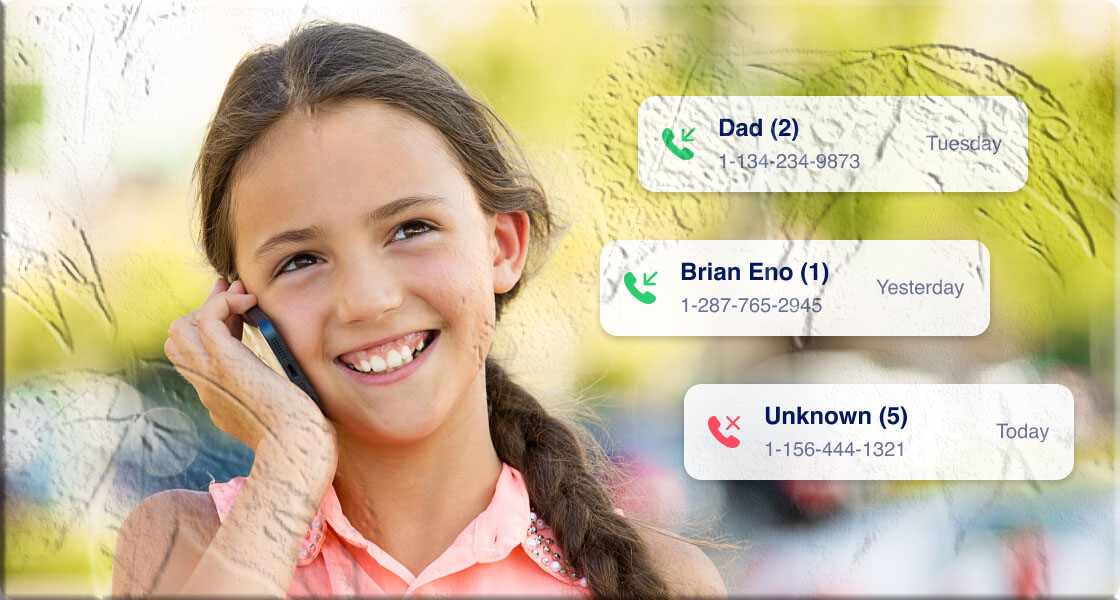
Kids today grow up in a world where texting is second nature. They message friends, classmates, and sometimes strangers — often faster than they talk in person. As a parent, it’s natural to wonder:
- Who is my child talking to?
- Are they safe online?
- Are they being bullied?
- Are they sharing too much?
- Do they understand the risks?
Monitoring a child’s text messages isn’t about invading privacy — it’s about protecting them from real‑world dangers like cyberbullying, scams, online predators, inappropriate content, and risky behavior.
But here’s the challenge: Most old‑school monitoring methods no longer work — and many are unsafe, outdated, or violate privacy laws.
That’s why this guide focuses on modern, responsible, parent‑approved ways to monitor a child’s text messages on iPhone and Android.
Let’s explore six effective ways to stay informed while still respecting your child’s growing independence.
6 Safe & Responsible Ways to Monitor a Child’s Text Messages
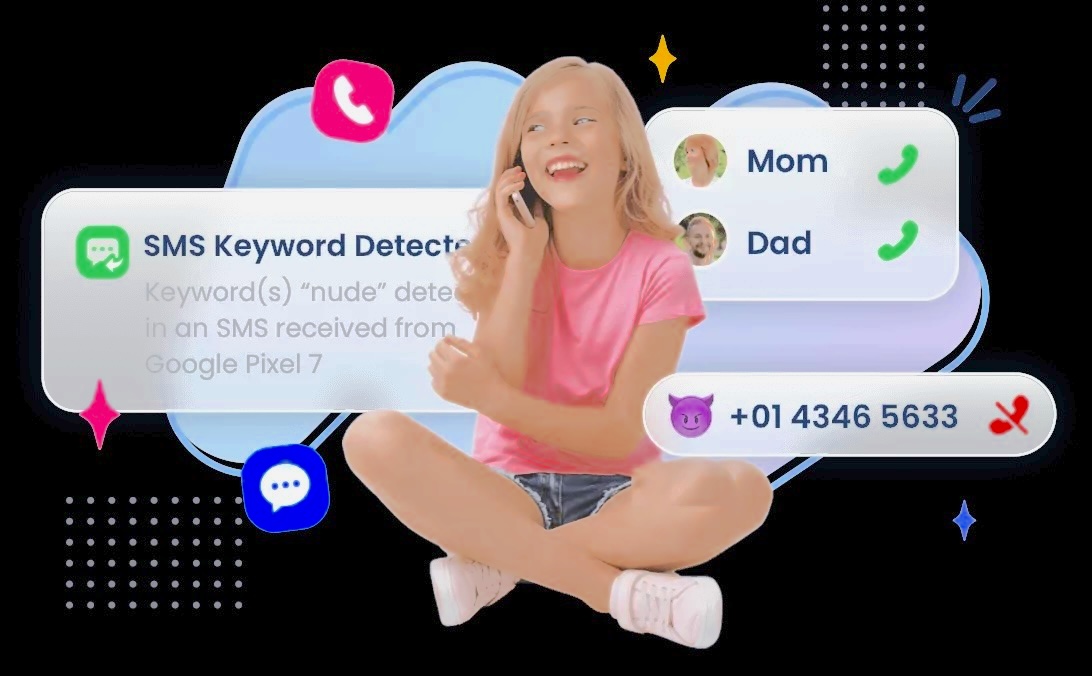
These methods are rewritten from scratch and fully modernized. They avoid covert monitoring and instead focus on healthy supervision, built‑in device tools, and parental‑control apps designed for families.
1. Use a Parental‑Control App (MyParental for Android)
Parental‑control apps are the most effective and responsible way to monitor a child’s text messages — especially on Android devices. These apps are designed specifically for families and include features like:
- SMS monitoring
- Keyword alerts
- Contact alerts
- Screen‑time limits
- App usage reports
- Online safety filters
- Real‑time notifications
Among these tools, MyParental stands out for Android users because it focuses on safety, communication, and digital wellbeing, not spying.
How MyParental Works
MyParental doesn’t give parents full access to every message. Instead, it:
- Detects harmful keywords
- Sends alerts for risky conversations
- Flags unknown contacts
- Provides usage insights
- Helps parents guide their child’s digital behavior
This approach protects children without invading their entire private world.
How to Set Up MyParental (Android)
- Download MyParental from the Google Play Store.
- Create your account and log in.
- Install MyParental Kids on your child’s Android device.
- Pair the devices using the secure code.
- Open the dashboard and select Calls & SMS Monitoring.
- Create keyword categories (e.g., bullying, threats, inappropriate terms).
- Enable alerts for risky or harmful content.
What Parents Can See
- Alerts when harmful keywords appear
- Notifications about suspicious contacts
- Usage patterns
- Screen mirroring in emergencies
- General SMS activity insights
Why This Method Works
- It’s transparent
- It’s designed for families
- It protects children without reading every message
- It builds trust instead of fear
2. Use Built‑In iPhone Communication Safety Features
iPhones do not allow third‑party apps to read SMS messages — but Apple provides powerful Communication Safety tools that help parents protect their children.
These features include:
- Nudity detection in messages
- Blurred sensitive images
- Warnings before viewing harmful content
- Contact safety restrictions
- Allowed communication lists
- Screen Time parental controls
How to Enable Communication Safety on iPhone
- Open Settings.
- Tap Screen Time.
- Select your child’s name.
- Tap Communication Safety.
- Turn on Check for Sensitive Photos.
- Enable Communication Limits to control who your child can text.
What Parents Can See
- Alerts when sensitive content is detected
- Who your child is allowed to communicate with
- When communication attempts violate limits
Why This Method Works
- It protects children from harmful content
- It prevents risky communication
- It works without reading private messages
- It’s built directly into iOS
3. Use Google Family Link for Android Messaging Safety
Google Family Link doesn’t show message content — but it provides powerful safety controls that help parents supervise communication responsibly.
Family Link Helps Parents:
- Restrict who can contact their child
- Block unknown numbers
- Limit messaging apps
- Set screen‑time limits
- Approve or deny app downloads
- Monitor device activity
How to Use Family Link for Messaging Safety
- Install Google Family Link on your device.
- Set up your child’s supervised account.
- Open Controls → App Activity.
- Review messaging app usage.
- Block apps that are unsafe or unnecessary.
- Enable Filters and Restrictions.
Why This Method Works
- It gives parents control without reading messages
- It helps manage who your child can talk to
- It prevents risky apps from being installed
4. Use Built‑In Spam & Safety Filters on iPhone and Android
Both iPhone and Android include powerful tools that automatically filter:
- Spam messages
- Unknown senders
- Scam attempts
- Harmful links
- Unsafe content
These tools help parents protect children without accessing their private conversations.
iPhone: Filter Unknown Senders
- Open Settings.
- Tap Messages.
- Enable Filter Unknown Senders.
This separates messages from strangers into a different inbox.
Android: Enable Spam Protection
- Open Messages.
- Tap Settings.
- Turn on Spam Protection.
Android will automatically block suspicious messages.
Why This Method Works
- It reduces exposure to scams
- It protects kids from strangers
- It keeps their inbox safer
5. Set Up Healthy Digital Rules & Open Communication
Monitoring isn’t just about tools — it’s about building trust.
Kids are more likely to stay safe when parents:
- Talk openly about online risks
- Set clear expectations
- Encourage honesty
- Create a safe space for difficult conversations
Healthy Digital Rules to Consider
- No texting strangers
- No sharing personal information
- No deleting messages to hide behavior
- No texting after bedtime
- No clicking unknown links
- Tell a parent if something feels wrong
Why This Method Works
- Kids learn to self‑regulate
- Parents stay informed
- Trust grows instead of fear
6. Use Device‑Level Supervision Tools
Both iPhone and Android include built‑in supervision tools that help parents monitor device activity without reading private messages.
These tools include:
- Screen Time (iPhone)
- Digital Wellbeing (Android)
- App usage reports
- Downtime schedules
- App limits
- Content restrictions
How to Use Device‑Level Supervision
- Review which messaging apps your child uses.
- Set limits for late‑night texting.
- Restrict apps that are unsafe.
- Monitor overall device activity.
- Use downtime to prevent late‑night messaging.
Why This Method Works
- It reduces risky behavior
- It helps kids develop healthy habits
- It gives parents visibility without invading privacy
Why Monitoring Matters: Understanding the Risks
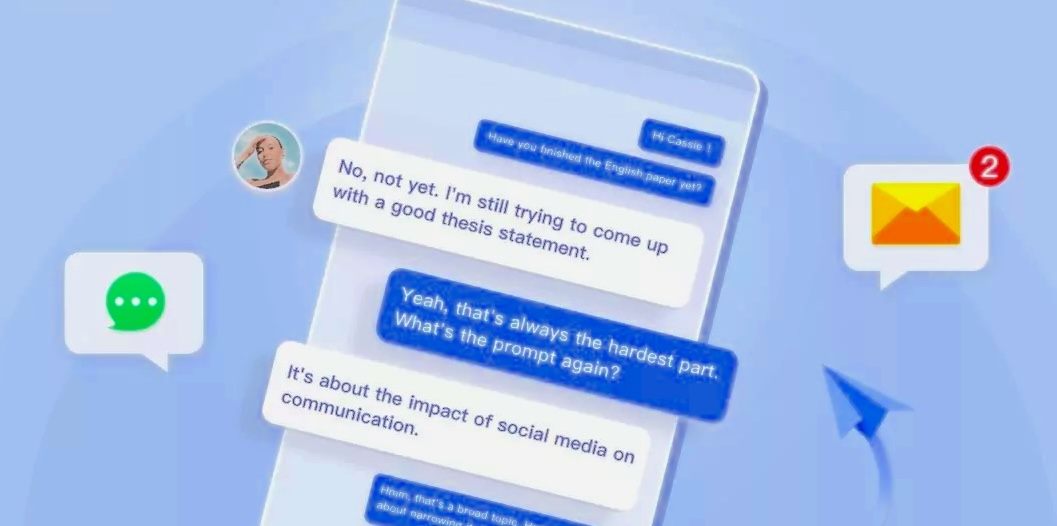
Monitoring isn’t about control — it’s about protection. Kids face real dangers online, including:
1. Cyberbullying
Hurtful messages, threats, and harassment can deeply affect a child’s mental health.
2. Online Predators
Strangers may attempt to build trust through messaging.
3. Inappropriate Content
Kids may receive or send content they’re not ready for.
4. Oversharing Personal Information
Kids may reveal:
- Location
- School
- Home address
- Photos
- Private details
5. Reputation Damage
One impulsive message can follow them for years.
6. Scams & Malware
Kids may click harmful links or download unsafe files.
Monitoring helps parents guide children through these risks safely.
Conclusion
Monitoring a child’s text messages isn’t about spying — it’s about keeping them safe in a digital world that moves faster than ever. With the right tools, open communication, and healthy boundaries, parents can protect their children while still respecting their growing independence.
Tools like MyParental make this easier by offering:
- Keyword alerts
- Contact warnings
- Usage insights
- Screen mirroring in emergencies
- Real‑time notifications
Combined with built‑in iPhone and Android safety features, these tools help parents stay informed, connected, and supportive.
Your goal isn’t to read every message — it’s to make sure your child is safe, confident, and protected as they navigate the online world.
FAQs About Monitoring a Child’s Text Messages
Can I see my child’s text messages using Family Link?
No. Family Link does not show message content, but it provides powerful safety controls.
Can I read my child’s iMessages through Family Sharing?
No. Family Sharing does not provide access to message content.
What’s the safest way to monitor text messages?
Using a parental‑control app like MyParental (Android) or built‑in communication safety features (iPhone).
Why should parents monitor text messages?
To protect children from cyberbullying, predators, scams, inappropriate content, and risky behavior.
Can I monitor my child’s messages without their knowledge?
No. Monitoring should always be transparent and responsible.
Do parental‑control apps read every message?
Most do not. Tools like MyParental focus on alerts, keywords, and safety signals.