Instagram has evolved into one of the most widely used communication platforms, especially among teens and young adults. Direct Messages (DMs) allow users to exchange text, photos, videos, voice notes, and disappearing content. But what happens when a message is accidentally deleted — or disappears before you’ve had a chance to read it?
Many users assume deleted Instagram messages can be restored easily, but Instagram’s system works differently from traditional messaging apps. Some data can be recovered, while other content is permanently removed.
This comprehensive guide explains what Instagram actually stores, what can be recovered, and how to view deleted messages using safe, built‑in methods — without relying on third‑party apps.
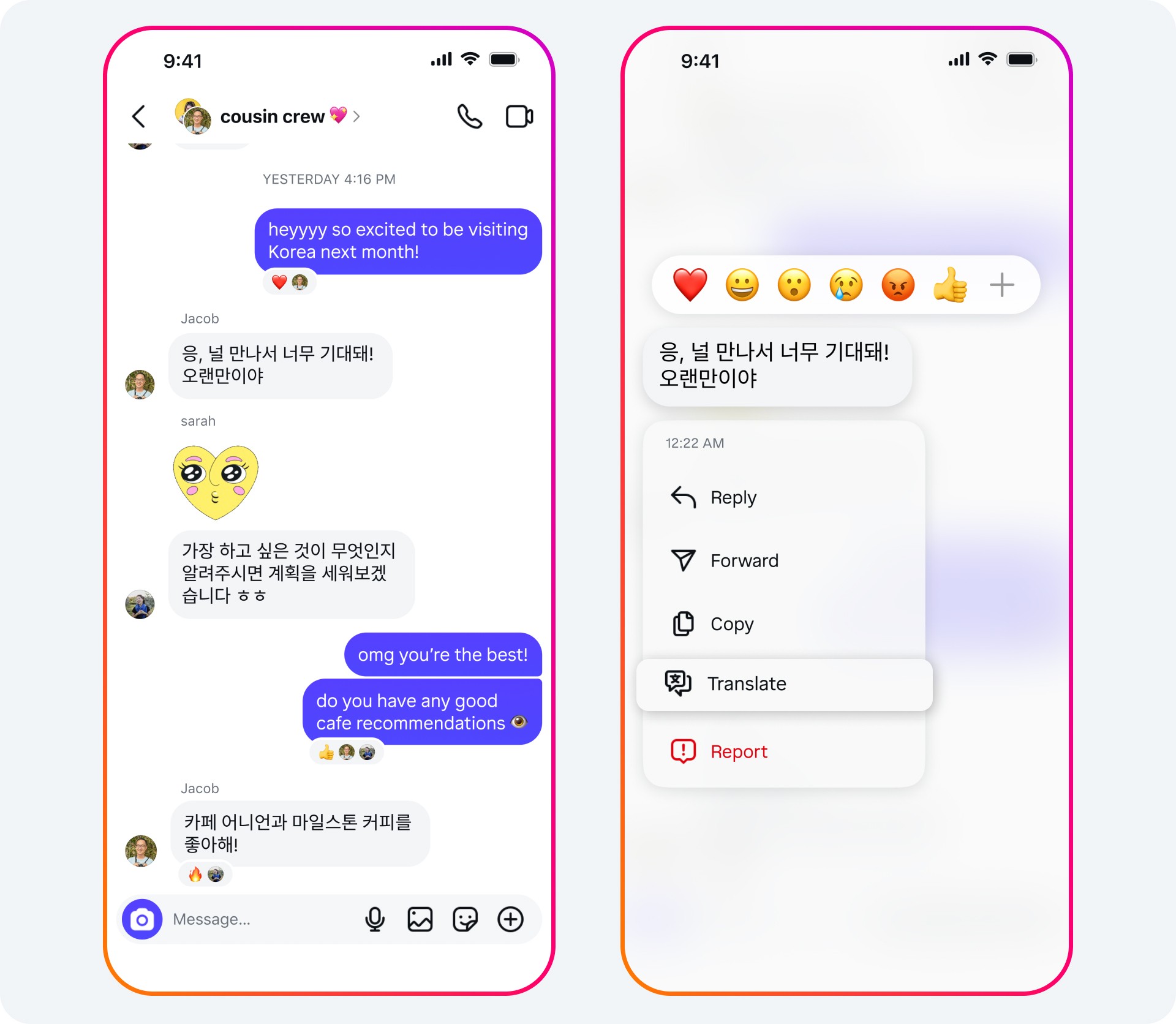
Instagram’s Official Position on Deleted Messages
Instagram’s Help Center makes one point very clear: Deleted messages cannot be restored through the “Recently Deleted” feature.
The “Recently Deleted” folder only applies to:
- Photos
- Videos
- Reels
- Stories
These items can be restored within:
- 24 hours for deleted stories
- 30 days for deleted posts, reels, and videos
Direct Messages are not included in this feature. Once deleted, they disappear from the app interface — but that does not necessarily mean they are gone forever.
Instagram stores certain data on its servers, and some of it can be retrieved through official tools.
How to Recover Deleted Instagram Messages
Below are the safest, policy‑compliant methods to recover deleted Instagram messages. These rely only on Instagram’s built‑in features or your device’s native tools.
1. Recover Messages Using Instagram Data Download
Instagram allows users to download a copy of their account data, including:
- Messages
- Photos
- Comments
- Profile information
- Settings
If the messages existed at the time you requested the data, they will appear in the downloaded file — even if they were later deleted from the app.
How to Request Your Instagram Data
- Open Instagram and go to your Profile.
- Tap the menu icon (three lines).
- Select Your activity.
- Scroll down and tap Download your information.
- Choose Request a download.
- Select your Instagram account.
- Choose the data you want to download (you may select Messages only).
- Tap Submit request.
- When the file is ready, tap Download and enter your password.
You can also download the file from the email Instagram sends you. The download link remains active for four days, so make sure to save it promptly.
What You’ll Find in the Data File
Inside the ZIP file, you’ll see folders containing:
- Message history
- Media shared in chats
- Account activity logs
Messages are usually stored in a JSON or HTML format, which you can open in any browser.
2. Recover Messages Using Android Notification History
Android 11 and newer versions include a Notification History feature that stores notifications even after they are dismissed. If Instagram message notifications were enabled before deletion, you may be able to view the original messages.
This method works only for received messages, not the ones you sent.
How to Enable Notification History
- Open Settings.
- Tap Notifications.
- Select Advanced settings.
- Tap Notification history.
- Turn it On.
Once enabled, you can scroll through past notifications, including Instagram message previews — even if the sender deleted the message afterward.
Limitations
- Only works if Notification History was enabled beforehand
- Only shows received messages
- Does not display disappearing photos or videos
Still, it can be a helpful way to retrieve important text that vanished unexpectedly.
3. Ask the Other Person to Forward the Messages
If you deleted the conversation but the other person did not, they may still have the full chat history. This is the simplest and most reliable method when both parties are willing to cooperate.
How to Request the Messages
Send a polite message such as:
“I accidentally deleted our chat and need to recover some information. If you still have the messages, could you forward them to me?”
If the recipient hasn’t deleted the conversation, they can:
- Screenshot the messages
- Copy and paste the text
- Forward the content manually
This method works for both individual and group chats.

How to See Deleted Instagram Messages (Without Recovering Them)
Sometimes you may not be able to restore deleted messages, but you can still view certain types of content through alternative methods. These approaches help you understand what was sent without restoring the original chat.
1. Check Message Requests and Hidden Requests
Instagram filters some messages into:
- Message Requests
- Hidden Requests (for potentially sensitive content)
If a message disappears from your main inbox, it may have been moved automatically.
How to Check
- Open Instagram.
- Tap the DM icon.
- Look for Requests at the top.
- Review both Requests and Hidden Requests.
Sometimes messages appear here even after being removed from the main inbox.
2. Review Synced Notifications on Paired Devices
If you use multiple devices — such as a tablet, secondary phone, or smartwatch — message previews may still be visible on those devices even after deletion.
Examples include:
- Smartwatch notification logs
- Tablet notification center
- Desktop browser notifications
These previews often remain until manually cleared.
3. Check Email Notifications (If Enabled)
Some users enable email notifications for Instagram messages. If this setting was active, you may find message previews in your inbox.
To check or enable this feature:
- Go to Profile → Settings.
- Select Notifications.
- Choose Email notifications.
This won’t restore deleted messages, but it may help you view older content.
Timely Backups: The Best Long‑Term Strategy
While recovering deleted Instagram messages is sometimes possible, the most reliable approach is regular backups. Instagram’s data download tool makes this easy.
How to Back Up Messages Regularly
- Go to Your activity.
- Tap Download your information.
- Select Messages.
- Submit the request.
You can repeat this process weekly or monthly depending on your needs.
This simple habit ensures you always have a copy of your conversations — even if something is deleted accidentally.
Frequently Asked Questions
Can a connected Facebook account restore deleted Instagram messages?
No. Even though Instagram and Facebook accounts can be linked, message histories are not synchronized. Deleting a message on Instagram does not preserve it on Facebook.
Why did my Instagram conversation disappear?
The conversation may have been deleted manually, removed by Instagram due to a report, or hidden due to filtering settings.
Can I view someone else’s Instagram archive?
No. Instagram does not allow users to access another person’s archived posts or stories.
Can I download my Instagram chat history?
Yes. Use Instagram’s Download your information tool to request your data, including messages.
Are deleted Instagram messages gone forever?
If they do not appear in your data download and were not captured by notification logs, they are likely permanently deleted.
Can police recover deleted Instagram messages?
With proper legal authorization, law‑enforcement agencies may request data from Instagram. This is handled directly between authorities and the platform.
Does Instagram store disappearing photos and videos?
Disappearing content is not stored in the same way as regular messages. Once viewed and deleted, it typically cannot be recovered.
Conclusion
Recovering deleted Instagram messages can be challenging, but not impossible. Instagram’s data download tool, Android’s Notification History, and message requests offer safe and effective ways to retrieve or view lost content. While not every message can be restored, understanding how Instagram stores data — and enabling the right settings — can help prevent future loss.
For parents, these methods also provide insight into how young users interact on Instagram, supporting safer and more mindful digital habits.