
Losing an iPhone is one of the most stressful experiences—especially when you’ve invested a significant amount of money into it. Most people rely on Apple’s Find My iPhone feature to track their device, but many forget to enable it beforehand. The good news is that even without this feature turned on, there are still several practical ways to locate a missing iPhone depending on where it was lost.
This guide explains what happens when Find My iPhone is disabled and walks you through effective methods to find your device at home, nearby, or outdoors.
What Happens When Find My iPhone Is Disabled?
When Find My iPhone is turned off, several important security and tracking features become unavailable:
- You cannot locate the device remotely. Apple’s GPS tracking and map location tools won’t work.
- Lost Mode cannot be activated. You cannot lock the device or display a custom message.
- Remote erase is unavailable. You lose the ability to wipe your data if the phone is stolen.
- Higher security risk. Without tracking or remote control, your data becomes more vulnerable.
Even so, you still have alternative ways to track your iPhone.
How to Find a Lost iPhone Without Find My iPhone
Even with the feature disabled, you can still try several methods depending on your situation.
General Methods to Try Immediately
These methods work regardless of where you lost your iPhone.
1. Call or Text Your Number
A simple call can help you locate the device if it’s nearby. Someone who finds it may also answer.
2. Use Your Apple Watch
If your Apple Watch is paired with your iPhone, you can use the Ping iPhone feature to make your phone emit a loud sound—even if Find My iPhone is off.
3. Retrace Your Steps
Think about where you last used your phone. Check:
- Restaurants
- Public transport
- Shops
- Offices
- Parks
Many lost phones are found this way.
4. Check Google Maps Timeline
If Google Location History was enabled, your iPhone’s last known location may still be visible.
5. Contact Your Carrier
Your mobile provider may:
- Help locate the device
- Suspend your SIM
- Block unauthorized usage
6. File a Police Report
If you suspect theft, report it with your iPhone’s IMEI or serial number.
If the iPhone Is Lost at Home or Nearby
Losing your iPhone inside your home is common. If the phone is on silent or Do Not Disturb, calling it may not help. Here are two effective methods.
Method 1: Use LED Flash for Alerts
iPhones can flash the rear LED light when receiving notifications. If this feature was enabled before losing your phone, it can help you spot it in a dark room.
How to try it:
- Dim the lights in your home.
- Use another phone to call or message your number.
- Look for a blinking light around the room.
Limitations:
- Works best in low light.
- Doesn’t show the exact location if the phone is hidden under objects.
- Only works if LED Flash for Alerts was enabled earlier.
Method 2: Use Your Apple Watch to Ping the iPhone
If your Apple Watch is paired with your iPhone, you can make your phone play a loud pinging sound.
Steps:
- Swipe up on your Apple Watch to open Control Center.
- Tap the Ping iPhone icon.
- Follow the sound until you locate your device.
This works even if the iPhone is on silent, as long as Bluetooth or Wi‑Fi is connected.
If the iPhone Is Lost Outside
Losing your iPhone outdoors is more stressful, but you still have options.
Method 1: Check Google Maps Timeline
Google Maps may have recorded your phone’s last known location.
Steps:
- Open Google Maps on another device.
- Sign in with the same Google account used on your iPhone.
- Tap your profile picture.
- Select Your Timeline.
- Review your location history for the day.
If Location Services were enabled, you may see where your phone last appeared.
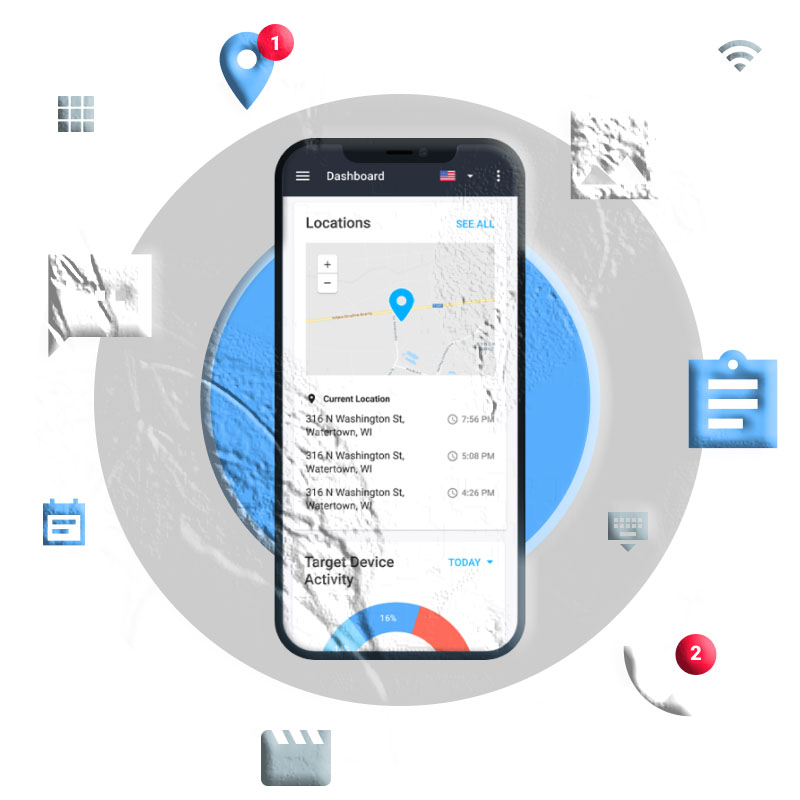
Method 2: Use a Third‑Party Tracking App
If you previously installed a tracking app (e.g., family locator apps), you may be able to see:
- Last known GPS location
- Movement history
- Device activity
This only works if the app was installed before the phone was lost.
Method 3: Contact Your Mobile Carrier
Your carrier may help by:
- Locating the device through network data
- Blocking the SIM
- Preventing unauthorized calls or data usage
Some carriers offer paid tracking services.
Extra Steps to Take When Your iPhone Is Lost Outside
Contact Your Phone
Someone may answer and help return it.
Report the Device as Lost
Your carrier can disable your SIM to protect your account.
Contact Apple Support
If you have AppleCare+ with Theft and Loss, you may qualify for a replacement.
Final Thoughts
Finding a lost iPhone without Find My iPhone is challenging, but not impossible. Whether it’s misplaced at home or lost outdoors, the methods above give you a realistic chance of recovering it. Moving forward, always enable:
- Find My iPhone
- Location Services
- iCloud backups
These features greatly increase your chances of recovering your device in the future.
FAQs
1. Can I track my iPhone if it’s turned off?
No. You can only see the last known location if tracking features were enabled before it powered off.
2. Can Google Maps track my iPhone even if Find My iPhone is off?
Yes, if Location History was enabled on your Google account.
3. Can my carrier track my iPhone’s exact location?
Carriers may provide approximate location data, but accuracy varies and may require legal authorization.
4. Can I locate my iPhone using IMEI?
You cannot track it yourself, but authorities and carriers may use the IMEI for identification.
5. Can I ping my iPhone without Find My iPhone?
Yes, if you have a paired Apple Watch.