

WhatsApp has become one of the world’s most trusted messaging platforms, thanks to its strong privacy and security features such as end‑to‑end encryption, two‑factor authentication, and biometric app lock. To enhance user privacy even further, WhatsApp recently introduced a powerful new feature: Chat Lock.
This feature allows you to hide and protect specific conversations behind a fingerprint, Face ID, or passcode. Whether you share your phone with family members or simply want to keep personal chats private, Chat Lock gives you an extra layer of control over your digital privacy.
Below is a complete, easy‑to‑follow guide on how Chat Lock works, how to enable it, how to view locked chats, and how to fix issues if the feature doesn’t appear.
What Is WhatsApp Chat Lock?
Chat Lock is a privacy feature that lets you secure individual or group conversations with biometric authentication or a passcode. Once a chat is locked:
- It moves to a separate hidden folder
- Message previews are hidden from notifications
- Only you can unlock and view the conversation
- WhatsApp functionality remains unchanged
Chat Lock is different from the general WhatsApp app lock.
- App Lock protects the entire WhatsApp app.
- Chat Lock protects specific conversations inside WhatsApp.
This feature is especially useful if you share your phone with others or want to keep sensitive conversations private.
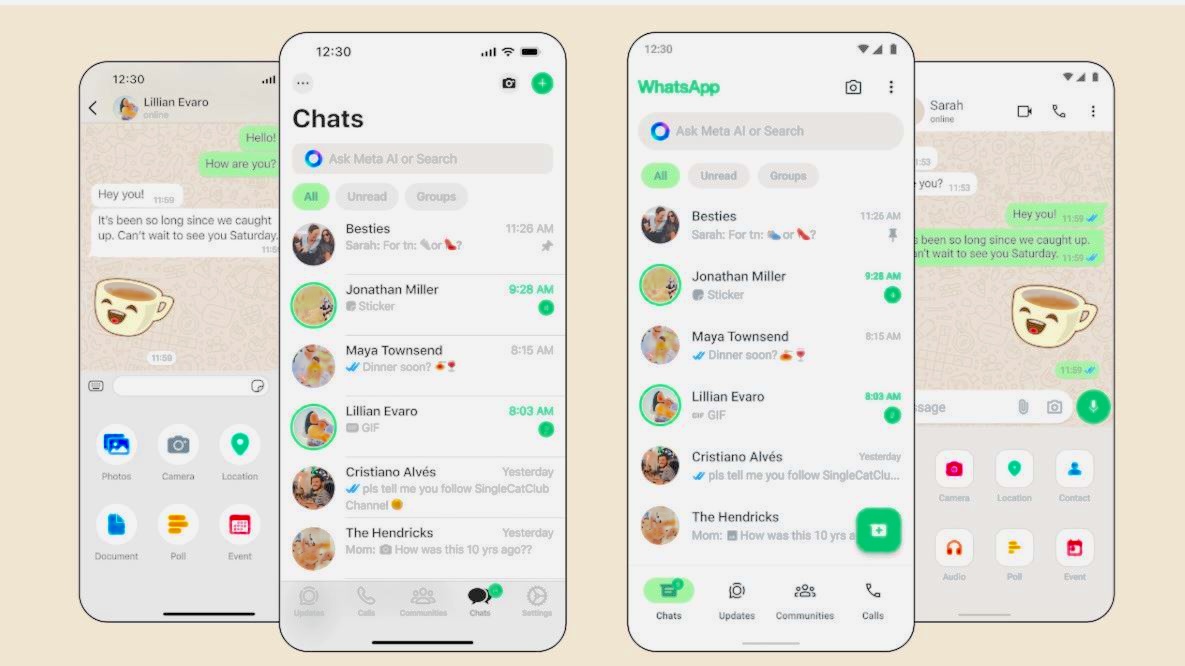
How to Lock WhatsApp Chat on Android
Follow these steps to lock any individual or group chat on your Android device:
- Open WhatsApp.
- Select the chat you want to lock.
- Tap the contact or group name at the top.
- Scroll down and find Chat Lock.
- Toggle Lock this chat with fingerprint.
- Authenticate using your fingerprint or PIN.
Once enabled, the chat will disappear from your main chat list and move to the Locked Chats folder.
How to Lock WhatsApp Chat on iPhone
Here’s how to enable Chat Lock on iOS:
- Open WhatsApp on your iPhone.
- Open the chat you want to lock.
- Tap the contact name at the top.
- Scroll down and select Chat Lock.
- Toggle the feature on.
- Authenticate using Face ID.
If you haven’t set up WhatsApp’s security lock before, WhatsApp will prompt you to enable it first.
How to View Locked Chats on WhatsApp
To access your locked conversations:
- Go to the Chats tab.
- Swipe down to reveal the Locked Chats folder.
- Authenticate using fingerprint, Face ID, or PIN.
- Tap the chat you want to view.
You can read messages, send replies, and share media just like normal.
How to Unlock WhatsApp Chat Lock
If you accidentally locked a chat or no longer need it hidden, you can easily unlock it.
On Android
- Open WhatsApp.
- Tap the Locked Chats icon.
- Authenticate with fingerprint or PIN.
- Open the chat you want to unlock.
- Tap the contact name.
- Scroll to Chat Lock and toggle it off.
- Authenticate again to confirm.
On iPhone
- Open WhatsApp.
- Tap the Locked Chats folder.
- Authenticate with Face ID.
- Open the chat.
- Tap the contact name.
- Turn off Chat Lock.
- Confirm with Face ID.
The chat will return to your main chat list.
WhatsApp Chat Lock Not Showing? Here’s How to Fix It
If the Chat Lock feature isn’t appearing on your device, try the following:
1. Update WhatsApp
Ensure you’re using the latest version from the Google Play Store or App Store.
2. Restart Your Phone
A simple reboot can fix minor glitches.
3. Clear WhatsApp Cache (Android Only)
Go to: Settings → Apps → WhatsApp → Storage → Clear Cache
4. Reinstall WhatsApp
If nothing works, uninstall and reinstall the app.
5. Feature Not Yet Rolled Out
WhatsApp releases features gradually. It may not be available in your region yet.
For official updates, you can check:
How to Lock Chats on WhatsApp Business
Currently, WhatsApp Business does not support Chat Lock. However, you can still protect your conversations using Fingerprint Lock.
Steps:
- Open WhatsApp Business.
- Tap the three‑dot menu → Settings.
- Go to Privacy.
- Select Fingerprint Lock.
- Set Automatically Lock to Immediately.
This ensures no one can open your WhatsApp Business app without authentication.
Monitor Your Child’s WhatsApp Messages Safely
If you want to supervise your child’s WhatsApp activity, parental control tools like MyParental allow you to monitor messages, screen time, and device usage. It provides remote access and helps parents ensure online safety.
Conclusion
WhatsApp’s Chat Lock feature is a powerful addition to its privacy toolkit. Whether you want to hide personal conversations, protect sensitive information, or simply add an extra layer of security, Chat Lock makes it easy to keep your messages private.
Once enabled, your locked chats remain hidden until you authenticate using fingerprint, Face ID, or a passcode. With WhatsApp’s ongoing updates, users can expect even more advanced privacy features in the future.
Additional FAQs
1. Do locked chats still receive notifications?
Yes. You will receive a notification, but the message content and sender name will be hidden.
2. Can I lock multiple chats at once?
You must lock each chat individually; bulk locking is not available.
3. Does Chat Lock hide media in the gallery?
No. Media visibility depends on your Media Visibility settings.
4. Can someone else unlock my chats using their fingerprint?
No. WhatsApp only accepts fingerprints registered on your device.
5. Are locked chats backed up?
Yes, they are included in your WhatsApp backup but remain protected.
6. Can I use Chat Lock on archived chats?
Yes, archived chats can also be locked.
7. Does Chat Lock work on linked devices (WhatsApp Web)?
Locked chats remain hidden on linked devices for added privacy.